

Essential Insights
-
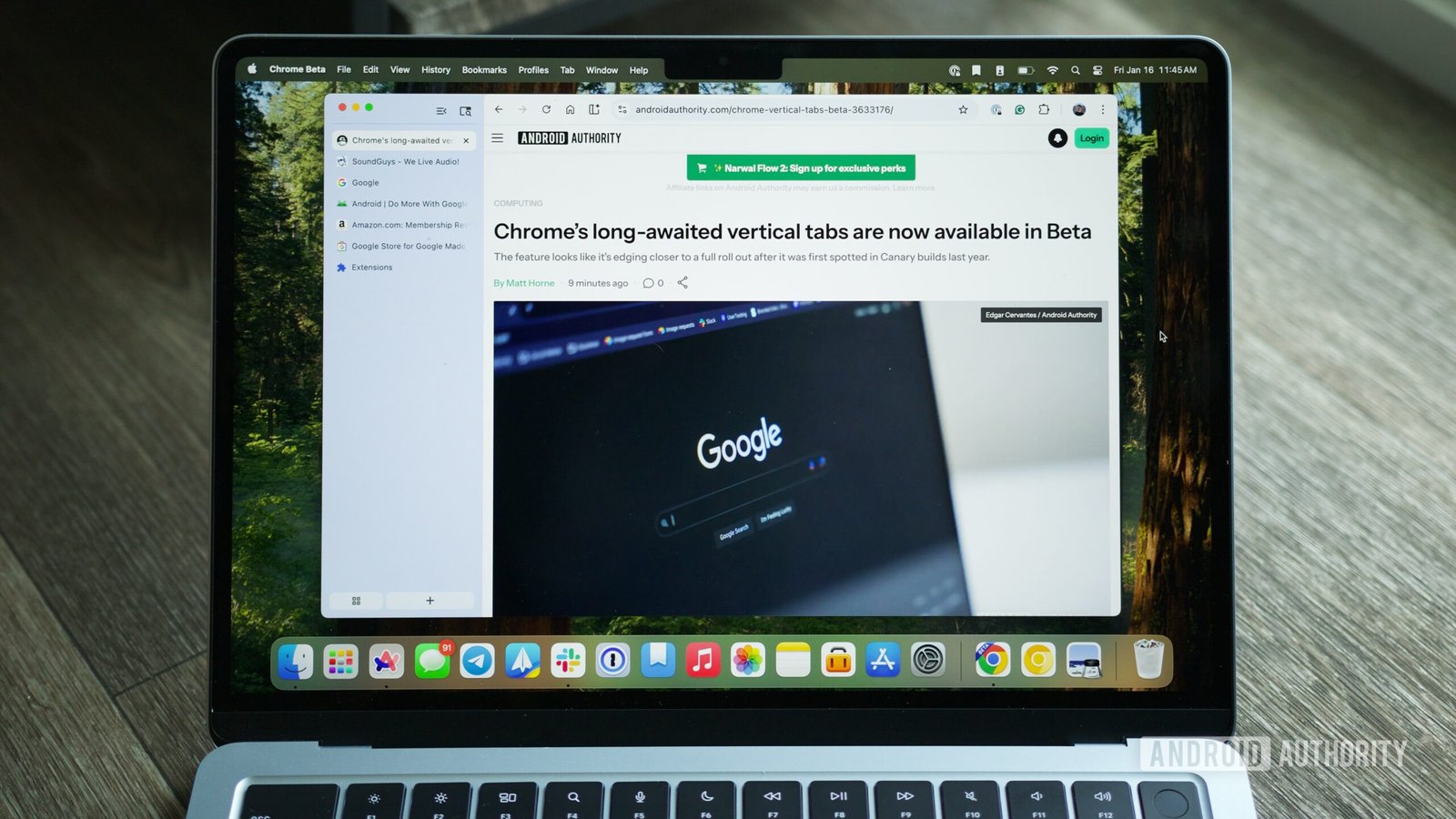
Vertical Tabs Arrival: Google Chrome has introduced vertical tabs, enhancing browser organization and aesthetics, similar to features in Edge, Firefox, Arc, and Vivaldi.
-
Activation Process: Users must download Chrome Beta or Canary, enable vertical tabs through the flag settings, and then can easily access them by right-clicking above the address bar.
-
User-Friendly Features: The vertical tab layout includes shortcuts for creating new tabs and managing tab groups, promoting better organization while allowing tabs to be minimized for a cleaner view.
-
Areas for Improvement: The setup currently has limitations, such as tab actions when minimized and a disjointed interface between the address bar and tabs, but Google has opportunities to refine these features before the general release.
How to Enable Vertical Tabs in Google Chrome Right Now
Google Chrome has introduced a much-anticipated feature: vertical tabs. While other browsers like Edge and Firefox have long offered this layout, Chrome users can finally join the trend. Vertical tabs may seem like a minor change, but many find them cleaner and more organized.
To start using vertical tabs, you need Chrome Beta or Chrome Canary. These versions allow users to access features still in testing. If you haven’t downloaded them yet, do so.
Next, follow these simple steps:
- Open Chrome Beta or Chrome Canary.
- Type
chrome://flags/in the address bar. - In the search box, type “vertical tabs.”
- Select the drop-down menu next to it and choose “Enabled.”
- Click the “Relaunch” button at the bottom.
After relaunching, right-click above the address bar and choose “Move tabs to the side.” Voila! Your tabs now appear on the left side of the browser. If you still see horizontal tabs, restart Chrome to ensure the change takes effect.
Switching back to horizontal tabs is equally easy. Simply right-click the area above the vertical tabs and select “Move tabs to the top.” However, this option may not appear in full-screen mode on Mac, so minimize your window first.
Vertical tabs offer several advantages. For one, they group shortcuts for creating new tabs and managing existing ones in a single menu. This organization can make navigating through multiple tabs much easier. Additionally, the ability to minimize the tab menu while still viewing tab icons is a nice touch.
However, it’s worth noting a few drawbacks. In minimized view, clicking a tab closes it instead of switching to it, which can be frustrating. Moving the address bar to the top of the vertical tab menu would also enhance the layout. Fortunately, since this feature is still being refined, Google may address these issues before the final release.
Overall, trying out vertical tabs can significantly enhance your browsing experience. Will you join the #TeamVerticalTabs? The future of web browsing looks promising, and Google’s latest update is a step in the right direction.
Stay Ahead with the Latest Tech Trends
Dive deeper into the world of Cryptocurrency and its impact on global finance.
Explore past and present digital transformations on the Internet Archive.
GadgetsV1
