

Essential Insights
- iPhone batteries degrade over time, reducing capacity and battery life; Apple provides tools to monitor health and cycle count.
- Checking battery health is simple via Settings > Battery > Battery Health; capacity below 80% indicates significant degradation.
- iPhone 15 and newer allow direct cycle count checks in Settings, while older models require third-party apps like coconutBattery.
- For optimal longevity, enable features like Optimized Battery Charging and set maximum charge limits; consider battery replacement after 1,000 cycles or below 80% capacity.
Understanding Your iPhone’s Battery Health
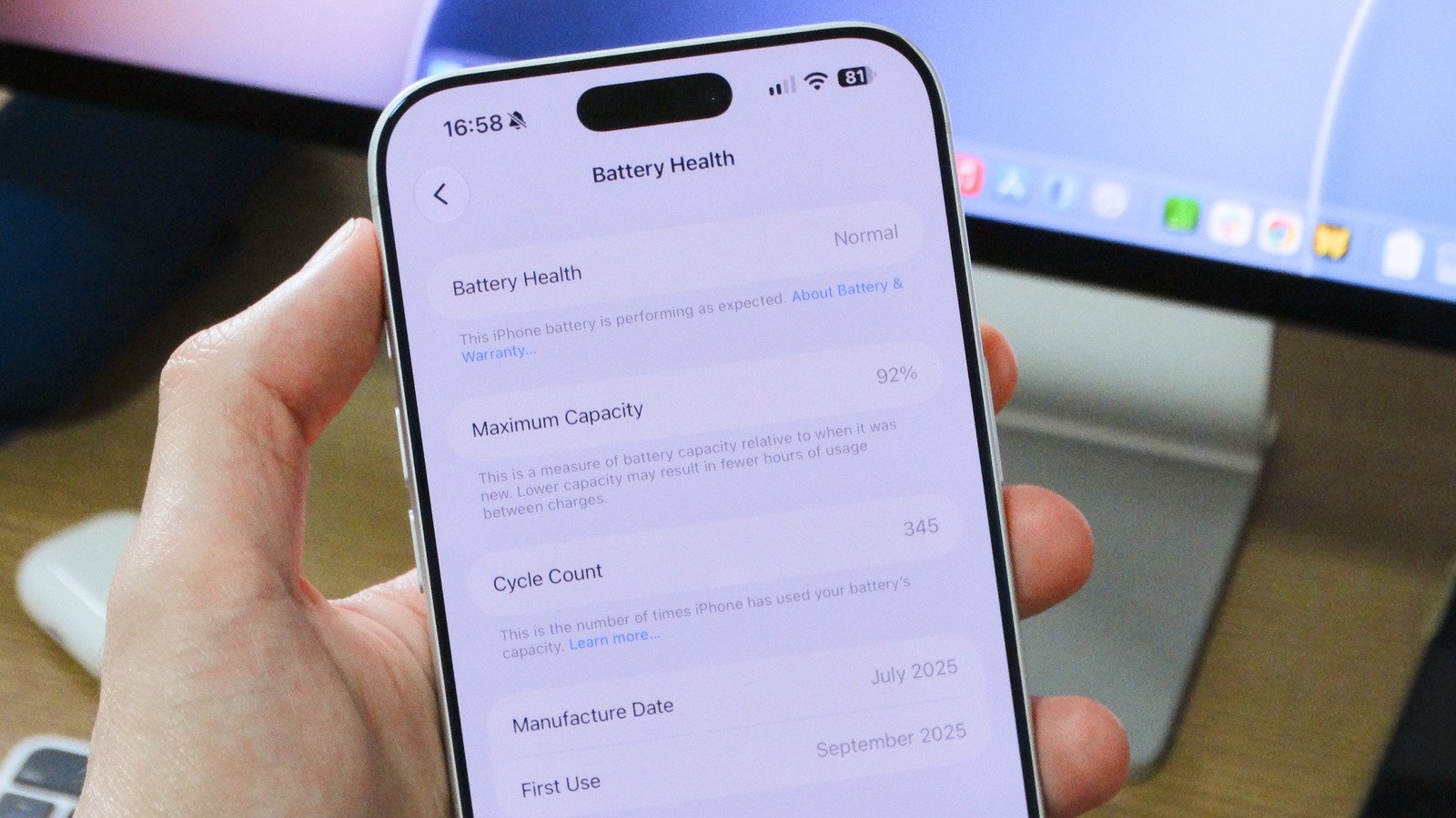
Your iPhone’s battery plays a crucial role in how your device performs daily. Over time, batteries age and their capacity decreases. Luckily, Apple offers built-in tools that help you monitor this. To check your battery health, simply open the Settings app. Next, tap on Battery, then look for Battery Health. On some older models, this section is called Battery Health & Charging. This screen shows your battery’s maximum capacity compared to when it was new. For example, if your battery capacity is at 85%, it can hold 85% of its original charge. This number helps you understand if your battery still works well. If it drops below 80%, your device might not last as long between charges. Additionally, iOS may activate performance management features if your battery is worn out. Knowing these details lets you plan for replacements or optimize your charging habits. Using these tools, you stay informed and can keep your iPhone running smoothly longer.
What Battery Numbers Actually Mean
The Maximum Capacity percentage gives insight into your battery’s overall health. Apple states that most batteries are designed to retain up to 80% of their original capacity after about 500 to 1,000 full charge cycles. For newer models like the iPhone 15 and later, Apple recommends that new batteries endure up to 1,000 cycles before significant degradation. Older models typically last around 500 cycles. A cycle count is the total number of full charges your battery has gone through, not just partial charges. For example, charging your battery from zero to 50%, then again from 50% to 100%, counts as one cycle. As your cycle count nears the maximum, your battery’s capacity shrinks. You might notice shorter periods between charges or reduced performance. If your battery health drops below 80%, Apple suggests considering a replacement. When the cycle count hits 1,000 or more, the battery may need a professional replacement to keep your device functioning well.
How to Check Cycle Count and Why It Matters
If you own an iPhone 15 or newer, checking your cycle count is straightforward. Head to Settings, tap Battery, then Battery Health. Scroll down, and you’ll find your cycle count listed there. This number helps you judge how much your battery has been used over time. For older iPhones, Apple doesn’t display this info directly. Instead, you can use third-party apps like coconutBattery on a Mac. These tools show detailed battery information, including cycle count. Knowing your cycle count helps you gauge your phone’s longevity. Higher numbers mean more wear and tear. If your battery is nearing 1,000 cycles or its capacity falls below 80%, it’s wise to consider replacing the battery. Doing so can restore your iPhone’s battery life and performance. Regularly checking these numbers empowers you to make better decisions, whether you’re taking care of your current device or inspecting a used phone before buying. Maintaining awareness of your battery’s condition keeps your iPhone running at its best, and helps you get the most from your device over time.
Continue Your Tech Journey
Dive deeper into the world of Cryptocurrency and its impact on global finance.
Discover archived knowledge and digital history on the Internet Archive.
CellphonesV1
