

Summary Points
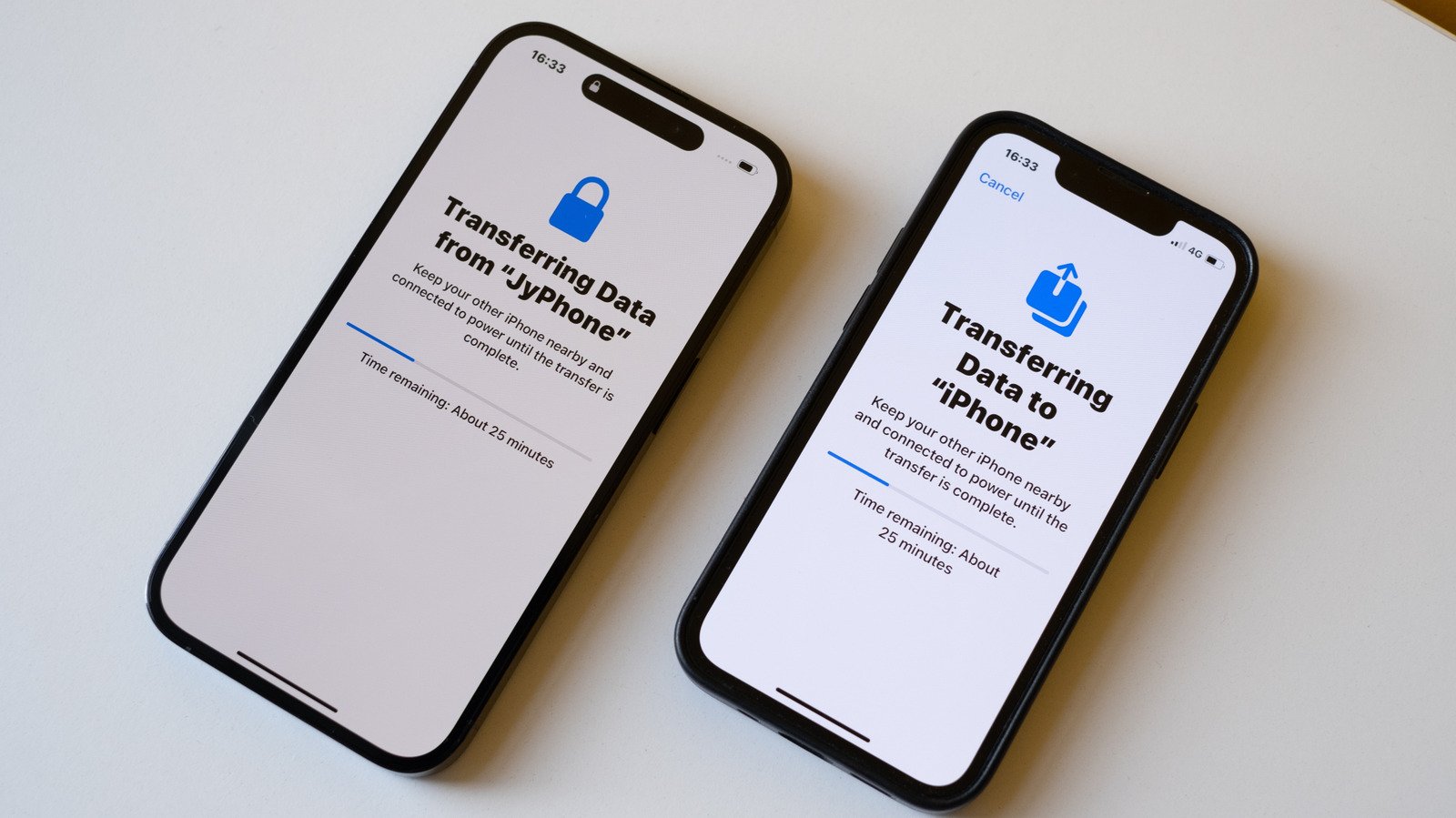
- Quick Start simplifies iPhone setup by enabling wireless data transfer simply by placing the devices next to each other, with options for wired connection if needed.
- The feature transfers almost all data, including contacts, photos, messages, and app settings, reducing the hassle of manual reinstallation or data loss.
- Troubleshooting tips include restarting the transfer, using wired connections for large data, and ensuring both devices run the latest iOS version to avoid common issues.
- If the old device is unavailable, users can restore data from iCloud backups or connect to a Mac or PC to transfer data manually, ensuring flexibility in setup.
Effortless Transfer Using Quick Start
Transferring your data from an old iPhone to a new one has gotten easier than ever. Apple’s Quick Start feature simplifies this process. To begin, turn on your new iPhone close to your current device. A prompt appears asking if you want to set up the new phone. Confirm it with your Apple ID. Then, an animation pops up on your screen. Use your old iPhone to scan this animation. This pairing starts the transfer seamlessly. Next, follow a few simple setup steps. You’ll need to enter your passcode, and set up Face ID or Touch ID. At this point, your new iPhone will ask how to transfer your data. You can choose to restore from an iCloud backup or transfer directly from your old iPhone. If speed matters, iCloud is a quick option, especially if your Wi-Fi is fast. Otherwise, a direct wireless transfer transfers most data immediately, including contacts, photos, and app settings. Plus, if Wi-Fi doesn’t work, connecting the devices with a cable speeds things up and makes sure nothing stalls.
Overcoming Common Transfer Challenges
Sometimes, transferring data doesn’t go smoothly, but you can fix most issues easily. One common problem happens when the Wi-Fi signal is weak, causing the process to slow down or stop altogether. If this occurs, avoid watching the progress bar. Instead, restart both iPhones safely. Once rebooted, try the transfer again. Using a cable can help if wireless transfer fails. You need the right cable—either USB-C or Lightning, depending on your devices. Connect the devices directly, and like magic, transfer speeds can be faster. Newer iPhones, like iPhone 15 Pro, support USB 3, making data moves up to 10Gbps. That’s 20 times faster than older USB 2 cables. Also, be aware of storage space. If your new phone doesn’t have enough room, delete some large files first. Lastly, keep both devices updated with the latest iOS. Outdated software can cause errors or incomplete transfers. Following these steps makes the switch smoother, so you get your new phone ready without frustration.
Data Transfer Without Your Old iPhone
What if your old iPhone isn’t with you? Don’t worry. Before you get a new iPhone, back up your current device to iCloud. This way, your data stays safe and ready to restore. When your new device arrives, turn it on and sign in with your Apple ID. You’ll see options to restore from an iCloud backup. Choose that, and the device will download your data over Wi-Fi. Alternatively, you can connect your new iPhone to your computer, whether Mac or PC. Mac users will see their device listed in Finder; Windows users need the Apple Devices app from the Microsoft Store. Connect your old iPhone to back it up on the computer, then disconnect it. Next, connect your new iPhone and select “Restore from Backup”. Within minutes, most of your apps and settings will transfer. This method works perfectly even if your old iPhone isn’t physically present, making switching to a new device simple and stress-free.
Discover More Technology Insights
Explore the future of technology with our detailed insights on Artificial Intelligence.
Explore past and present digital transformations on the Internet Archive.
CellphonesV1
