

Essential Insights
- CarPlay’s bell icon means Siri is set to announce incoming messages.
- Drivers can manage announcements in Settings → Notifications → Announce Notifications → CarPlay.
- Limiting announcements to essential apps can reduce distractions and protect passenger privacy.
- Driving Focus can automatically filter alerts when CarPlay connects, helping drivers keep attention on the road.
What the Bell Icon Means in CarPlay
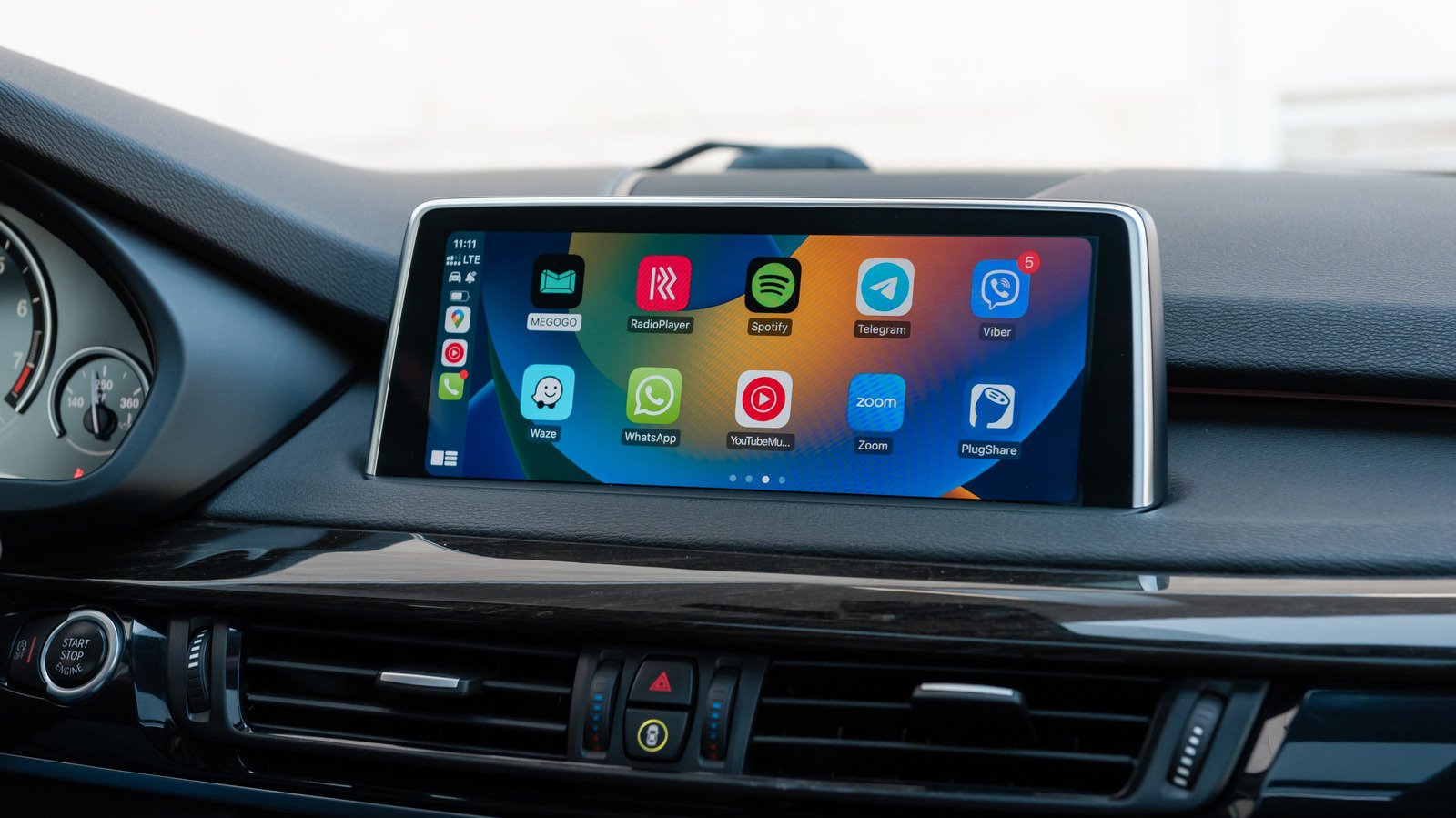
CarPlay keeps its screen simple so drivers can focus on the road. That simplicity can leave some icons unexplained, though. If you see a bell on CarPlay’s app switcher, it points to Siri’s message-announcement setting.
When the feature is on, Siri can read incoming messages aloud from supported apps. You can hear a message without reaching for your iPhone or opening an app. That can help when a family member shares an important update or a friend says plans have changed.
However, the bell does not mean every notification will interrupt you. Your iPhone’s settings determine whether CarPlay announces messages, stays quiet or remembers your previous choice. The setting can also apply to messages from third-party apps, depending on which apps you allow.
The feature has clear trade-offs. A useful message may reach you sooner, but a busy group chat can bring a string of interruptions. And if you have passengers, they may hear private messages that you would rather keep to yourself. The bell offers a quick clue about the feature, but your iPhone gives you the controls.
Choose Which Messages Siri Announces
To adjust the setting, open your iPhone’s Settings app. Tap Notifications, then Announce Notifications, then CarPlay. There, you can choose how CarPlay handles message announcements.
“Remember Previous Setting” is the default. CarPlay follows the choice you made the last time you used the feature. You can also tell CarPlay to announce messages whenever it connects, or to silence them every time.
Next, check which apps can send announcements. Go to Settings, then Notifications, then Announce Notifications. Choose the apps you want Siri to read aloud. Consider allowing messages from people who may share time-sensitive information. Turn off announcements from apps that rarely need your attention while driving, such as shopping or food delivery services.
Your ideal setup depends on your routine. A driver who relies on updates from family may welcome a few announcements. Someone who receives frequent work messages may prefer silence. Either way, fewer alerts can make it easier to keep your attention on traffic, signs and other drivers.
If you share the car, consider privacy as well as convenience. Siri’s announcements can make a message audible to everyone in the vehicle. You can limit the apps that speak or silence announcements when you have passengers.
Pair Message Announcements With Driving Focus
For broader control, use Driving Focus on your iPhone. It can limit calls and notifications while you drive, rather than managing message announcements alone. To set it up, open Settings, tap Focus, then tap Driving. If Driving does not appear, tap the plus sign to add it.
You can choose which contacts may reach you and set an automatic reply for people who message while you drive. You can also review Intelligent Breakthrough and Silencing. When that option applies, it may allow certain notifications through if your iPhone considers them important.
To have Driving Focus turn on with CarPlay, open the Driving Focus settings. Scroll down, tap While Driving, then turn on Activate With CarPlay. After that, your iPhone can switch the Focus on or off as CarPlay connects or disconnects.
The bell icon is a small sign of a useful feature, not a command to hear every message. Set announcements and Driving Focus to match your needs. Then test the combination before you drive. It may take a little adjustment, but a quieter screen and fewer spoken alerts can help you stay focused without cutting you off from important updates.
Discover More Technology Insights
Dive deeper into the world of Cryptocurrency and its impact on global finance.
Stay inspired by the vast knowledge available on Wikipedia.
CellphonesV1
