

Essential Insights
1. Drivers can hide and reorder apps, then add one-tap shortcuts for contacts or Assistant actions.
2. Android Auto lets drivers position navigation or media closer, depending on their priorities and screen size.
3. Drivers can mirror their phone’s wallpaper and choose map day or night mode.
4. Turning off automatic media playback and tailoring the display can make driving smoother and less distracting.
Put your most-used apps within easy reach
Android Auto often keeps its default layout until you change it. A few adjustments can make the dashboard feel more personal and put the tools you use most closer at hand. You can make most changes from your phone while the car is parked.
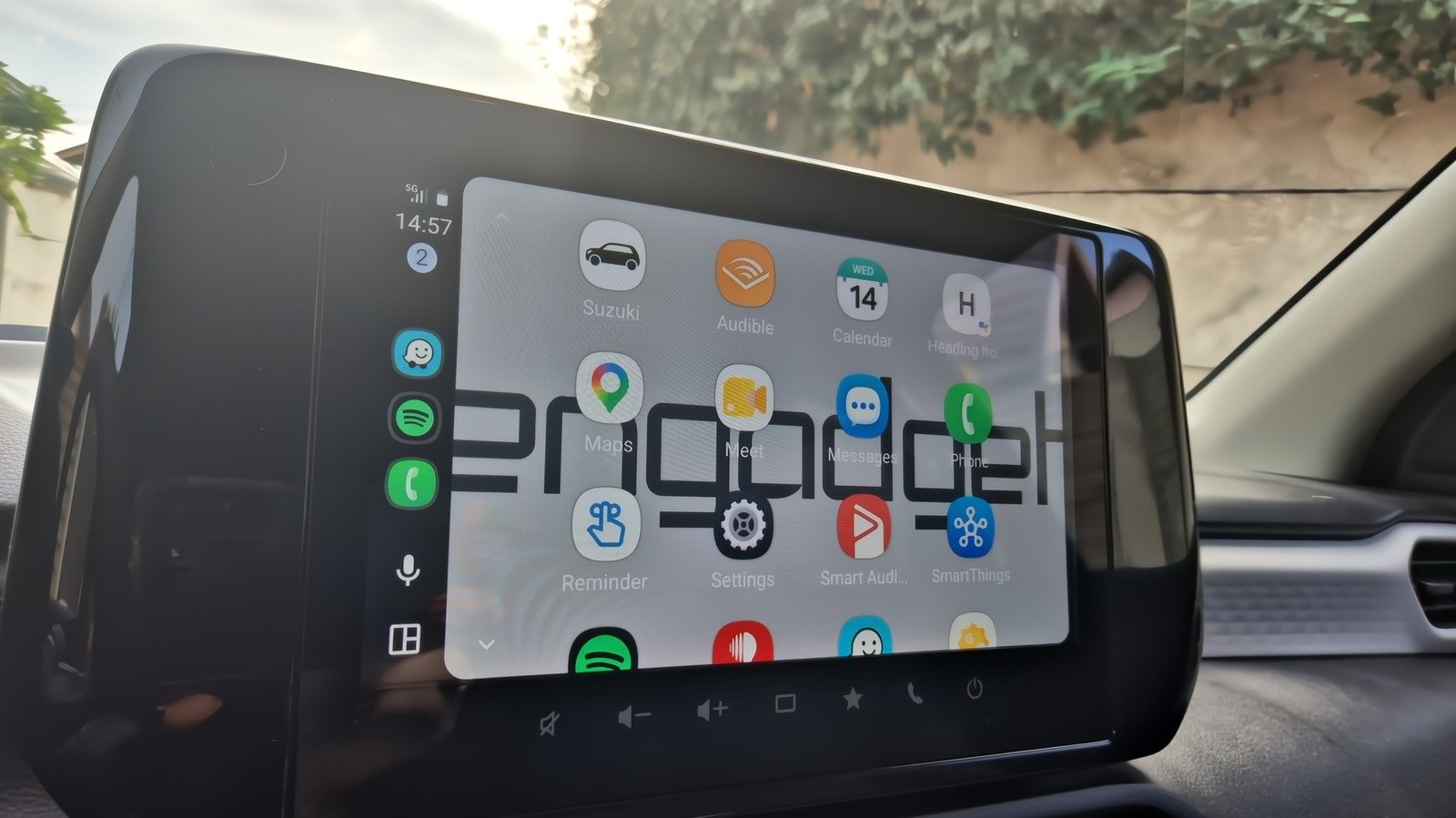
Open your phone’s Settings, then go to Connected devices and Android Auto. You can also search Settings for “Android Auto,” since menu names may vary by phone. Tap Customize launcher to see the apps that appear on your car’s display.
From there, hide apps you rarely use and drag the others into your preferred order. If you listen to music on every drive, move your music app near the top. If you rarely use a weather or reminder app in the car, move it down or hide it. Hiding an app removes it from the Android Auto launcher, but it does not uninstall it from your phone.
You can also add shortcuts to call a contact or start an action with your voice assistant. For example, a shortcut could call someone you speak with often or ask for directions home. Once you set it up, you can tap the shortcut on the launcher or use a voice command. That can save time, but it does not replace safe driving. Set up shortcuts before you leave, and avoid handling your phone or screen while driving.
Choose a layout that suits your drive
Your dashboard layout can change how quickly you reach the information you need. In Android Auto’s settings, look for Change layout. The option lets you choose whether the map or media player sits closer to the driver.
If you depend on turn-by-turn directions, put the map in the more accessible position. If you spend most of your drive listening to podcasts or playlists, you may prefer to bring media forward. Try both options while parked. A wide display may show split-screen information comfortably, while a smaller screen may feel crowded.
You can also adjust the map’s appearance. Android Auto usually switches between day and night modes automatically, based on conditions such as time of day and ambient light. If you prefer one mode, open the Maps section in Android Auto settings and choose it there. A fixed setting may feel more consistent, though automatic switching can better match changing light.
Small visual choices matter, but they should support attention rather than compete with it. Keep the most useful information easy to glance at. Avoid filling the screen with distractions. Above all, make changes while parked, then check that the setup feels clear from the driver’s seat.
Match the background and startup behavior to your habits
Android Auto can also use your phone’s wallpaper as the car display’s background. To turn on the option, open Android Auto on your car’s screen, go to Settings and enable Use phone’s wallpaper. You must change this setting from the car display, not from your phone. The result will not transform the interface, but it can make the screen feel less plain and more like your own.
You can also decide whether Android Auto starts playing media automatically when you begin a drive. Look under the Startup settings for the automatic media playback option. Turn it off if you prefer to choose your music or podcast yourself. Keep it on if you want your usual audio to start without extra steps.
These settings take only a few minutes to explore. Together, they can make Android Auto easier to navigate and better suited to a daily commute or a long road trip. The best setup is not the one with the most changes. It is the one that gives you quick access to what matters, while keeping your attention on the road.
Continue Your Tech Journey
Dive deeper into the world of Cryptocurrency and its impact on global finance.
Explore past and present digital transformations on the Internet Archive.
CellphonesV1
