

Summary Points
- Charging remains awkward: The Magic Mouse’s USB-C port is still on its underside, making it unusable while charging.
- Its sleek shape can be uncomfortable: The low profile, limited palm support, and aluminum edges may strain users’ hands.
- Gestures come at the cost of controls: The touch surface enables smooth scrolling, but the mouse lacks a middle-click and programmable side buttons.
- Alternatives offer more for less: Third-party mice provide traditional controls and contoured grips, though they may not match Apple’s gestures.
The Biggest Downsides to Using Apple’s Magic Mouse
Apple’s Magic Mouse can make a spreadsheet feel less like a spreadsheet. Its smooth touch surface lets you scroll sideways, swipe between desktop spaces and move through macOS without a wheel. That sleek design has real appeal.
But style and clever gestures do not solve every problem. The mouse still makes charging awkward, offers little room for your hand and skips physical buttons that many users rely on. Apple switched its charging port to USB-C in 2024, yet left the port in the same inconvenient place. For people who use a mouse all day, those compromises can outweigh the polish.
Charging interrupts use, and the slim shape can strain your hand
The Magic Mouse’s charging port sits on its underside. When the battery runs low, you must flip the mouse over and plug it in. Then you must wait before you can use it again.
That choice feels especially odd because Apple lets you use its Magic Keyboard and Magic Trackpad while they charge. The 2024 move from Lightning to USB-C makes it easier to share cables with newer Apple devices. However, it does nothing to fix the central problem: You cannot use the mouse while it charges.
Fortunately, the battery can last around a month or longer between charges. So, most people will not face this interruption every day. Still, a nearly empty battery can arrive at the worst moment, such as during a deadline or an important video call. Apple also does not specify how many years the built-in rechargeable battery should last.
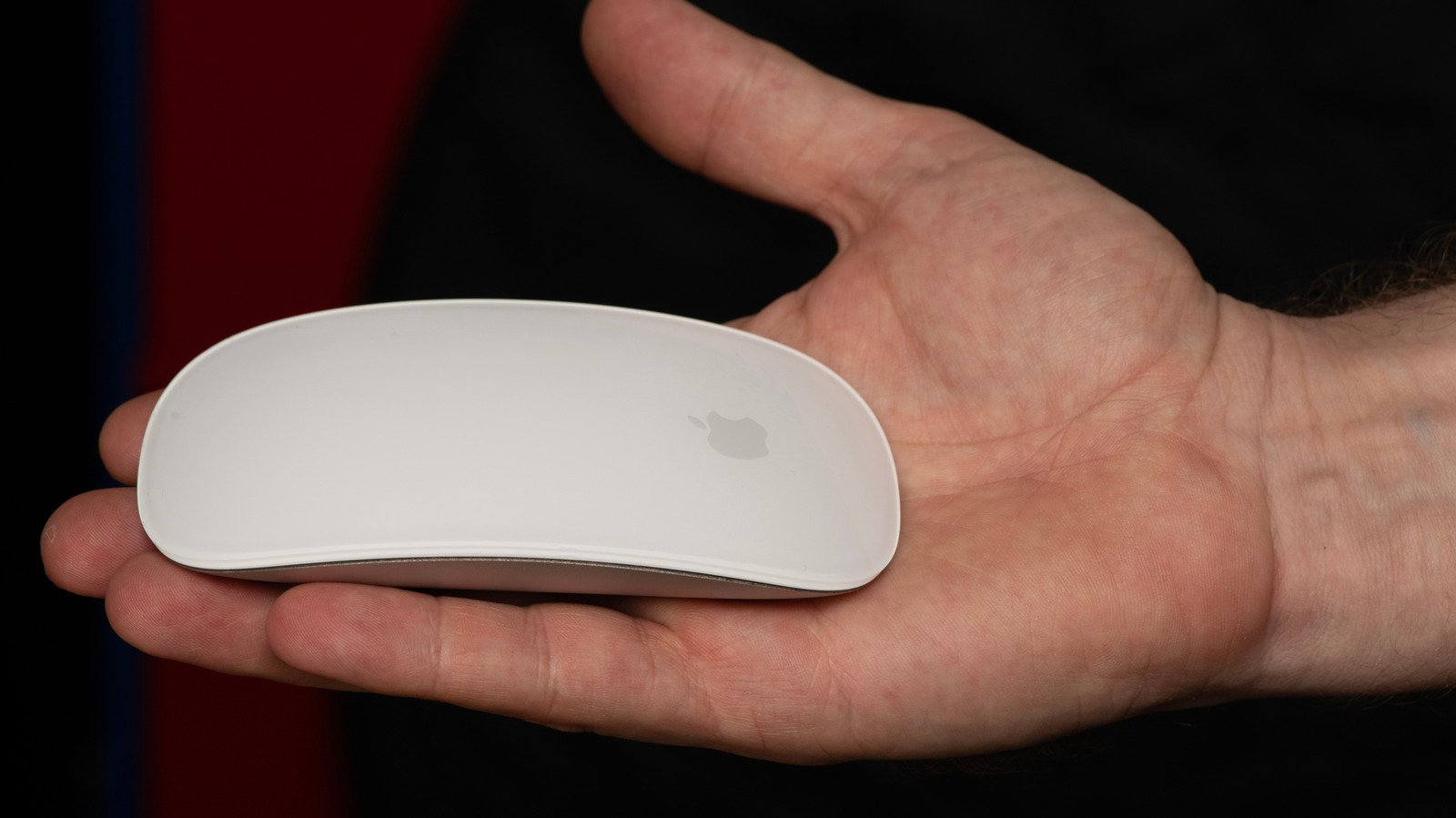
Comfort creates another concern. The mouse stands only 0.85 inches tall, and its low profile leaves little space for your palm. Its aluminum sides may also press against your fingers. People who use a fingertip grip may adjust quickly. Those who rest most of their hand on a mouse may find the shape tiring over long sessions.
That slim body helps the Magic Mouse look distinctive and slide neatly into a bag. It also reflects Apple’s focus on a clean, minimalist design. Yet a mouse should fit the hand as well as the desk. If comfort ranks high on your list, try the shape before you buy.
Touch gestures add flexibility, but physical controls remain limited
The Magic Mouse replaces a traditional scroll wheel with a touch-sensitive surface. That approach has a clear benefit: You can scroll vertically or sideways with a finger. Sideways scrolling can feel especially natural when you work with wide spreadsheets, timelines or large documents. Gestures can also help you move around macOS without reaching for the keyboard.
However, a touch surface does not provide the same physical feedback as a wheel or button. A finger can swipe by accident. Some users may also need time to learn which gestures work and how much movement they require. If you prefer clear, tactile controls, the surface can feel less predictable than a conventional mouse.
The Magic Mouse also lacks a middle button and a programmable thumb button. That gap matters in some creative and technical work. For example, many CAD programs use the middle mouse button to pan around a drawing. Without it, users may need a different control or extra software.
Third-party utilities can add functions, but that adds another step. Buyers who spend premium-mouse money may reasonably expect familiar controls to work out of the box. The Magic Mouse starts at $79 in white and costs $99 in black, according to the listed prices in the source information. At those prices, missing buttons stand out.
Not every user needs extra controls. If you mainly browse the web, write documents or use Apple’s gestures, the simple layout may feel refreshingly uncluttered. But people who rely on shortcuts, custom buttons or precise control may find the mouse restrictive.
Its premium look has value, but other mice offer a better fit for some
The Magic Mouse earns its fans. It pairs a recognizable Apple design with smooth touch gestures and easy integration with macOS. Its low profile also makes it easy to carry, and the long battery life reduces how often you need to charge it. For users who value those traits, the mouse can feel like a natural part of the Mac experience.
Still, a Mac does not require an Apple mouse. Other wireless models work with macOS, though they may not reproduce the Magic Mouse’s touch gestures. Logitech’s Signature M650, for example, offers a contoured grip, a conventional scroll wheel and physical side buttons. The source information lists it at about $39.99, roughly half the Magic Mouse’s starting price.
That does not make one choice right for everyone. A traditional mouse may provide more comfort and control. Apple’s model may suit people who prefer a slim design and gesture-based navigation. The trade-off depends on how you work, how long you use a mouse each day and which features you value most.
Apple improved the connection standard when it moved the Magic Mouse to USB-C. That change makes sense, and it removes one older cable from the mix. Yet it leaves the charging position, low profile and limited button layout untouched. Those details matter because they shape the everyday experience, not just the first impression.
The Magic Mouse remains an appealing accessory with genuinely useful features. But before choosing it, consider the moments beyond the gestures: the long work session, the low battery and the task that needs a middle click. That is where its most notable compromises come into focus.
Continue Your Tech Journey
Learn how the Internet of Things (IoT) is transforming everyday life.
Access comprehensive resources on technology by visiting Wikipedia.
CellphonesV1
