

Essential Insights
- Android Auto can show community-reported speed and red-light cameras through Google Maps or Waze—without extra hardware, though reports may not cover every camera.
- Google Maps camera alerts are enabled under Settings → Navigation by turning on alerts for reported incidents.
- Waze offers more camera-alert options and may report enforcement more frequently; its settings carry over to Android Auto.
- Both apps can display speed limits and GPS-based speed, while Waze can also alert drivers when they exceed a chosen speed threshold.
Speed-camera alerts can add a useful layer of awareness when you drive through an unfamiliar area. Android Auto can display warnings through Google Maps or Waze, using reports that other drivers submit. The alerts may help you spot a camera or a sudden change in speed limit. They cannot guarantee that you will see every enforcement device, however. Use them as a prompt to check your speed, not as a substitute for safe driving.
Turn on camera alerts in Google Maps or Waze
Android Auto usually opens Google Maps by default. To enable its alerts, open Google Maps on your phone while parked. Tap your profile photo, then go to Settings > Navigation. Turn on Get alerts for reported incidents and other conditions that may impact your drive.
That setting covers reported incidents and road conditions. Google Maps may not flag cameras as often as Waze, though. If camera warnings matter to you, Waze offers more specific controls.
Open Waze on your phone. Then go to Settings > Alerts and reports > Reports > Cameras. Choose the camera alerts you want, such as warnings for speeding cameras, red-light cameras and mobile police cameras. Turn on alerts for the types that matter to you.
The menu names may change with app updates. Also, camera-reporting options can vary by region. Set everything up before you start driving. When you connect your phone to Android Auto, the app should carry your alert preferences over to the car’s display.
Choose the app that fits your drive
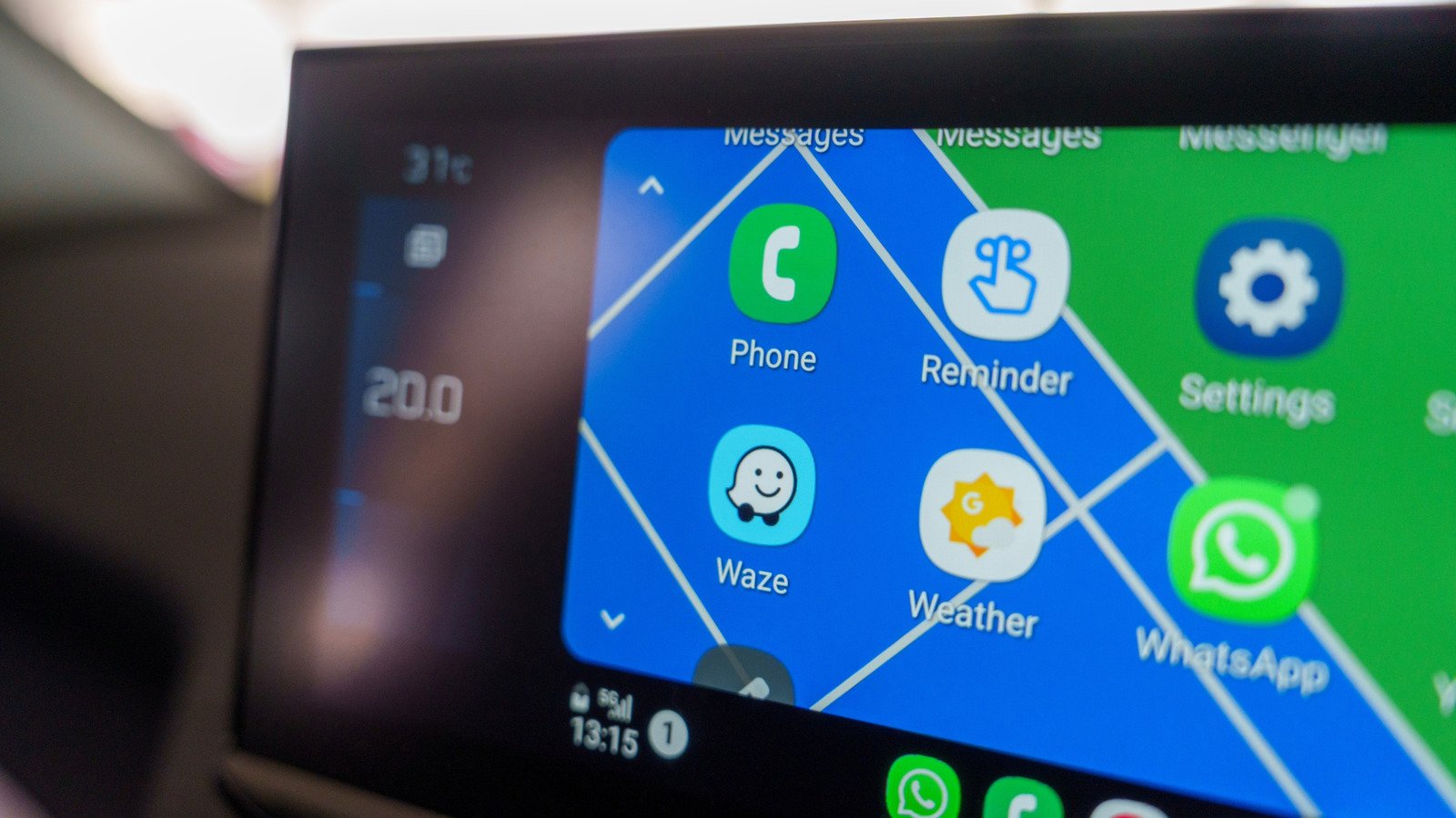
Google Maps and Waze both work with Android Auto, but they handle camera information differently. Waze gives drivers more control over camera alerts. Its community also reports hazards and enforcement locations. Google Maps offers a simpler setup and familiar navigation, but it may not provide as many camera warnings.
Android Auto generally opens the navigation app you used most recently. So, if you want Waze on your next trip, open Waze before you connect or start your route. You can switch apps when parked, too.
Both services rely on driver reports and location data. As a result, a warning may arrive late, or an unreported camera may not appear at all. Construction, road changes and outdated reports can also affect what the apps show. Treat each alert as helpful information, not a promise that the route has no other cameras.
You do not need to buy extra hardware to use these app-based alerts. Still, check local rules before relying on any camera-warning feature. Some jurisdictions restrict certain warning devices or services. Radar detectors also face restrictions in some places, but you do not need one to turn on alerts in Google Maps or Waze.
Show the speed limit and your current speed
Camera alerts work best alongside a clear view of the posted speed limit. Google Maps can show both the road’s speed limit and your current speed during navigation. On your phone, open Google Maps and go to Settings > Navigation. Scroll down, then turn on Speed limits and Speedometer.
Waze also displays speed information. Go to Settings > Map display > Speedometer > Show speed limit > Always. You can also set Waze to warn you when you exceed the limit by a chosen amount, such as 5 mph. That extra prompt may help when you miss a sign or the limit changes quickly.
A GPS speed reading can offer a useful comparison, especially if your car’s tires differ from the original size. However, GPS readings can fluctuate or lose accuracy in places with a weak signal. Keep watching the road, follow posted signs and use your vehicle’s speedometer as another reference.
Set the alerts before you leave. Then let them support your attention—not compete with it.
Stay Ahead with the Latest Tech Trends
Stay informed on the revolutionary breakthroughs in Quantum Computing research.
Discover archived knowledge and digital history on the Internet Archive.
CellphonesV1
