

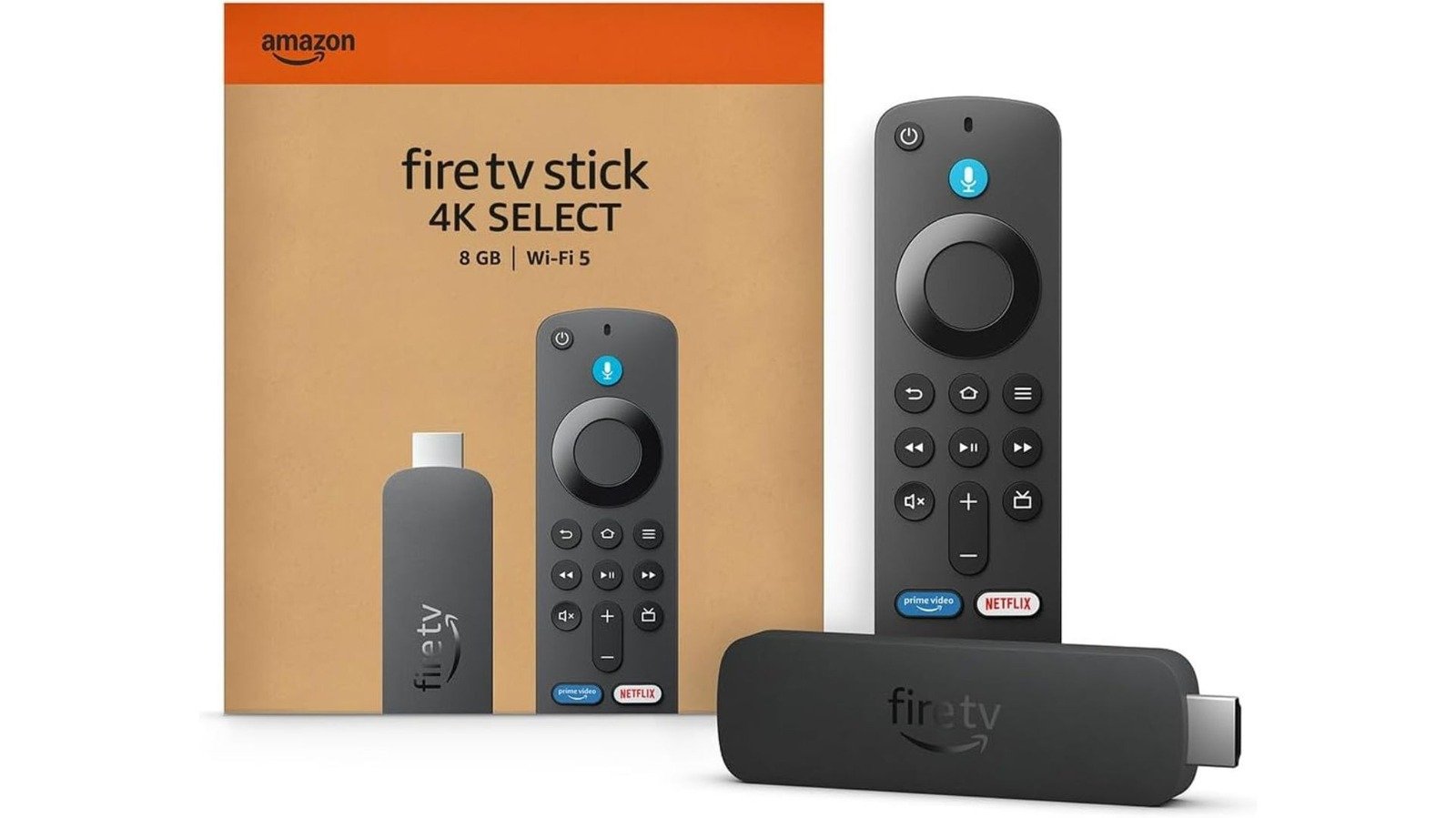
Summary Points
- Fire TV Sticks tend to slow down over time due to cache buildup, limited memory, app bloat, and device aging, especially on entry-level models.
- Simple fixes such as restarting the device, updating software, and disabling autoplay features can improve performance quickly.
- Clearing app cache or performing a factory reset are effective, more permanent solutions if performance issues persist.
- If these steps don’t restore speed, upgrading to a newer Fire TV Stick is recommended, as newer models benefit from ongoing support and performance enhancements.
Why Your Fire TV Stick Might Be Slowing Down
Picture this: you’re ready to relax and watch your favorite show, but your Fire TV Stick drags its feet. If this feels familiar, you’re not alone. Over time, these streaming devices tend to slow down. This happens because the device accumulates data and applications, which can clog its limited memory. Often, it’s a build-up of cached files and app updates causing the lag.
Older models, like the first-generation Fire TV Stick, face additional problems. Some apps no longer support these devices, making them incompatible with new features or services. Also, these devices may lack the memory needed for smooth streaming, especially as apps get more data-heavy. With each update, the device demands more resources, leading to slower performance.
Another reason for sluggishness is that the device might not receive the latest software updates. Amazon updates its Fire TV OS regularly, especially with newer models running Vega OS, a Linux-based system. If your device isn’t current, it might miss out on important bug fixes and performance improvements. Plus, some features like autoplay or featured content settings can overload older or slower devices, adding to the delays.
Simple Fixes to Speed Up Your Fire TV Stick
Fortunately, you don’t always need to buy a new device to enjoy faster streaming. The first step is to turn your Fire TV Stick off and on again. This reset often clears minor issues and refreshes the system. Just unplug the device, wait about a minute, then plug it back in. Sometimes, a quick restart can make all the difference.
Next, make sure your device runs the latest software. Check in the Settings menu for updates. Many models now run Vega OS, which is more efficient than previous versions. Keeping your device updated ensures it can support new features and security patches, improving stability. Additionally, look into Amazon’s Auto Offload feature. It automatically deletes apps you haven’t used in a while, freeing up space and keeping your device running smoothly.
Finally, disable autoplay and featured content settings if they cause lag. These features can overload your device with background activities. Turning off autoplay for videos and disabling unnecessary content can reduce delays and improve viewing speed. These simple changes can often breathe new life into an aging Fire TV Stick and make your streaming experience more enjoyable again.
More Advanced Solutions for Long-Term Performance
If quick fixes aren’t enough, you can take more significant steps to boost your device’s performance. The most effective method is clearing out app data and cache. To do this, go to Settings, select Applications, then Manage Installed Applications. From there, choose “Clear all Application Caches.” This action removes accumulated files that slow down your device.
Be aware that clearing cache might require you to log back into your streaming accounts. But, in exchange, your Fire TV Stick should respond more quickly. Do this when you have some free time, so you don’t rush the setup afterward. If your device still feels sluggish, consider performing a factory reset. This option resets your device to its original settings, wiping all data and apps. Afterward, set it up again from scratch.
However, if your Fire TV Stick continues to perform poorly after a reset, it might be time to upgrade. Newer models promise longer support and better technology. Amazon plans to provide updates through 2030 for most current devices, which means they will stay secure and functional longer. Upgrading also offers the chance to experience improved video quality and faster speeds, making streaming more fun and less frustrating.
The bottom line: your Fire TV Stick can serve you well for years, but it can also slow down with age. With a few simple steps, you can extend its life and enjoy seamless streaming. When it’s finally time to upgrade, you’ll find that newer models keep pace with your entertainment needs better than ever.
Expand Your Tech Knowledge
Stay informed on the revolutionary breakthroughs in Quantum Computing research.
Explore past and present digital transformations on the Internet Archive.
CellphonesV1
