

Quick Takeaways
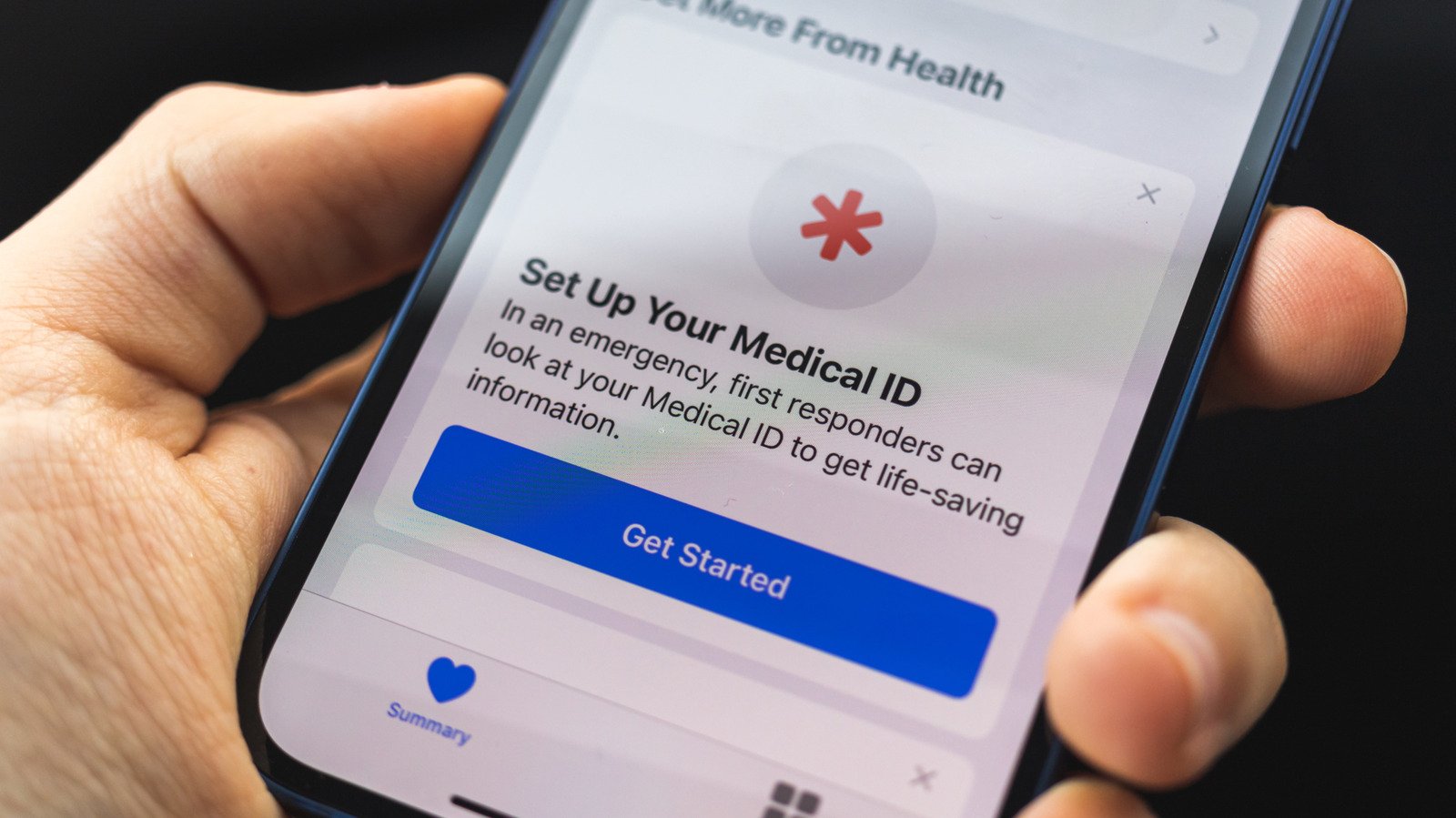
- The article emphasizes the importance of setting up emergency features on iPhone, such as Medical ID and Emergency Contacts, which can be crucial in crises by providing essential health info and notifying loved ones or responders.
- It highlights that configuring Emergency SOS with features like auto-dial and location sharing can save lives, but users must enable and familiarize themselves with these settings beforehand.
- The piece advises regular updates to emergency information, including medical details and contacts, to ensure accuracy when needed.
- Additional tools like Emergency Bypass and satellite messaging on newer iPhones enhance emergency response capabilities, especially in situations with limited connectivity.
Why Setting Up Emergency Contacts and Medical ID Matters
Taking a few minutes to set up your emergency contacts and Medical ID on your iPhone is a wise decision. These features are designed to help you in critical situations. When accidents happen, paramedics and first responders can quickly access your vital information. This can include your allergies, medications, or serious health conditions. Without this setup, they might miss important details.
Apple added these features in 2014 because they are so useful. Today, many medical professionals rely on these details during emergencies. Since your phone travels with you everywhere, it could replace the need to carry paper medical info or a wallet. Moreover, updating your details regularly ensures accuracy. So, proactive setup adds a layer of safety, peace of mind, and quick assistance when needed.
Beginning now can truly make a difference. Even if you’ve used these features before, reviewing or updating your info is important. Changes like new medications or emergency contacts happen over time. Keeping everything current ensures help arrives with the right information. Setting up takes just a few minutes but offers long-lasting protection.
How To Create and Edit Your Medical ID
Getting started is simple. First, open the Health app on your iPhone. Tap your profile picture in the top right corner. Then select “Medical ID” from the list. Here, you will see options to customize your profile.
Make sure to enable “Show When Locked.” This allows anyone to access your Medical ID from the lock screen in an emergency. Also, turn on “Share During Emergency Call.” This helps paramedics see your medical info while contacting emergency services quickly. These settings improve accessibility and help save time.
Next, fill out your medical details. Include your age, existing health conditions, allergies, and medications. You can also add your height, weight, and blood type under “Additional Information.” Use the Notes section for special concerns or instructions. When done, review your info to ensure accuracy. Having this info ready can help first responders give better care without delay.
Adding Emergency Contacts and Using Other Safety Features
Within the Medical ID settings, you’ll find an option to add emergency contacts. Tap “Add Emergency Contact.” Pick someone from your contacts list and assign their relationship to you—like parent, sibling, or friend. It’s smart to add multiple contacts; one might not always be available. You can always revisit and update this list later.
These contacts are vital. They inform your emergency contacts and allow them to be alerted if something happens. When you activate Emergency SOS, your chosen contacts receive a notification with your location. To set this up, go to Settings, then select “Emergency SOS.” Here, you can choose how to activate these features, such as pressing the Side button multiple times or holding specific buttons.
Emergency features don’t stop there. You can enable Emergency Bypass. This allows selected contacts to ring or send messages even when your phone is silenced or in a Focus mode. Use this wisely. Activate Emergency Bypass in your contact’s details by editing their Ringtone or Text Tone.
Another useful feature involves accessing emergency services via texting. In some areas, you can text 911 if calling isn’t safe or possible. Check local rules to see if this option exists for you. If your iPhone is recent—like iPhone 14 or newer—you can also utilize satellite communication in remote areas. Test this feature in your Control Center to ensure it works when needed.
By setting up these emergency tools today, you not only enhance your safety but also ensure help arrives faster when it matters most. Keep your information current, and review your settings regularly. Preparedness makes all the difference, especially in moments when seconds count.
Discover More Technology Insights
Dive deeper into the world of Cryptocurrency and its impact on global finance.
Access comprehensive resources on technology by visiting Wikipedia.
CellphonesV1
