

Quick Takeaways
-
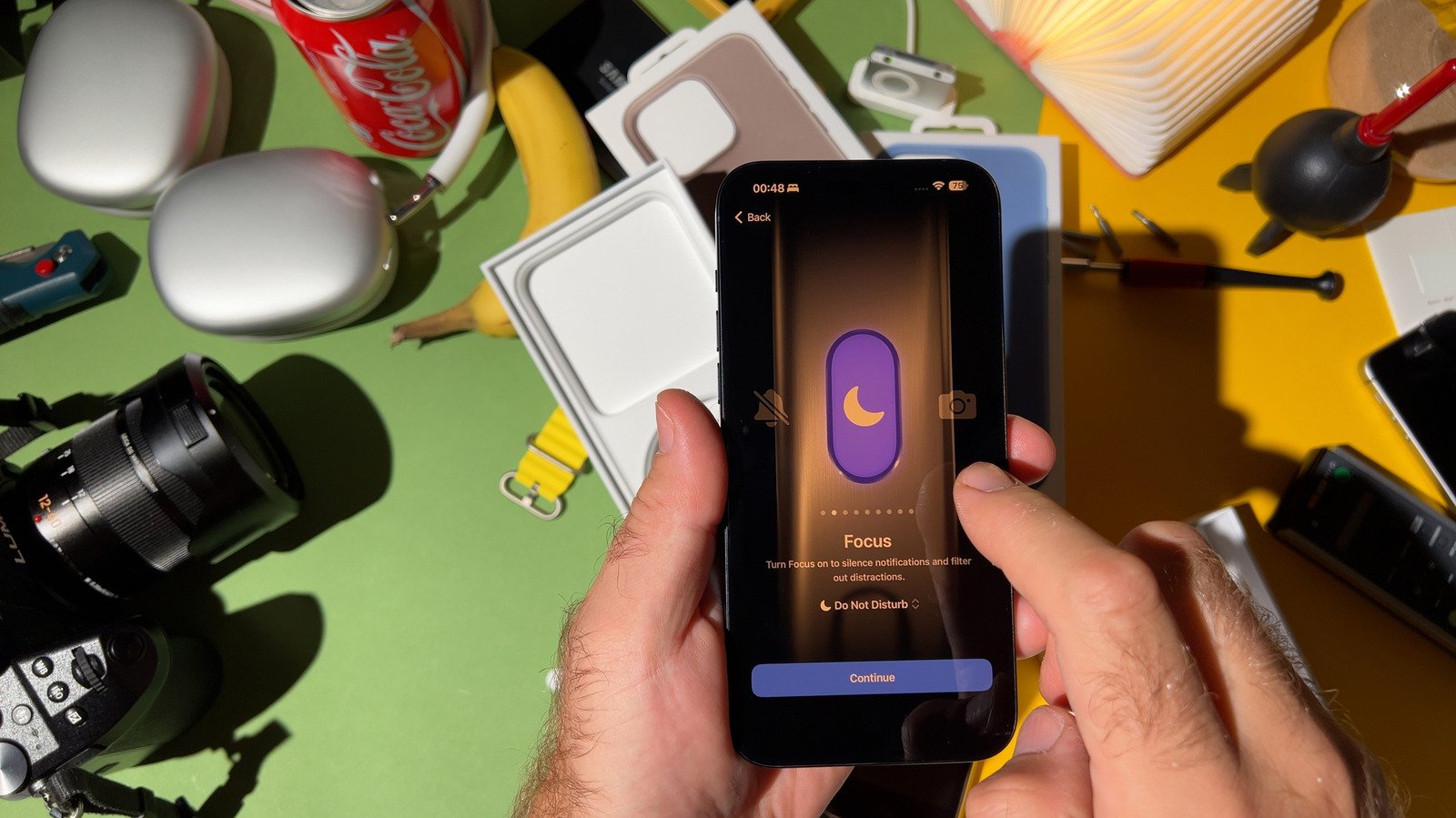
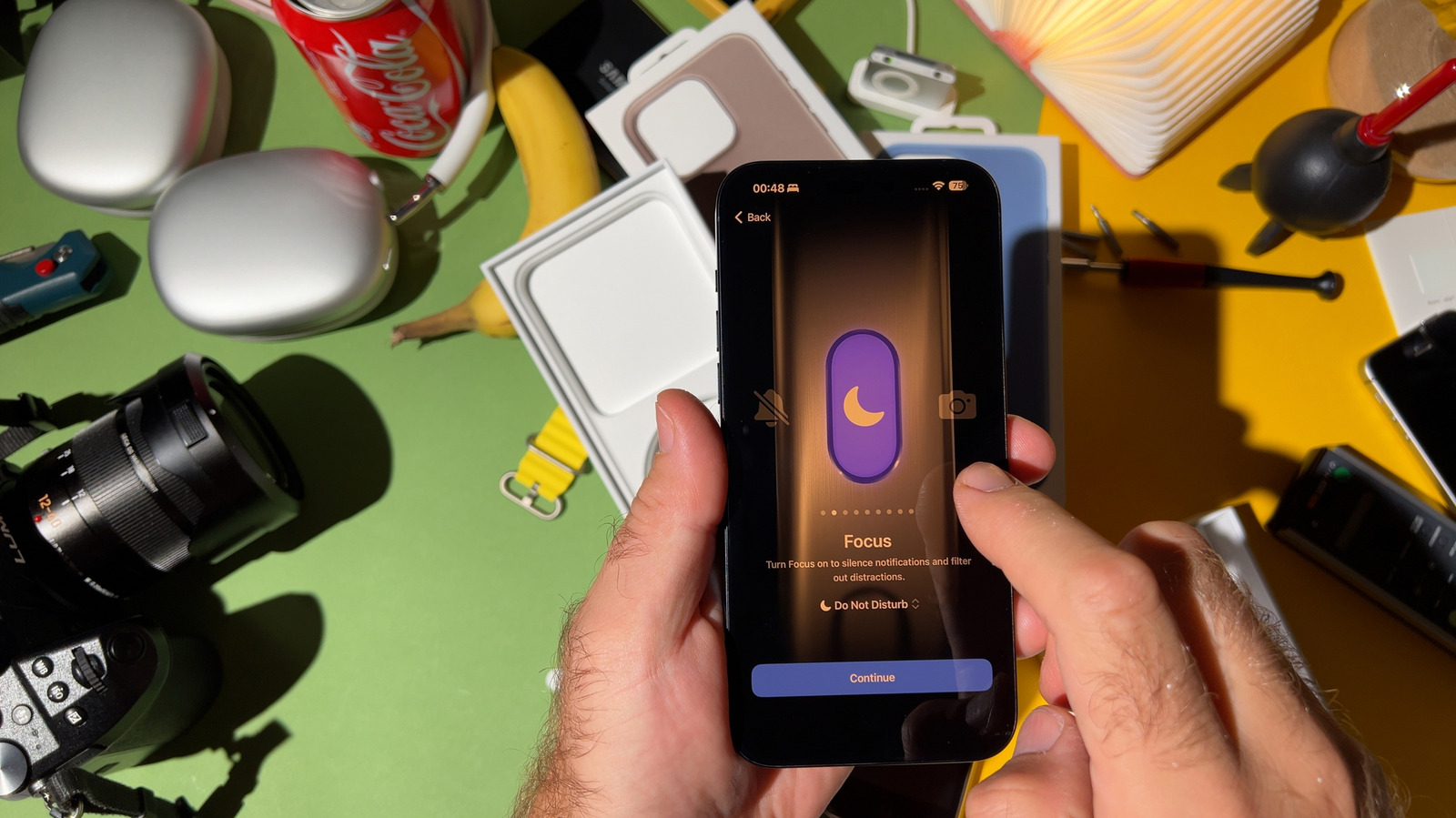
Apple’s Focus modes go beyond Do Not Disturb by allowing users to customize alerts based on context, reducing overwhelm and improving productivity.
-
Users can personalize Focus by selecting specific people and apps to allow or silence, with options for automatic activation and visual customization for quick identification.
-
Sharing Focus status and enabling features like Focus on other devices or Emergency Bypass helps maintain important communications while managing distractions effectively.
-
Setting up specialized Focus modes (e.g., Driving, Fitness, Gaming) with automations enhances device utility for specific activities, promoting better focus and time management.
Unlock Better Focus and Less Distraction
Many iPhone users overlook a powerful tool called Focus modes. These modes are more than just a modern version of Do Not Disturb. Instead of silencing everything completely, Focus allows you to choose what alerts you want to see and hear. For example, when you are working, you might only want calls from your boss or family members. When you’re driving, only navigation alerts and calls from contacts can come through. This means your phone helps you stay on task without constant interruptions.
Setting up these modes takes a little time at first. But once they are ready, you’ll notice fewer distractions. You will still get important alerts, just in the moments you choose. For example, you can allow notifications for your fitness app in the morning or silence social media during work hours. This helps organize your digital life around your priorities. So, if you’re not using Focus modes yet, you’re missing a simple way to improve your productivity and mental clarity.
Customize Your Experience for Every Situation
Getting started is easy. Open Settings on your iPhone and tap Focus. You’ll see default options like Personal, Sleep, and Work. You can choose one and personalize it or create a new custom mode. To do so, tap the Plus (+) icon. Here, you can make a mode for specific needs, like “Calls Only,” which allows all calls but mutes everything else.
Focus modes also work automatically. For example, Fitness can turn on instantly when you start a workout. Sleep activates based on your sleep schedule. You can even set a Driving mode where your iPhone automatically detects that you’re on the road. These automatic triggers help reduce manual setup and keep you focused without constant fiddling. Additionally, you can assign colors and icons to each mode to recognize them instantly.
You have control over who and what can alert you in each setting. You choose contacts and apps that are allowed or muted. You can even permit time-sensitive notifications. Moreover, turning on Share Across Devices means your Focus mode is synchronized on other Apple devices. This keeps your experience seamless whether on iPhone, iPad, or Mac.
Maximize Utility and Personal Control
Focus modes include features that adapt to your habits. Turning on Focus Status notifies contacts you’re busy but offers an option for them to still reach you if urgent. While this feature is mainly supported in iMessage, it’s a helpful way to inform others without shutting them out completely.
Another powerful feature is Emergency Bypass. It allows calls or texts from specific contacts to ring through even when your phone is in silent or Focus mode. Use it wisely—only for those who truly need immediate attention. To activate, go to a contact’s details, tap Ringtone or Text Tone, and enable Emergency Bypass.
Using these tools, you gain control over your digital environment. They help you set boundaries, stay productive, and still be reachable when needed. Ignoring Focus modes means missing out on a feature designed to tailor your phone’s behavior to your life. Embrace it, and watch your device work for you instead of constantly interrupting your flow.
Stay Ahead with the Latest Tech Trends
Explore the future of technology with our detailed insights on Artificial Intelligence.
Stay inspired by the vast knowledge available on Wikipedia.
CellphonesV1
