

Essential Insights
- Google has introduced ads in the Pixel’s My Pixel app, breaking its traditional no-ads reputation.
- Users can disable ad notifications by adjusting notification categories in the app settings, specifically turning off “New products and offers.”
- The article emphasizes the importance of controlling ad notifications to prevent clutter and maintain Pixel’s clean experience.
- The author warns that increasing Google hardware releases may lead to more pervasive ads, highlighting the importance of user control.
Google Begins Showing Ads on Pixel Phones—What It Means
For many years, Pixel phones have been known for their clean, ad-free experience. Unlike other Android devices, Pixels rarely pushed ads or preloaded bloatware. This made them stand out as the purest Android experience. However, recently, Google started showing ads on Pixel phones. After launching the new Pixel 11 series, some users, including myself, received ads for these phones on our older Pixels. This shift surprises many, especially longtime Pixel fans. While it might seem small, it raises questions about how much ads are invading the phone experience. Still, Google claims these ads help promote new hardware and features. For users, it’s important to understand how to manage these notifications to keep their phones personalized and clutter-free.
How Ads Started Showing Up and What You Can Do
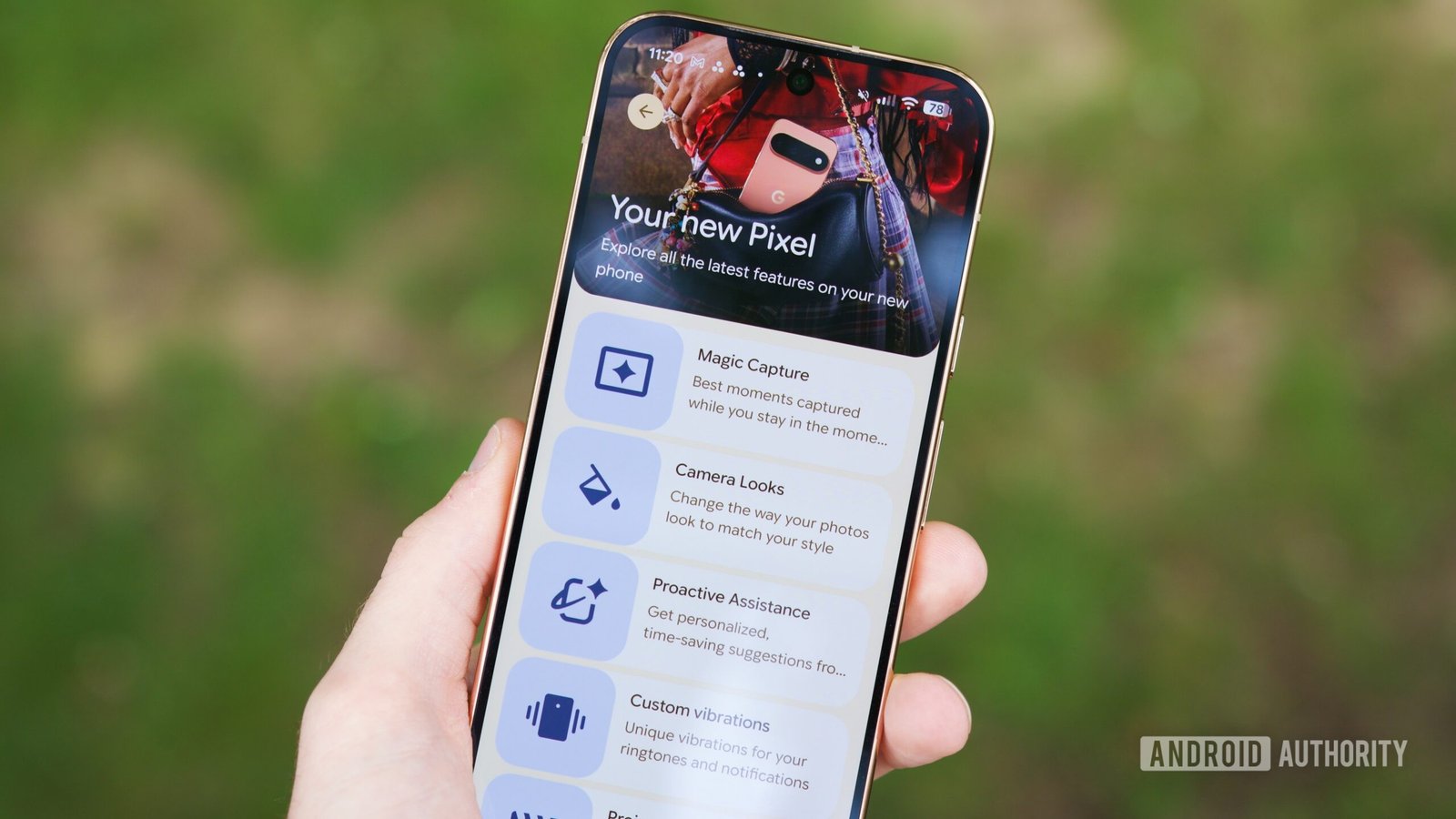
Historically, Pixels didn’t display ads or unnecessary notifications. Instead, they focused on providing a smooth, bloat-free experience. That changed with the update to the My Pixel app, which now includes a Store tab for purchasing Google devices. Unfortunately, this also brought unwanted notifications, including ads, even if you never signed up for them. If you want to limit these interruptions, there’s good news: Android offers a way to control notifications in detail. You don’t have to uninstall the app or delete features you enjoy. Instead, you can fine-tune your notification settings. This approach keeps your Pixel optimized for your needs while blocking unwanted ads or alerts.
Steps to Disable Ads and Keep Your Pixel Focused
Turning off ads on your Pixel is straightforward. Android’s notification categories—introduced nine years ago—allow precise control. Here’s how you can reduce ad interruptions:
1. Long-press the My Pixel app icon.
2. Tap “App info.”
3. Select “Notifications.”
4. Tap “Notification categories.”
5. Choose “My Pixel.”
6. Find the category labeled “New products and offers.”
7. Switch off the toggle next to it.
After doing this, your Pixel won’t show ads from the My Pixel app anymore. You can leave other notifications active, such as updates or order alerts, for important information. This method gives you control, ensuring your phone remains useful and clutter-free. However, it’s worth noting that Google’s push for advertisements may increase as they launch more products. For now, though, these steps help maintain your Pixel’s original simplicity while still allowing you to enjoy its best features without unwanted interruptions.
Continue Your Tech Journey
Dive deeper into the world of Cryptocurrency and its impact on global finance.
Stay inspired by the vast knowledge available on Wikipedia.
CellphonesV1
