

Essential Insights
- The accuracy of Android phones’ location depends on GPS, Wi-Fi, cellular signals, and device sensors; enabling Location Accuracy Service improves this by leveraging all available data sources.
- Adjusting settings to enable Location Accuracy in your device settings is crucial, especially in areas with poor GPS signals like indoors or crowded urban environments.
- For Google Maps, ensuring Location Services are active, calibrating with landmarks, and using tools like Lens or the compass can significantly enhance location precision.
- When experiencing location issues, moving to a different spot, restarting the app, or switching between Wi-Fi and cellular data can help recalibrate your phone’s positioning.
Adjust Your Settings for Better Precision
To start improving your Android phone’s location accuracy, check your settings. First, go to your device’s Settings menu. Tap on Location, then select Location Services. Most devices running Android 12 and above will find a setting called Location Accuracy. For Android 11 or older, this is labeled as Advanced and then Location Accuracy. Turn this feature on. It allows your phone to use Wi-Fi, cellular networks, and sensors to pinpoint your location better. When enabled, your phone combines multiple signals, which results in more precise positioning. If this setting is off, your phone will rely only on GPS and internal sensors. As a result, your location may be inaccurate, especially indoors or in busy city centers. Also, make sure that app permissions are set so that your favorite maps and navigation apps can access location data. Without proper permission, your apps cannot use the features needed to improve accuracy. These small adjustments can have a big impact on how well your phone finds where you are.
Utilize Crowdsource Features and Calibration Tools
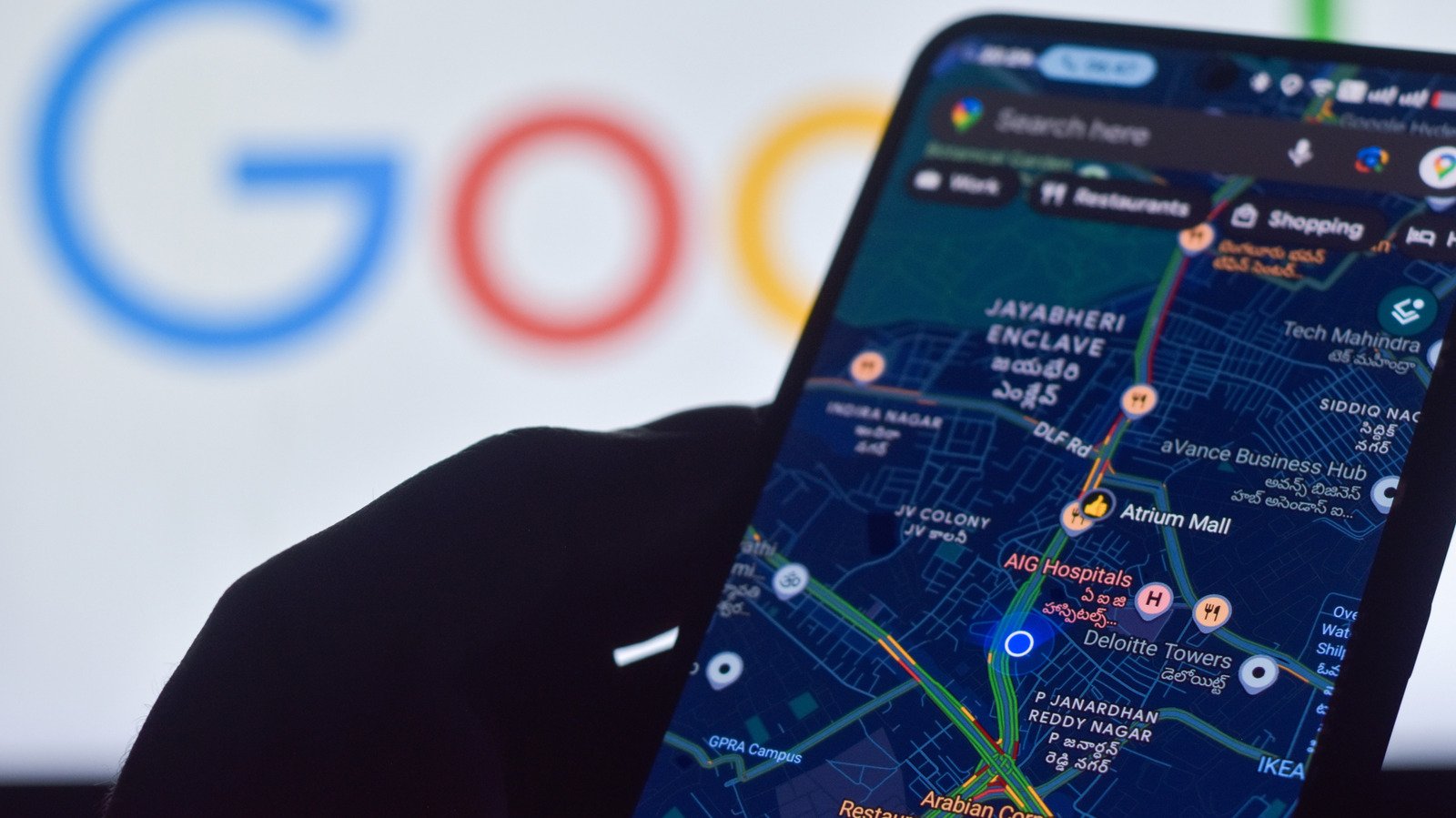
Once your settings are optimized, consider using built-in features that enhance location sensing. Google Maps, for example, has tools to help calibrate your location. When your blue dot shows a “low accuracy” label or a large circle around it, it’s time to recalibrate. You can do this by pointing your phone’s camera at a nearby landmark or specific place. Search for the location on Google Maps, then select View and use your camera to aim at that landmark. This helps Maps understand exactly where you are. Alternatively, you can calibrate your compass. Simply open Google Maps and make an figure-eight motion with your phone a few times. This process refines your orientation, making navigation more reliable. If your location remains uncertain, try moving to a different spot. Sometimes, signals are blocked or weak, and a fresh position can make all the difference. Remember, shutting down the app and restarting it also helps your device gather better signals.
Check Signal Strength and Use External Factors
Another key to improving location accuracy lies outside your phone’s settings. Ensure you are connected to a strong Wi-Fi or cellular network, especially in densely built areas where signals can be blocked. If Wi-Fi is weak, switch to cellular data temporarily. Avoid using your phone in places with poor reception, like underground tunnels or thick indoor walls. Additionally, keep your device’s software up to date. Updates often include improvements for location detection and overall performance. External factors, such as tall buildings or being indoors, can interfere with GPS signals. In these situations, relying on Wi-Fi and cellular triangulation becomes even more important—hence, enabling Location Accuracy is crucial. Remember, crowdsourcing data helps your phone improve over time by learning from signals around other devices. With patience, adjustments, and good signal conditions, your Android phone can deliver much more accurate, dependable location information—making every navigation trip smoother and safer.
Stay Ahead with the Latest Tech Trends
Learn how the Internet of Things (IoT) is transforming everyday life.
Discover archived knowledge and digital history on the Internet Archive.
CellphonesV1
