

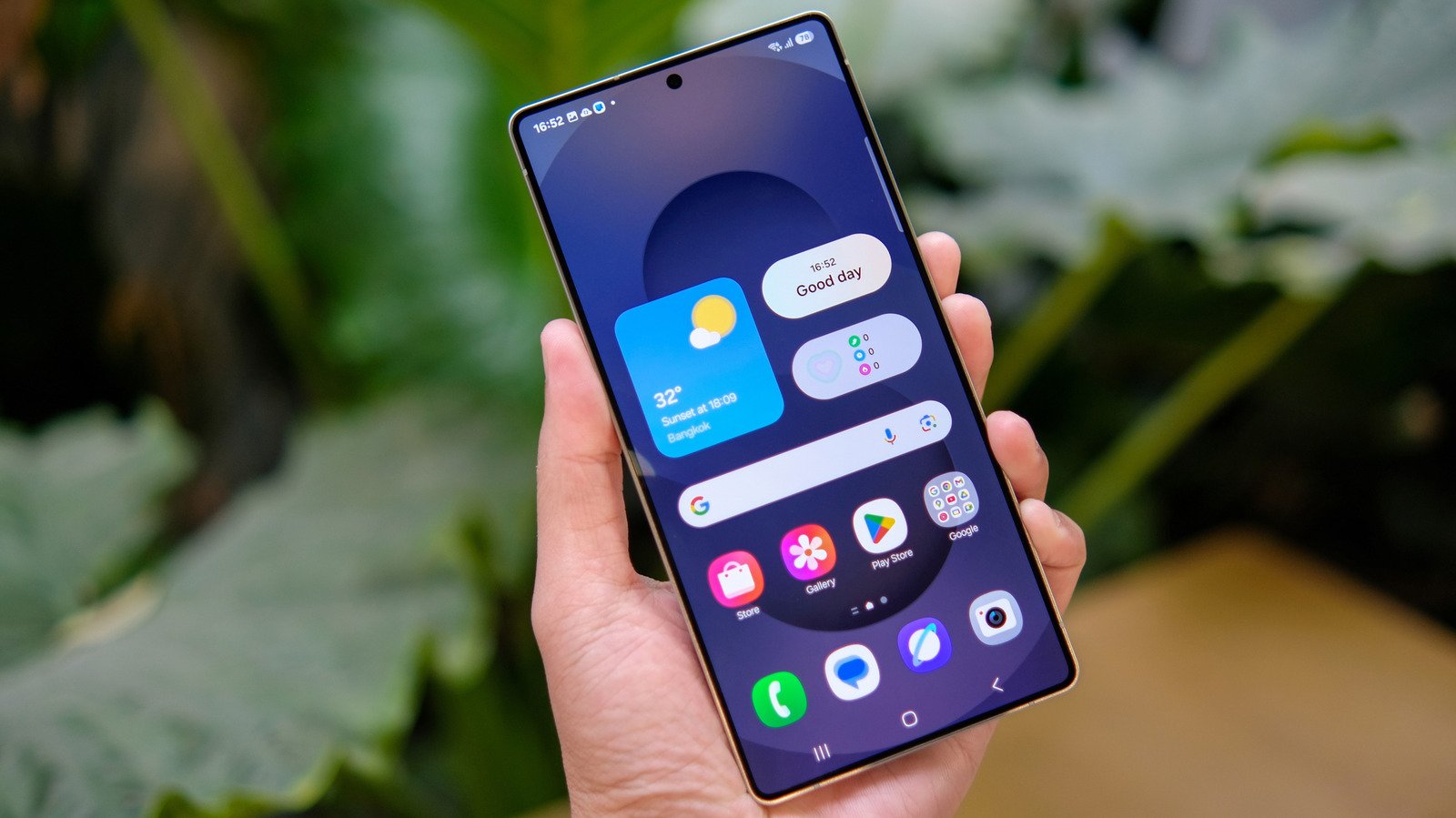
Top Highlights
- Samsung’s One UI hides the traditional All Apps button by default, using a swipe-up gesture to open the app drawer.
- Users who prefer the button can restore it through the home-screen settings.
- They can long-press or pinch the home screen, tap Settings, then enable Show Apps screen button on Home screen.
- The shortcut appears beside the favorites dock but takes up space that could otherwise hold another app.
Samsung One UI Removed the All Apps Button, but You Can Easily Get It Back
Samsung’s One UI makes the app drawer easy to reach: Swipe up from the home screen, and your apps appear. But that gesture does not suit everyone. Some Galaxy owners prefer a visible button, while others may not know the swipe works at all.
Fortunately, Samsung still offers the choice. A quick trip to the home screen settings can restore the Apps button without changing how the rest of the phone works.
Why Samsung replaced the button with a swipe
Android handles apps differently from the iPhone. The iPhone places apps on home-screen pages by default. Android, including Samsung’s One UI, separates the home screen from an app drawer that holds all installed apps.
That separation gives Galaxy owners more control over their home screens. You can keep only your most-used apps in view and leave the rest in the drawer. To open it, swipe up from the home screen.
For years, Android phones also offered an “all apps” button. Samsung no longer displays that button by default in recent One UI updates. The swipe gesture now does the same job, and it keeps the home screen dock free for other app shortcuts.
Still, a gesture can feel less obvious than a button. Longtime Samsung users may also prefer the familiar tap. For them, the change can add friction rather than convenience. Samsung’s setting gives users a way to keep the newer approach or return to the older one.
How to restore the Apps button
You can bring the button back through the home-screen settings on a Samsung Galaxy phone running One UI 9.
- Find an empty area on your home screen.
- Touch and hold that space, or pinch the screen as if you were zooming out on a photo.
- Tap Settings, shown by a gear icon near the bottom right.
- Scroll down and turn on Show Apps screen button on Home screen.
Return to the home screen. The Apps button should appear on the right side of the favorite-apps dock at the bottom.
The setting takes only a few moments to change. It also lets you test both options. If the button feels more natural, keep it. If you would rather free up dock space, turn it off and swipe up to open the app drawer.
A small choice that makes a difference
The Apps button uses one spot in the dock. That means you lose space for a favorite app while the button remains there. For people who open the app drawer often, the trade-off may feel worthwhile. For others, the swipe works just as well and leaves more room for shortcuts.
This option reflects a useful strength of Samsung’s software: One UI often lets users choose how they interact with a phone. Samsung also gives Galaxy owners a choice between traditional three-button navigation and gesture-based navigation in Settings. Each approach has fans, and neither works best for everyone.
That flexibility matters because familiar controls can make a phone easier to use. A new gesture may feel quicker once it becomes routine. Yet a clear button can help users who prefer visible cues or simply do not want to change their habits.
Samsung’s default may favor a cleaner home screen, but the Apps button has not disappeared. If you miss it, you can bring it back—and decide for yourself whether the convenience deserves a spot in the dock.
Expand Your Tech Knowledge
Explore the future of technology with our detailed insights on Artificial Intelligence.
Discover archived knowledge and digital history on the Internet Archive.
CellphonesV1
