

Quick Takeaways
- Android’s blue dot signals that an app is accessing—or recently accessed—the phone’s location.
- The dot usually appears beside the status icons and can identify the app responsible when tapped.
- Unexpected location checks may warrant reviewing the app’s recent access and permissions.
- Android users can limit access to “only while using the app” or revoke location permission altogether.
What the Tiny Blue Dot on Your Android Phone Is Telling You
You glance at your Android phone and notice a tiny blue dot near the status icons. Then it vanishes. It may look like a glitch, but it carries a useful message: an app recently accessed your location.
That small signal matters. Your location can reveal where you live, work, shop and spend your free time. Android puts the alert where you can see it, instead of making you hunt through settings. Here’s what the dot means, when it makes sense and how to respond.
The blue dot is a real-time privacy alert
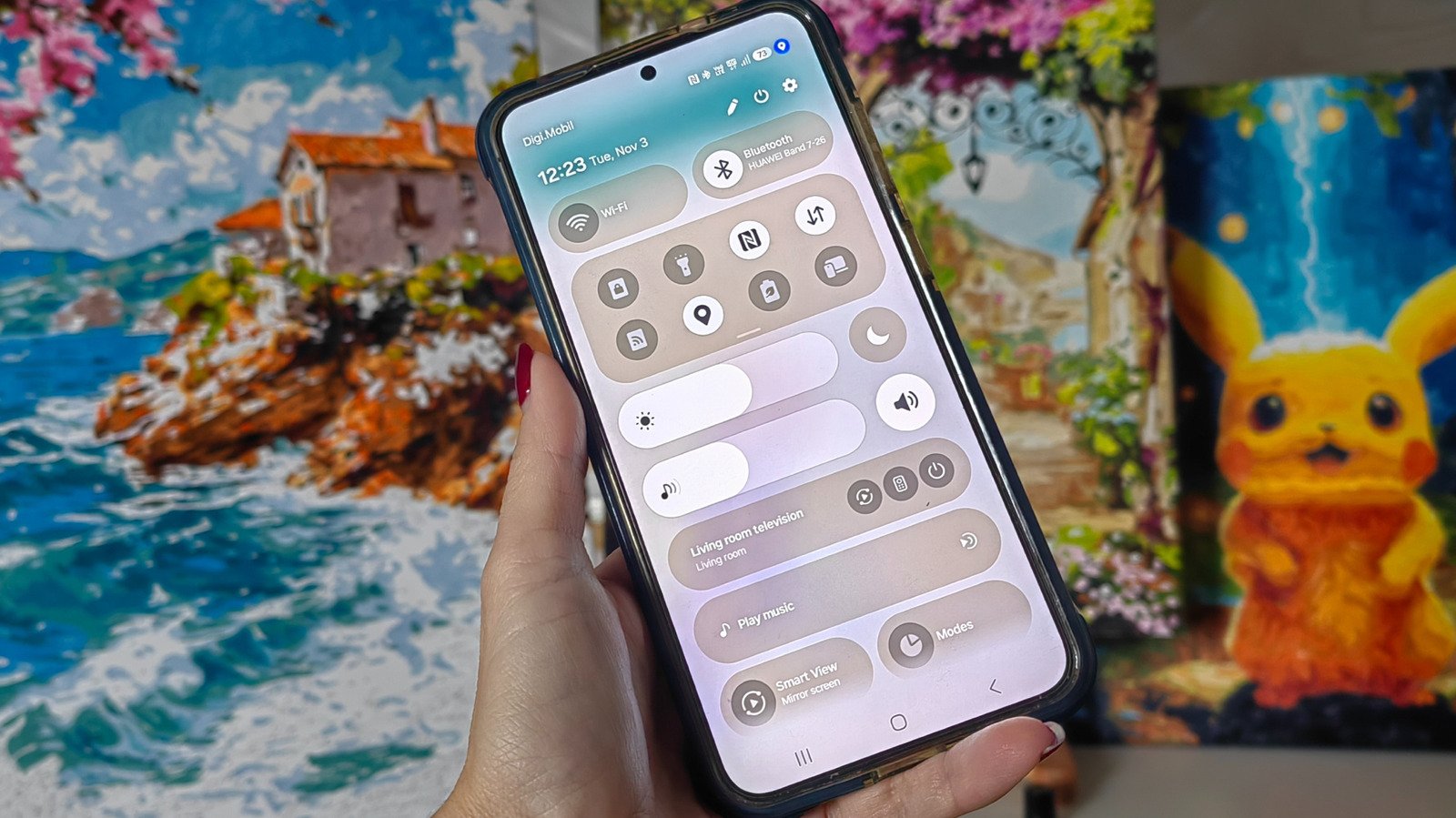
When the blue dot appears, an app has accessed your phone’s location. Your phone can estimate that location with GPS, Wi-Fi signals or nearby cellular towers. The indicator usually appears near the top of the screen, alongside icons for battery life and connectivity.
Android shows the dot to make sensitive activity easier to spot. On supported newer versions, the indicator can reflect location use that happens now or happened moments ago. It does not serve as a complete history of every time an app checked your location.
So, context matters. A maps app needs your location to guide you through traffic. A weather app may use it to provide a local forecast. In those cases, the dot likely signals a feature you expect.
However, the dot can raise a fair question if it appears when you have not opened an app that needs your location. You do not need to assume the worst. Instead, check which app triggered the alert. Swipe down from the top of the screen and tap the indicator. Android can show the app responsible.
The blue dot also differs from Android’s green privacy indicator. The green dot can signal camera or microphone access. Together, these visual cues help you notice when apps use some of your phone’s most sensitive tools.
Check which app accessed your location
The dot gives you a quick alert. Android’s privacy controls offer more detail. If you catch the indicator, tap it to see which app uses your location. Then look for an option such as “See recent access.” Choose Location to review recent activity, including when an app checked your location and whether it did so while you used it or in the background.
You can also look through Settings. Menu names vary by Android version and phone maker, but you can often find location activity under Settings > Security and privacy or Privacy controls > Privacy > Permissions used in last 24 hours > Location.
Tap an app in the access list to open its location permissions. From there, you can decide whether it needs your location all the time, only while you use it or not at all. Some phones and Android versions use different labels, so follow the closest privacy or permission option on your device.
Phone makers may also change how the alert looks. Older Samsung One UI versions may show a location-pin icon instead of a blue dot. One UI 9 adopts a blue location indicator. The design can differ, but the underlying idea stays the same: make location access easier to notice.
Choose access that fits the app
Location access can make an app more useful. Navigation apps need your position to provide directions. Weather services can use it to show conditions nearby. But not every app needs to follow your movements in the background.
For apps that work best while you use them, “Allow only while using the app” offers a practical middle ground. You can still get directions or a local forecast. At the same time, the app cannot keep checking your location after you close it under that permission setting.
You can also deny access when an app has no clear reason to know where you are. If you later need a location-based feature, Android can ask for permission again. That choice keeps control in your hands without requiring you to give up useful services.
The blue dot may be tiny, but its message is direct: an app touched your location data. Check the alert, review the app’s purpose and adjust its permission if needed. A few seconds of attention can help you keep the convenience of location-aware apps while setting boundaries that feel right for you.
Stay Ahead with the Latest Tech Trends
Learn how the Internet of Things (IoT) is transforming everyday life.
Discover archived knowledge and digital history on the Internet Archive.
CellphonesV1
