

Quick Takeaways
- Regularly clean your Mac’s screen and body using distilled water and microfiber cloths for a simple, effective, and Apple-recommended approach.
- Organize your hard drive by using macOS’s storage management tool to identify and delete unused apps, large files, and old backups, utilizing tools like AppCleaner for thorough removal.
- Maintain an uncluttered desktop and menu bar with apps like Bartender and by managing startup programs, while using tags to efficiently categorize and find files via Finder and Siri.
- Improve window management with third-party apps like Magnet or Rectangle, which enhance macOS’s native capabilities, combined with tools like Alfred for faster app and file searches.
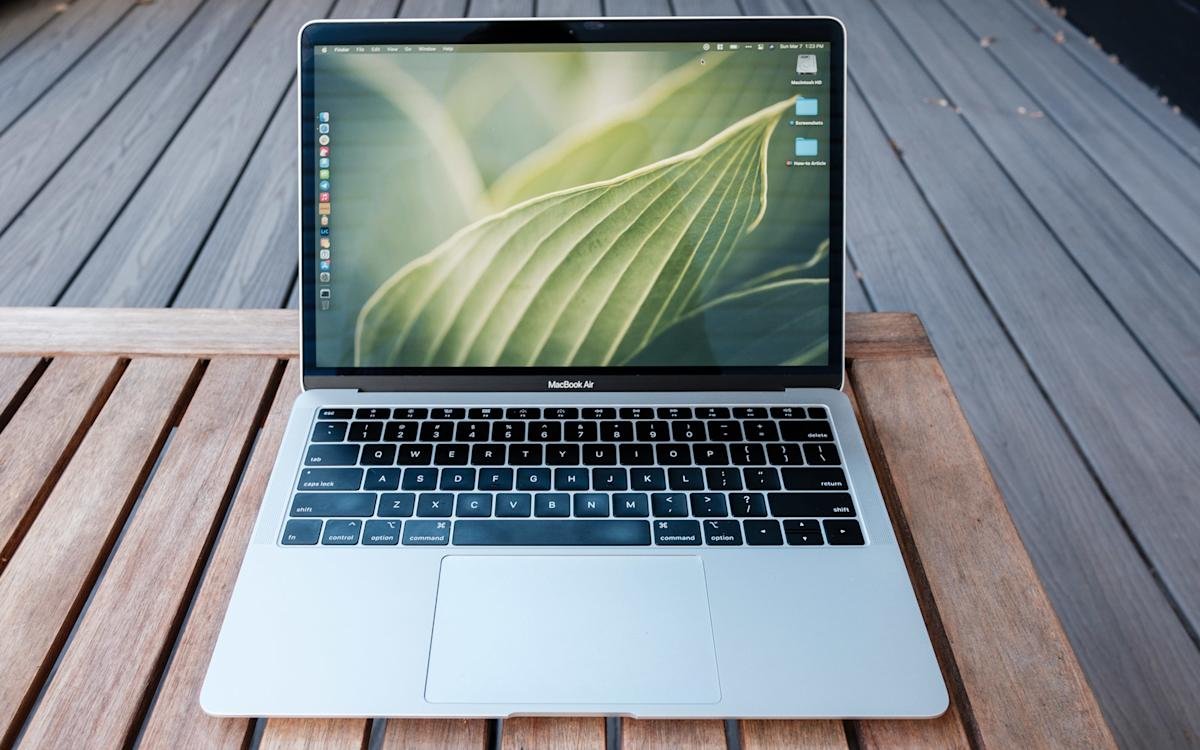
Cleaning and organizing your Mac can make it run faster and look new again. First, it’s important to keep things simple. Use a microfiber cloth and distilled water to clean your Mac’s screen and body. Avoid sprays directly on your device; instead, dampen one side of the cloth and gently wipe. To remove dust, a Giottos Rocket Blower is a handy tool that saves money and reduces waste. After cleaning, buff your Mac smoothly with the dry side of the cloth to finish up.
Next, tidying your digital space helps your Mac perform better. Start by opening the storage menu in System Settings. There, you’ll see categories like “Applications” and “Documents.” Review each category to identify old or unused apps and files. Instead of dragging apps to the trash, use a free tool like AppCleaner to remove leftovers completely. Remember to delete large files and old iOS backups to free up space.
Keeping your desktop neat also makes your Mac more efficient. Use folders or stacks to organize files instead of piling everything on your desktop. Change your Finder settings to add tags to important files. This makes it easier to find what you need quickly. You can assign multiple tags and access them from the Finder sidebar or search with Siri.
Managing your windows improves your workflow too. If you want more control than what macOS offers, apps like Magnet or Rectangle are great options. They help you snap windows to sides or corners, making multitasking simple. Quick shortcuts make switching between tasks faster, whether you’re editing a document or browsing.
Finally, streamline your menu bar by hiding unused icons, which declutters your workspace. Apps like Bartender provide customization options to hide or organize menu items. Also, check your login items—only keep the apps you need when your Mac starts up. Removing unnecessary startup programs can speed things up.
Keeping your Mac clean and organized is a smart move—just like developing smart cities and urban innovations. These efforts improve efficiency, reduce waste, and create more productive environments. Tech-savvy cities use similar strategies to optimize all their systems, making them better places to live and work. Your Mac just needs a little care to do the same.
Discover More Technology Insights
Explore the future of technology with our detailed insights on Artificial Intelligence.
Explore past and present digital transformations on the Internet Archive.
GadgetsV1
