

Top Highlights
-
New Accessibility Feature: Apple’s “Magnifier,” initially for iPhones, has been introduced to Mac, enhancing accessibility in educational and professional settings by allowing users to magnify and identify objects.
-
Versatile Functionality: The Magnifier app can utilize built-in webcams, third-party cameras, or iPhones via Continuity to zoom in on distant text or documents, making it ideal for lecture halls or office environments.
-
Enhanced Text Identification: The app’s machine learning capabilities enable users to identify, format, and read text from captured images in real-time while offering customization options for color and font.
-
Self-Magnification Use: Magnifier can also zoom in on the user, making it useful for personal grooming tasks, while allowing photo capture for later review, enhancing everyday usability.
Zooming In: Using Magnifier on Your MacBook
Apple recently expanded its accessibility features by bringing the “Magnifier” tool to MacBooks. Originally designed for iPhone users, this feature enhances everyday experiences by allowing users to zoom in on distant text or objects. This addition makes a MacBook even more versatile, especially in settings like classrooms or offices.
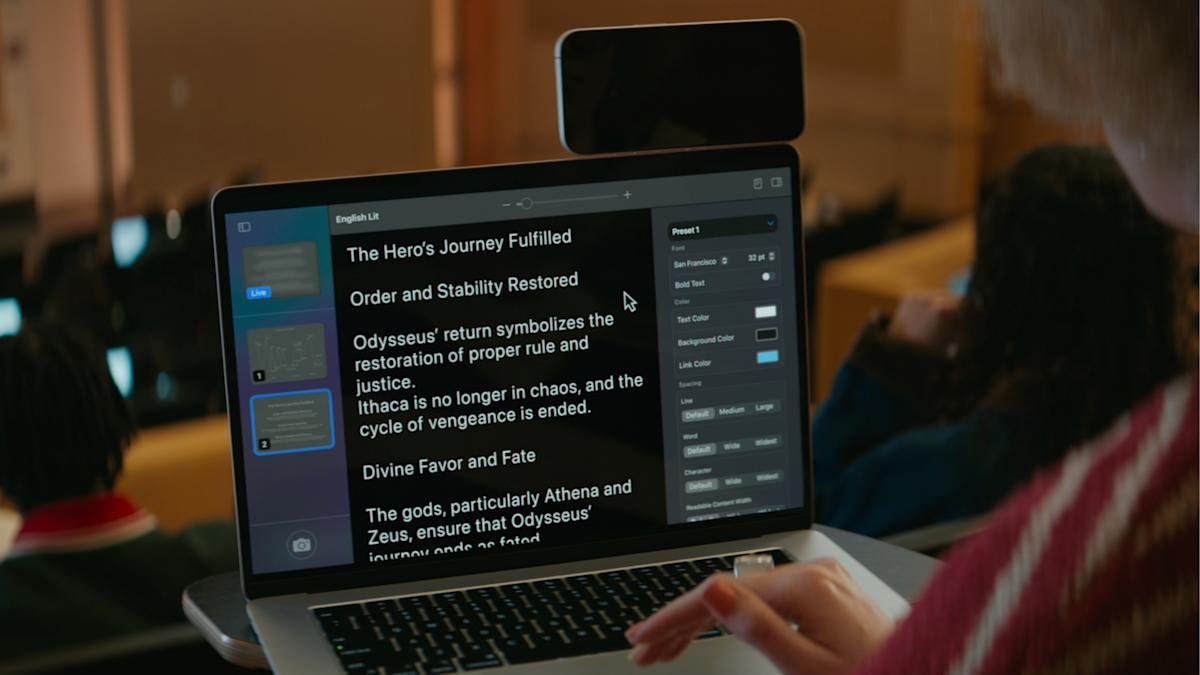
To use Magnifier, ensure your device runs macOS 26 Tahoe or later. The tool can connect to a built-in webcam, a third-party camera, or an iPhone through Apple’s Continuity feature. This flexibility allows you to zoom in on faraway text, such as a whiteboard in a lecture hall or printed documents.
Getting started is simple. Open Magnifier and click on the Camera section in the menu bar. From there, select your preferred camera. Then, to view documents on your desk, choose the Desk View camera. Clicking the Reader icon enables you to format text for easy reading. Apple provides options to customize the appearance of the text, including color, font, and background.
Additionally, Magnifier offers audio support. Users can listen to the identified text by clicking the Play button. You can navigate through the text using the Skip Forward and Skip Backward buttons. If you need to adjust the playback speed, click the 1x button for more options.
Magnifier also serves as a handy tool for self-reflection. By default, it uses your MacBook’s webcam to provide a detailed view of your face. This feature is particularly useful for applying makeup or inserting contacts. Adjust the zoom using a sliding scale for a perfect view.
In testing, the built-in webcam provided the best performance. If you face issues with a third-party camera, consider switching to the built-in option. You can easily switch cameras in the Magnifier app’s top menu bar.
Overall, Magnifier enhances accessibility on MacBook while promoting user independence. Its versatility proves beneficial for many situations—whether in education, work, or daily activities. Embracing these smart tools fosters innovation in urban living. The Magnifier tool stands out as an example of how technology can effortlessly adapt to our needs.
Expand Your Tech Knowledge
Stay informed on the revolutionary breakthroughs in Quantum Computing research.
Access comprehensive resources on technology by visiting Wikipedia.
GadgetsV1
