

Fast Facts
-
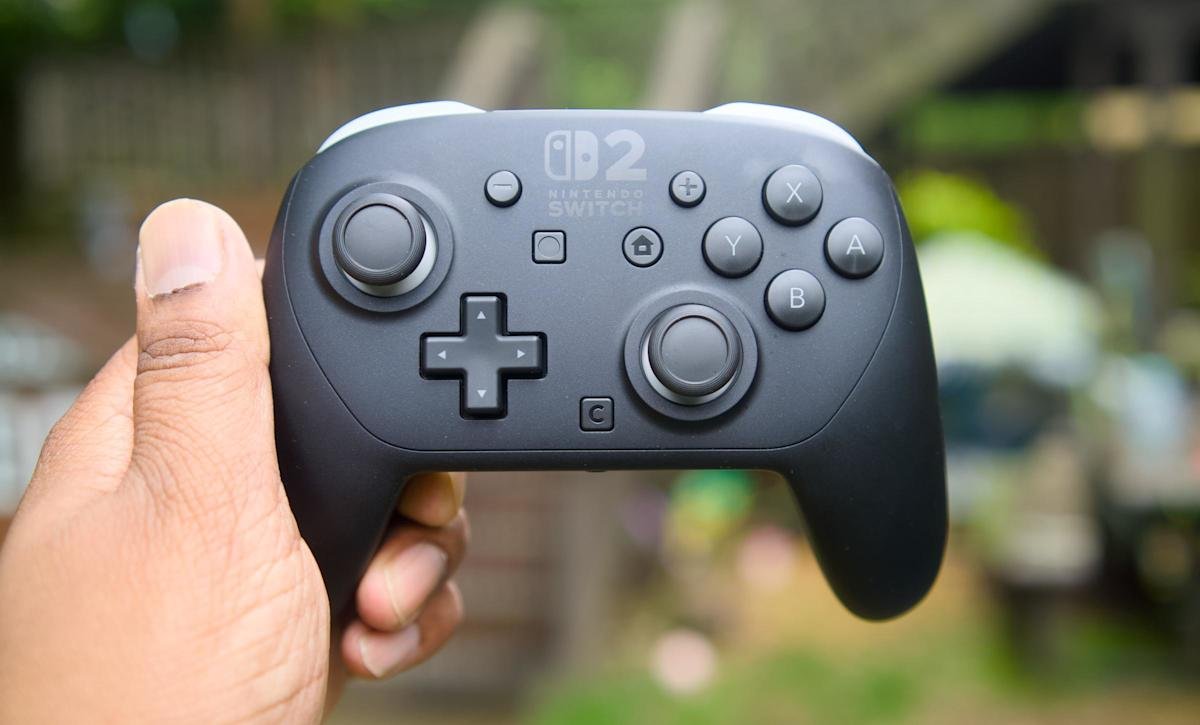
Controller Compatibility: The Nintendo Switch 2 supports various controllers, including the Pro Controller and many Bluetooth gamepads, allowing for versatile gameplay experiences.
-
Easy Pairing Process: Pairing controllers is straightforward; for the Pro Controller, use a USB-C cable for a quick wired connection or go wireless through the System Settings menu.
-
Additional Bluetooth Support: The Switch 2 accommodates multiple Bluetooth controllers, requiring them to be in pairing mode before connecting through the console’s Controllers menu.
-
Troubleshooting Tips: If pairing fails, ensure Bluetooth is enabled, check battery levels, and reconnect via USB if needed; previously paired controllers reconnect seamlessly by pressing any button.
How to Pair Controllers with the Nintendo Switch 2
The Nintendo Switch 2 features compatibility with a variety of controllers. This includes Nintendo’s Pro Controller and many popular Bluetooth gamepads. Whether you’re starting fresh or adding controllers for multiplayer fun, pairing them is straightforward.
Getting Started
Before diving in, ensure your Switch 2 is powered on and updated. Navigate to System Settings, then System, and select System Update to check for updates. Additionally, charge your controller, as some models need sufficient battery power for pairing.
Pairing the Pro Controller
The Pro Controller offers two easy methods for connection: wired and wireless. If it’s your first setup, wired is the fastest choice.
To pair using a USB cable:
- Connect the Pro Controller to the Switch 2 with a USB-C cable.
- Wake the console and access the Controllers menu from the Home screen.
- The console will automatically detect and pair the controller.
Once paired, you may unplug the cable and enjoy a wireless experience.
To pair wirelessly:
- Turn on the Switch 2 and go to System Settings, then Controllers & Sensors, and select Change Grip/Order.
- Hold the small Sync button on top of the Pro Controller until the indicator lights flash.
- The Switch 2 will find the controller and confirm the connection.
Pairing Other Bluetooth Controllers
The Switch 2 also supports various Bluetooth controllers, including those from PC and mobile devices. Start by ensuring your Bluetooth controller is in pairing mode.
Here’s how:
- Refer to your controller’s manual for the specific button combination to activate pairing mode.
- Navigate to the Home Menu, select Controllers, and then Change Grip/Order.
- The console will search for available devices. When you see your controller, select it to complete the pairing.
Each connected controller will receive an assigned player number for multiplayer games.
Troubleshooting Issues
If your controller doesn’t appear, confirm that Bluetooth is enabled on the Switch 2 in the Controllers & Sensors menu. Restarting the controller and ensuring it has enough battery can help. Move closer to the console to minimize interference. If your controller supports multiple profiles, check that it’s set to Nintendo Switch mode.
For Pro Controllers, a wired connection often resolves issues. Plug it in using the USB-C cable and attempt to sync again.
Reconnecting Controllers
Once paired, reconnecting is simple. Just press any button on the controller, and the Switch 2 will recognize it automatically. If you connect your controller to another device, you may need to repeat the pairing process.
Pairing controllers with the Switch 2 is efficient once you know where to find the settings. The Pro Controller offers ease, particularly with a wired setup. Plus, the Bluetooth capability allows for versatile gameplay options, accommodating various play styles and local multiplayer experiences.
Continue Your Tech Journey
Explore the future of technology with our detailed insights on Artificial Intelligence.
Access comprehensive resources on technology by visiting Wikipedia.
GadgetsV1
