

Fast Facts
- Roku TVs often default to 60fps, while most films are made at 24fps.
- Matching a movie’s original frame rate can create a more theatrical viewing experience.
- Owners can enable Auto-adjust display refresh rate under Settings → System → Advanced System Settings → Advanced Display Settings.
- Once enabled, the TV adjusts to match each show or movie’s native refresh rate.
Change This Roku TV Setting to Watch Movies How They Were Filmed
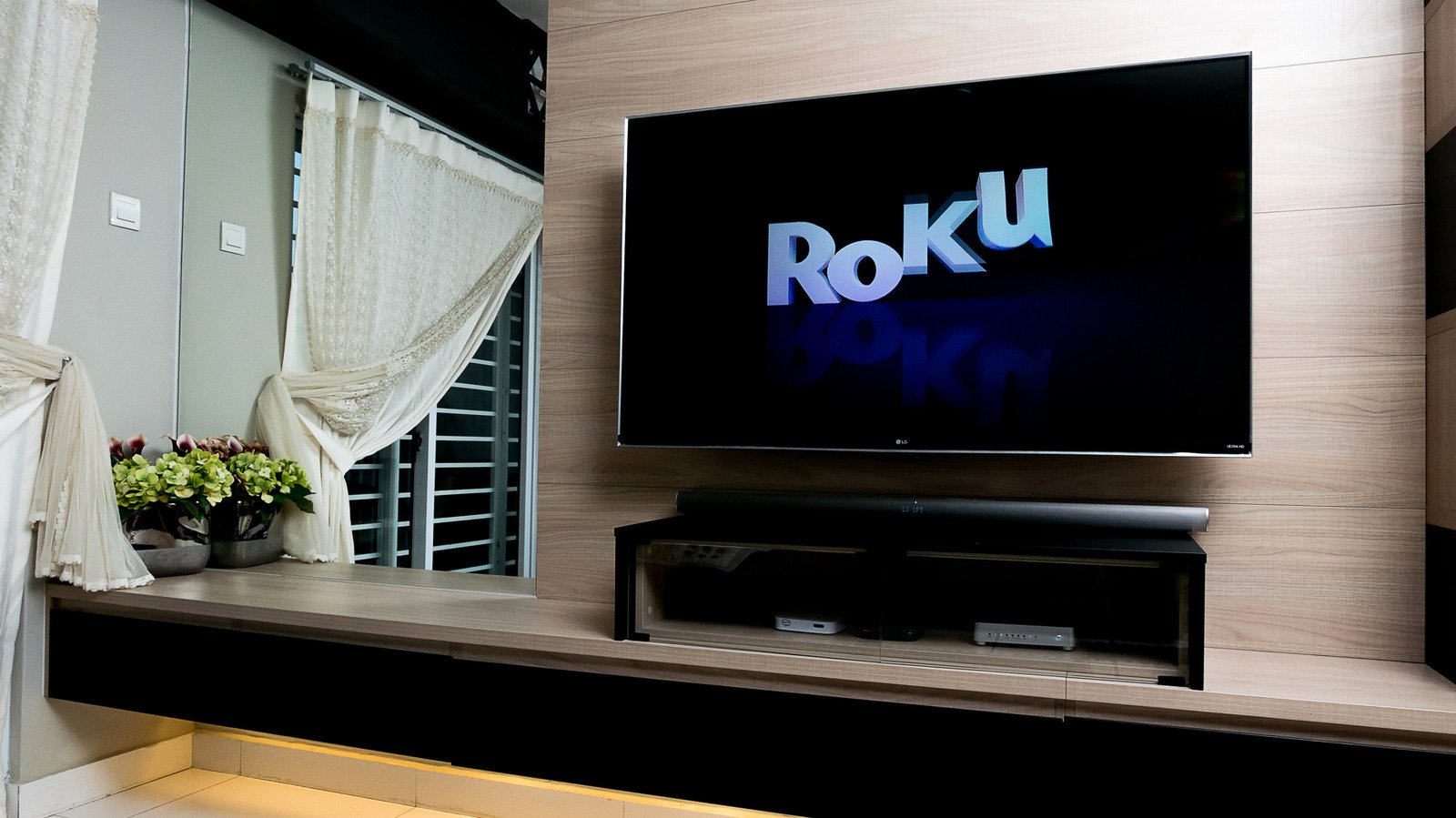
Modern TVs can make movies brighter, sharper and smoother. Yet one small setting can bring a film closer to the look its creators intended. On compatible Roku TVs, Auto-adjust display refresh rate can match the screen’s output to the video you watch.
The change takes only a few steps. Still, it helps to know what it does — and what it cannot do.
Why 24 frames per second can feel more cinematic
Filmmakers shoot most movies at 24 frames per second. That rate has shaped the familiar rhythm of cinema for generations. Many Roku TVs, meanwhile, default to a 60-hertz refresh rate, which can make the screen update more often than a 24-fps film supplies new frames.
Those numbers measure different things. Frames per second describe how many distinct images a video contains each second. Hertz describes how often a display refreshes. When the two rates do not line up neatly, a TV may repeat some frames unevenly to fill the gap. That can make motion look less natural.
Roku’s setting can match the output refresh rate to the content. As a result, compatible movies can keep their original 24-fps cadence instead of relying on a fixed 60-Hz output. The change does not add detail or improve a film’s resolution. Instead, it aims to preserve the motion and pacing viewers expect from a theatrical presentation.
How to turn on Roku’s refresh-rate setting
First, open the Roku TV’s main menu. Then choose Settings, followed by System. Select Advanced system settings, open Advanced display settings and turn on Auto-adjust display refresh rate.
That’s it. When supported content plays, the TV can adjust its output to match the source. Movies often use 24 fps, while TV shows and other programs may use different frame rates. The setting can adapt to those differences, rather than locking every program to one rate.
Menu names and feature availability can vary by Roku TV model and software version. If you do not see the option, check for a system update or consult your TV’s support information. Also, the result depends on the app and video source. Not every service or program will provide a format that lets the TV make the adjustment.
What to expect — and when to switch it off
For film fans, the benefit is subtle but meaningful. Motion can look closer to the original presentation, without extra smoothing that makes some movies seem more like live TV. The setting also offers a simple way to change the viewing experience without adjusting color, contrast or other picture controls.
However, 24-fps motion can look less smooth than 60-fps video. That quality forms part of cinema’s familiar look, but it may not suit every viewer or every type of content. Sports and fast-moving games, for example, often benefit from higher frame rates. And some TVs may briefly blank or flicker as they switch refresh rates.
Fortunately, the setting can handle different supported sources automatically. Try it with a movie you know well. If the motion feels more natural, leave it on. If the transition or cadence distracts you, turn it off. A small Roku adjustment will not transform every screen, but it can bring many movies closer to the way their makers planned for audiences to see them.
Stay Ahead with the Latest Tech Trends
Learn how the Internet of Things (IoT) is transforming everyday life.
Discover archived knowledge and digital history on the Internet Archive.
CellphonesV1
