

Fast Facts
- macOS may reorder Spaces based on recent use, disrupting a user’s preferred desktop layout.
- The setting is disabled in System Settings → Desktop & Dock → Mission Control by turning off Automatically rearrange Spaces based on most recent use.
- Users can switch Spaces with trackpad gestures, Control + arrow keys, or Mission Control.
- Separate wallpapers, Mission Control shortcuts, Hot Corners, and apps assigned to All Desktops can further improve a Spaces workflow.
Why your Mac’s Spaces keep changing places
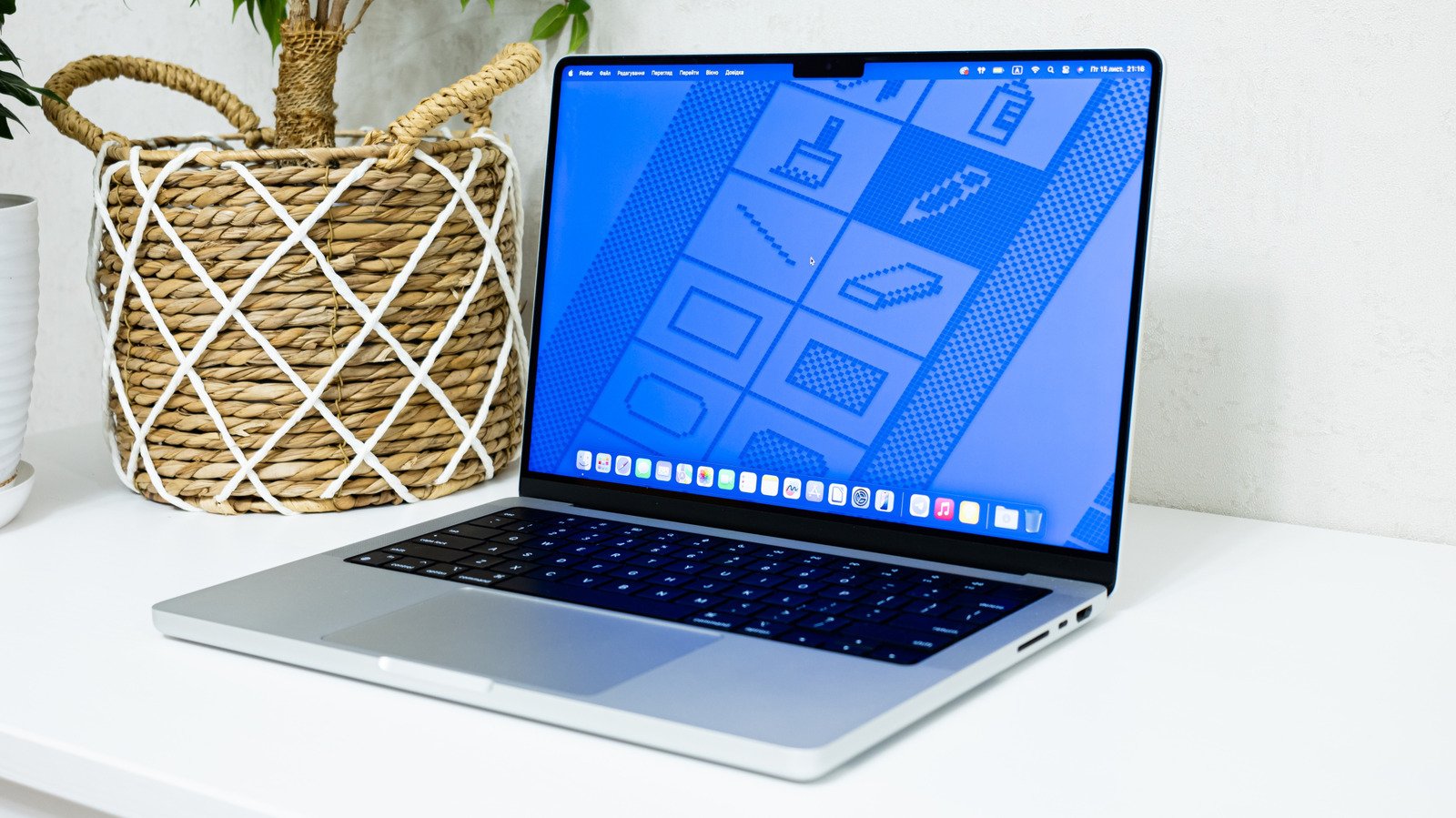
A tidy Mac desktop can feel like a well-organized desk. One Space holds work. Another keeps messages and email close. A third handles browsing or music. Then, without warning, the desktops trade places.
Spaces are virtual desktops in macOS. They let you separate open apps and windows without closing anything. Your Mac can support up to 16 numbered Spaces. Full-screen apps and Split View setups also appear alongside them in Mission Control, though they work differently from standard Spaces.
The reshuffling comes from a Mission Control setting that macOS turns on by default. It tells your Mac to rearrange Spaces based on how recently you used them. So if you use Command-Tab to jump to an app on another Space, macOS may move that Space closer to the front of the row.
That behavior can help when you want your most-used desktops within easy reach. But it can disrupt a routine if you rely on a fixed order. A Space you expect to find in one spot may suddenly appear somewhere else. Fortunately, you can turn off the feature without giving up Spaces or changing how your apps work.
Turn off automatic Space rearranging
Open the Apple menu in the top-left corner of your screen, then choose System Settings. You can also open Spotlight and search for “System Settings.”
Next, select Desktop & Dock. Scroll to the Mission Control section near the bottom. Find “Automatically rearrange Spaces based on most recent use,” then turn it off.
That’s the key change. Your Mac will stop reordering your Spaces according to recent activity. You can still switch among them with a trackpad swipe, the Control-left or Control-right arrow shortcut, or Mission Control. Trackpad gestures can vary with your settings, so check System Settings if a swipe does not work as expected.
There is a trade-off. With automatic rearranging off, macOS will not bring your recently used Space forward for you. You gain a stable layout, but you may need to move through the row to reach a Space you use often. If you prefer a predictable workspace, that small adjustment can be worth it.
Make Spaces easier to recognize and navigate
A fixed order helps, but visual cues and shortcuts can make Spaces more useful. You can give each Space its own wallpaper, even though macOS does not offer a straightforward way to rename standard Spaces. When you change a wallpaper, turn off “Show on all Spaces” so the change applies only to the current desktop. A distinct image can help you spot the right Space at a glance.
You can also set up more keyboard shortcuts. Go to System Settings, then Keyboard Shortcuts, then Mission Control. Open the Mission Control menu to see available shortcuts for your Spaces. Enable the ones that fit your routine. For example, a shortcut for a specific Space can save time if you switch between the same work areas throughout the day.
Hot Corners offer another quick route. They let you assign an action to a display corner, such as opening Mission Control. Then you can move your pointer to that corner and see your active Spaces without searching through windows.
Finally, some apps work better when they remain available everywhere. To keep an app such as Apple Music accessible across desktops, Control-click its Dock icon. Choose Options, then Assign To, then All Desktops. Menu wording may vary slightly by macOS version.
Spaces work best when they match the way you think. Automatic sorting suits people who want macOS to surface recent work. A fixed order suits people who prefer a consistent map. With one setting changed and a few optional tweaks, you can keep your desktop organized on your terms.
Stay Ahead with the Latest Tech Trends
Learn how the Internet of Things (IoT) is transforming everyday life.
Discover archived knowledge and digital history on the Internet Archive.
CellphonesV1
