

Fast Facts
-
Find My helps locate lost, stolen, or misplaced Apple devices via a crowdsourced Bluetooth network, even if devices are off.
-
Disabling Find My is essential before selling, giving away, or sending devices for repair to ensure proper diagnostics and prevent security issues; factory resets automatically disable it.
-
Manually turning off Find My involves disabling Stolen Device Protection first, which requires physical presence at home for security reasons, and then toggling off in Settings.
-
Always keep Find My enabled after loss or theft; disabling it removes tracking and Lost Mode, increasing vulnerability to theft and scams. Activation Lock continues to protect devices unless intentionally removed.
When and Why You Should Turn Off Find My iPhone
Turning off Find My iPhone is a task you should only do in specific situations. Most often, it is necessary when you plan to sell, give away, or trade in your device. In these cases, disabling Find My ensures that the new owner can set up the device without issues. It also helps when sending your iPhone for repair. Repair technicians need access to certain settings to diagnose problems. However, turning off Find My can reduce your device’s security. It’s a trade-off between convenience and protection.
Apple recommends leaving Find My active most of the time because it helps locate lost or stolen iPhones. The service uses a crowdsourced network, where other Apple devices detect your missing device via Bluetooth. This system can sometimes find your phone even if it’s turned off. Keeping Find My on adds a layer of security–it blocks thieves from easily resetting your device and reselling it. Always weigh your needs carefully before disabling this feature.
How to Turn Off Find My iPhone
There are two common ways to disable Find My iPhone. The first is through a factory reset. This method is best when you’re selling or giving away your device. To do this, go to Settings, then General, and select Transfer or Reset iPhone. Tap Erase All Content and Settings. You’ll need to enter your Apple ID password. Once you confirm, the device resets itself. This automatically disables Find My and removes Activation Lock, making the device ready for its new owner.
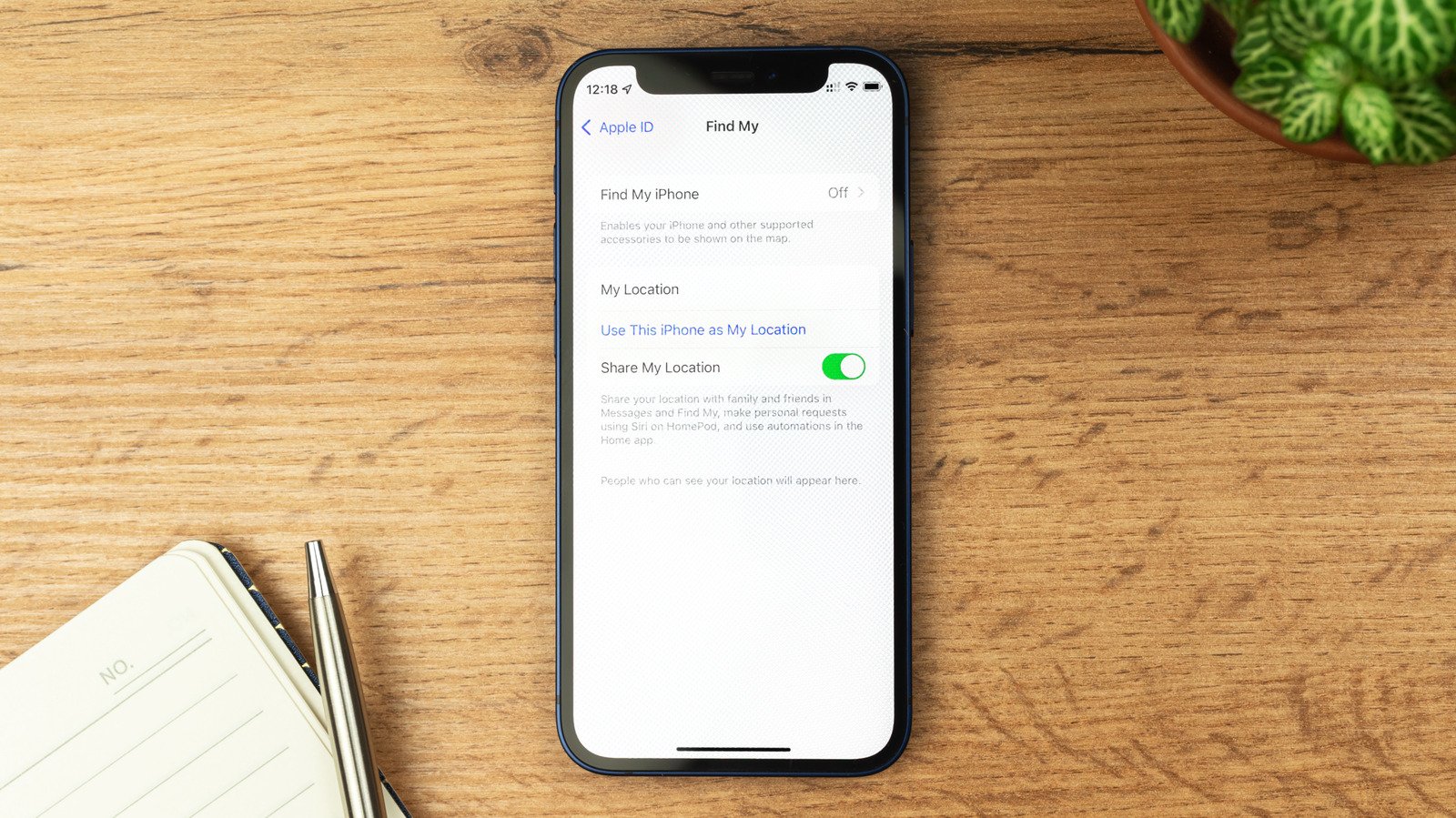
The second method applies when you’re not resetting your iPhone. To do this, go to Settings, tap your name, then Find My. Select Find My iPhone and toggle it off. If Stolen Device Protection is enabled, this option will be grayed out. To disable it, you must turn off Stolen Device Protection first, which you should do at home for security reasons. To do this, go to Settings, then Face ID & Passcode, and toggle off Stolen Device Protection. You can re-enable it after your device’s repair. Remember, disabling Find My also turns off Sharing Your Location with friends. If you just want to stop sharing with specific people, do that instead without turning off the entire feature.
Understanding the Risks and Benefits
When you turn off Find My iPhone, you lose the ability to track your device remotely. If your device is stolen or lost, emergencies become harder. Find My’s Lost Mode, which shows a message on your screen, is no longer available after disabling. Activation Lock, which prevents thieves from resetting your device, is also turned off. So, only disable Find My when necessary, such as during repairs or transfers of ownership.
Never turn off Find My if your device is lost and you suspect theft. Thieves sometimes try to trick owners into disabling this feature via threatening messages. If that happens, do not give in. Keep Find My turned on so Activation Lock can protect your device from being resold or used illegally. While erasing your device can protect your data, leaving Find My active ensures your phone remains protected against unauthorized access.
Balancing convenience and security can be tricky. The key is understanding when to disable Find My and why. Use it to protect your device, but disable it intentionally and carefully when needed for repairs or transfers. Doing so will keep your device safe while also making it easier to manage when necessary.
Stay Ahead with the Latest Tech Trends
Learn how the Internet of Things (IoT) is transforming everyday life.
Access comprehensive resources on technology by visiting Wikipedia.
CellphonesV1
