

Top Highlights
-
Enable Developer Mode: Unlocking Android Auto developer settings enhances your driving experience by providing valuable features, including wireless functionality and access to unknown sources for app installations.
-
Access Process: To enable developer settings, navigate to the Android Auto app settings, tap the version number multiple times, and confirm activation when prompted.
-
Key Features: The main user-friendly settings in developer mode are Wireless Android Auto (for cable-free use) and the Unknown Sources toggle (to display non-Play Store apps).
-
Evaluating Usefulness: For casual users who don’t need wireless connections or third-party apps, unlocking developer mode may not be necessary.
Unlocking Android Auto Developer Settings: Should You Do It?
Android Auto enhances your driving experience by integrating your phone with your car. For power users, tapping into developer settings can offer useful features. However, it’s essential to know what you gain and if it’s worth your time.
To unlock Android Auto developer settings, start on your Android device. First, navigate to the app settings for Android Auto. Depending on your phone, you may find it in different locations. For Samsung users, access it via Settings > Apps > Android Auto > Configure in Android Auto. Google Pixel users can go through Settings > Apps > See all apps > Android Auto > Additional settings. Alternatively, simply search “Android Auto” in your settings.
Once you land on the Android Auto settings screen, scroll down to the “About” section. Tap the “Version” entry multiple times—about ten taps should suffice. Soon, a pop-up message will confirm you’ve enabled development settings, which you can access through the three-dot menu on the settings screen.
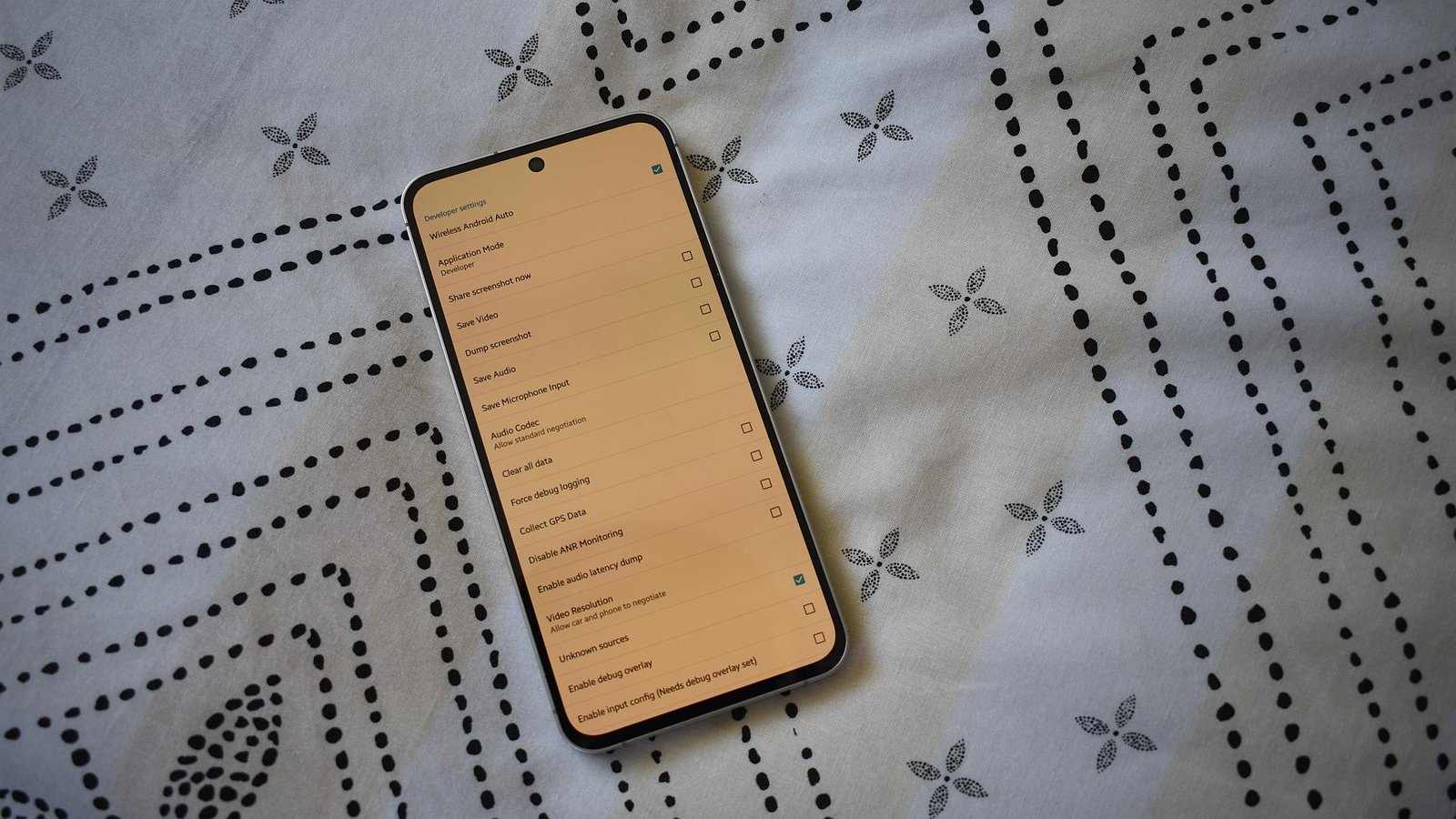
This developer mode includes two main features worth noting: Wireless Android Auto and Unknown Sources. The former allows you to connect your phone without a cable, which enhances convenience. If you frequently use a wireless setup, you’ll want to keep this option enabled. Alternatively, if you’re still using a cable, you can disable it to prevent unnecessary connections.
The Unknown Sources option unlocks apps not downloaded from the Google Play Store. If you enjoy third-party applications, this setting is crucial, as it enables access to various services that might not otherwise appear on your dashboard.
Despite its potential, not everyone needs to enable developer mode. If you primarily stick to apps from the Play Store or prefer a wired connection, you may find little benefit in unlocking these settings.
Ultimately, evaluate your habits and needs as a driver. The smart features of Android Auto can enhance urban driving experiences, especially as cities incorporate more technology. However, weigh the pros and cons before diving into the developer options. Your driving experience could become smarter and more efficient, but it’s up to you to decide if that’s worth the effort.
Discover More Technology Insights
Explore the future of technology with our detailed insights on Artificial Intelligence.
Stay inspired by the vast knowledge available on Wikipedia.
GadgetsV1
