

Essential Insights
- Both Android and iOS devices allow users to easily scan QR codes from saved screenshots through simple steps like tapping on the image or using specific features like Google Lens or Circle to Search.
- To scan a QR code from a screenshot, users need only take a screenshot, locate the image in their gallery, and then use built-in tools—like tapping the QR badge on iPhone or clicking the Lens icon on Android.
- Android devices with recent updates can utilize the “Circle to Search” feature by holding the home button and circling the QR code, enabling quick recognition without the camera.
- Google Lens serves as a versatile tool, available on both Android and iPhone via Google Photos or Google app, to analyze and retrieve links from saved QR code images, enhancing the convenience of code scanning.
Scanning QR Codes Has Never Been Easier
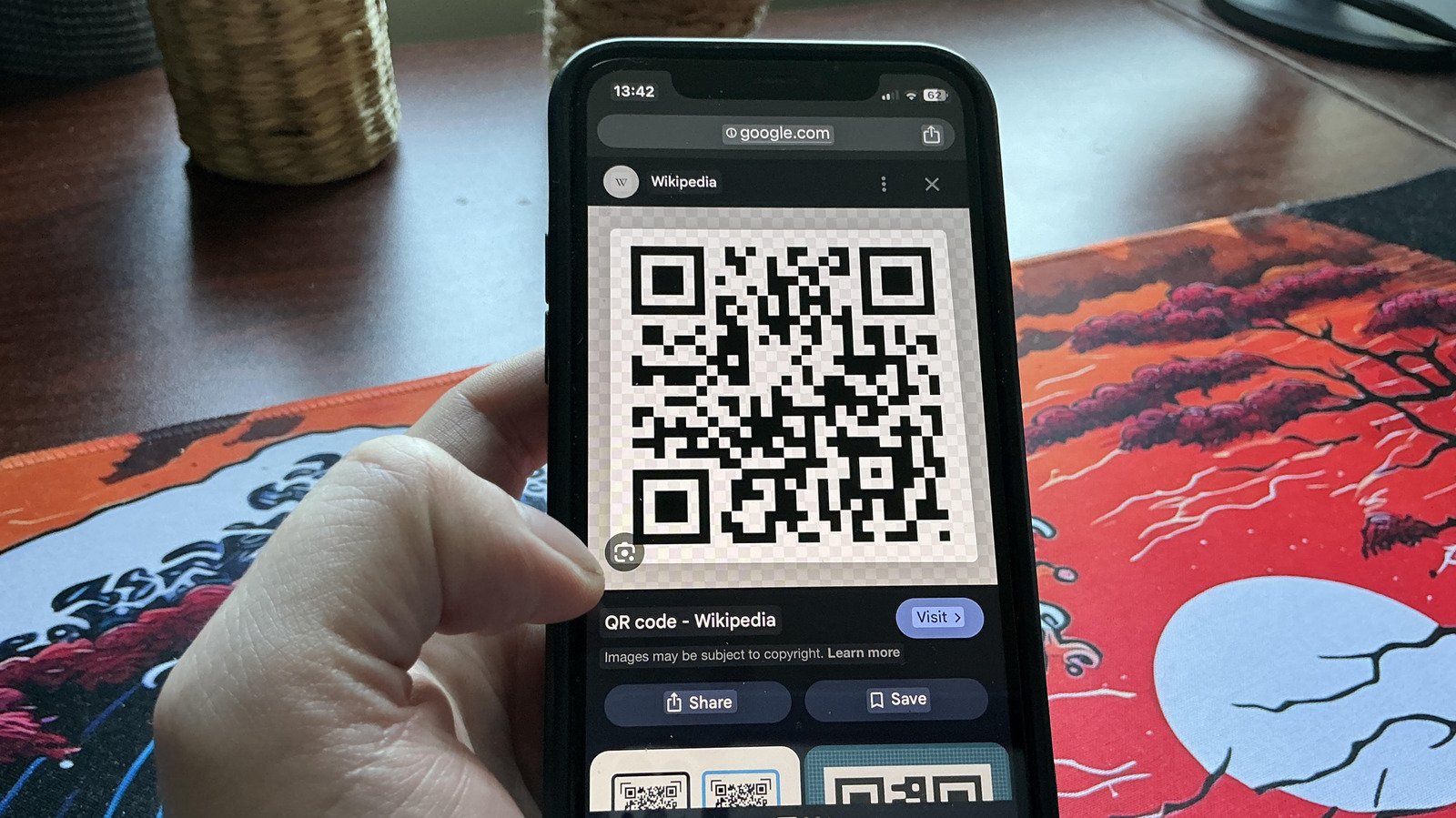
Many people think they need a special app or camera to scan QR codes. However, both iOS and Android phones have built-in tools that make this simple. The best part? You can scan QR codes that are already saved on your device, no physical camera needed. This feature can save you time and effort, especially when you come across QR codes in messages or on websites. All you need is a screenshot of the code. Once you have the image, you can quickly access and scan it directly from your phone’s gallery. This process works smoothly whether you use an iPhone or an Android device.
Step-by-Step Guide to Scan Saved QR Codes
The process begins with capturing a screenshot of the QR code. For iPhone users, hold the wake button and volume up button at the same time. On Android, press the power and volume down buttons together. After taking the screenshot, head to your gallery. On iPhone, tap the image, and you will see a small blue badge with three lines above the trash icon. Tap this badge, and the device will recognize the QR code. You will then be prompted to open it in your browser. On Android, click the Lens icon within the gallery. Then, Google Lens will analyze the code and present a link or information based on the QR code’s content. It’s that simple — no need to find a physical code again.
Additional Tools for QR Code Scanning
Android users with certain devices can also use a feature called Circle to Search. This tool lets you scan QR codes just by circling them with your finger. If your phone supports this, enable it in Settings under “Circle to Search.” To use it, hold down the home button until a Google Search bar appears. Simply circle the QR code on the screen, and your phone will scan it for you. For both Android and iPhone users, Google Lens is another helpful option. On Android, open it from the Google app or Google Search bar, then select the saved QR code image. Google Lens will analyze the code and show you the link or information behind it. These options show just how versatile and user-friendly QR code scanning has become, turning a normally camera-dependent task into a matter of seconds. Always exercise caution, though, and only scan codes from trusted sources to keep your device safe.
Stay Ahead with the Latest Tech Trends
Dive deeper into the world of Cryptocurrency and its impact on global finance.
Access comprehensive resources on technology by visiting Wikipedia.
CellphonesV1
