

Summary Points
- Users can personalize their CarPlay experience by adding custom greetings or sounds triggered automatically when their iPhone connects, enhancing morning routines.
- Setting up involves creating a CarPlay automation in the Shortcuts app that plays a short audio clip from a saved file, with simple steps to select and assign the sound.
- Custom automations can be easily edited or disabled, allowing users to rotate sounds or modify actions like launching apps or routines post-connection.
- Beyond sounds, users can further enhance CarPlay with automations to open navigation, start playlists, or display reminders, making each drive more personalized and efficient.
Personalize Your Morning with a Custom CarPlay Greeting
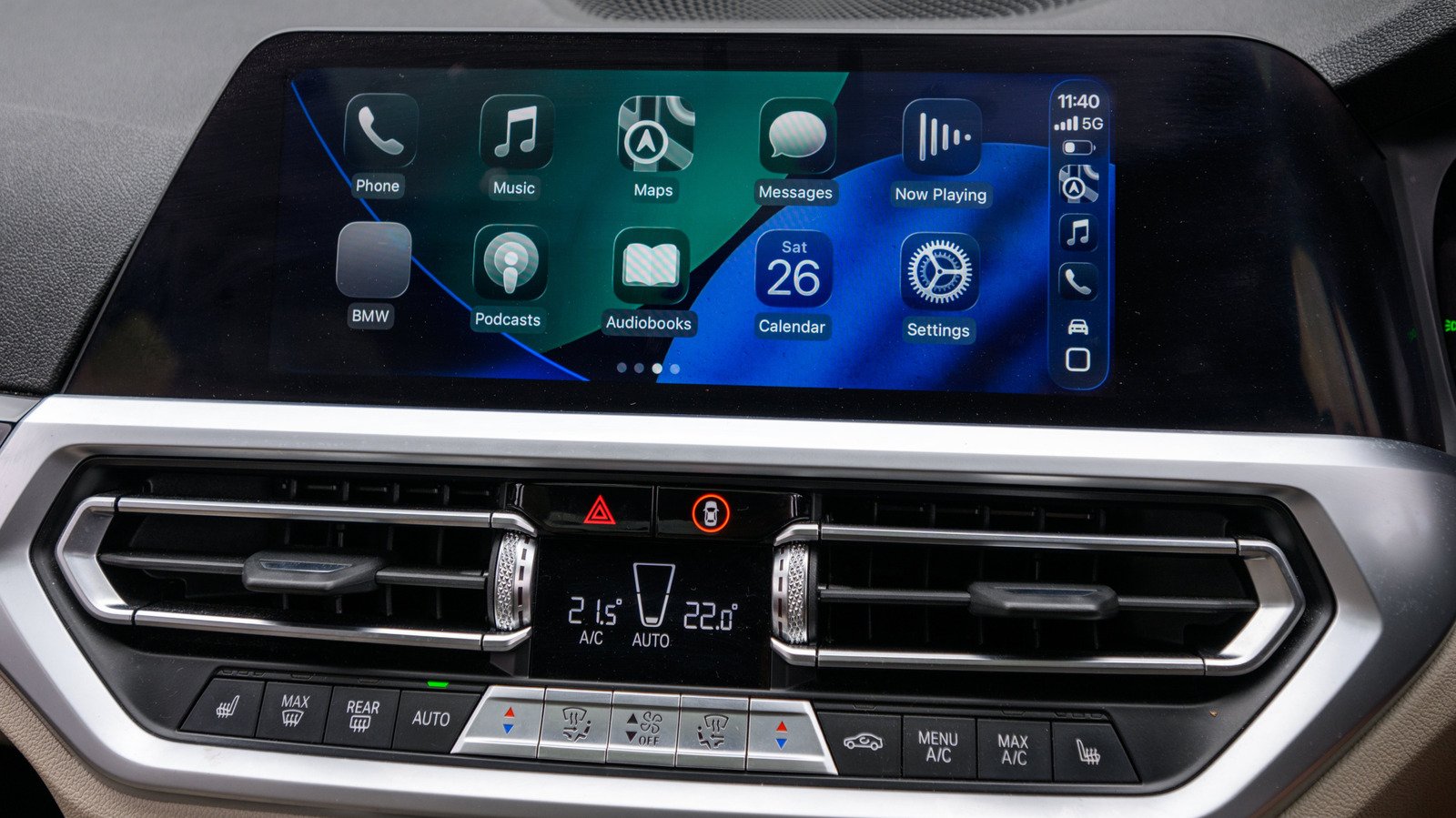
Adding an intro to Apple CarPlay can make your daily drive more enjoyable. Using the Shortcuts app, you can create a fun greeting or sound to welcome you when you connect your iPhone. This simple trick turns your routine into a personal experience. For example, you might set Siri to say, “Good morning!” or play a familiar theme song. It’s a small touch that can brighten your day without any complicated setup. Keep in mind, this feature does not replace your vehicle’s main startup sounds. Instead, it adds a quick, personalized audio that plays through your car’s speakers when you connect your phone. The best part? It’s easy to do and well worth experimenting with to see what makes your mornings better.
Step-by-Step: Set Up Your CarPlay Automation
Getting started is straightforward. First, find and save your favorite sound or clip in the Files app on your iPhone. Make a folder with a name you’ll recognize and add your audio file there. Next, open the Shortcuts app and tap the “Automation” icon at the bottom. If you haven’t made automations before, tap “Create Personal Automation” or the plus (+) sign. Select “CarPlay” from the list, then choose “Is Connected,” and tap “Next.”
Now, create a new shortcut by tapping “Add Action.” Navigate to “Files” and select “File.” Tap the blue file button to browse your folders, find your saved sound, and select it. Confirm by tapping the checkmark. Before testing, ensure your iPhone is connected to CarPlay. When everything is set, connect your phone and listen for your custom greeting. Adjust the volume if needed after testing. Remember, the process may vary slightly depending on your iPhone model or iOS version, but the core steps remain consistent.
Refining Your CarPlay Experience and Expanding Features
Once your greeting works perfectly, you can make changes anytime. Revisit the Shortcuts app, select your automation, and swap out the sound or modify actions. For example, you can change “Run Immediately” to “Don’t Run” to pause the greeting temporarily, keeping your setup fresh and flexible.
Beyond sounds, your CarPlay automation can do much more. After the greeting, you might program it to open your favorite navigation app, start your playlist, or display reminders for your morning routine. When you leave the car, automations can pause media or launch walking directions. This customization turns your commute into a seamless, personalized experience. Whether you want a simple greeting or a fully automated morning routine, Shortcuts offers endless possibilities to make every trip more enjoyable and efficient.
Expand Your Tech Knowledge
Stay informed on the revolutionary breakthroughs in Quantum Computing research.
Discover archived knowledge and digital history on the Internet Archive.
CellphonesV1
