

Top Highlights
- The iOS Voice Memos app, built into iPhones, offers easy audio recording with features like transcription and editing, requiring no extra downloads.
- Hidden tools such as pause, rewind, trim, and multi-track recording (on iPhone 16 Pro and newer) enhance recording flexibility.
- Users can customize recording modes (Mono, Stereo, Spatial) and improve audio quality with options like noise reduction and studio sound effects.
- Memos can be organized, shared, and synced via iCloud, with advanced options like transcripts and location-based naming to streamline management.
Easy Steps to Record Audio on Your iPhone
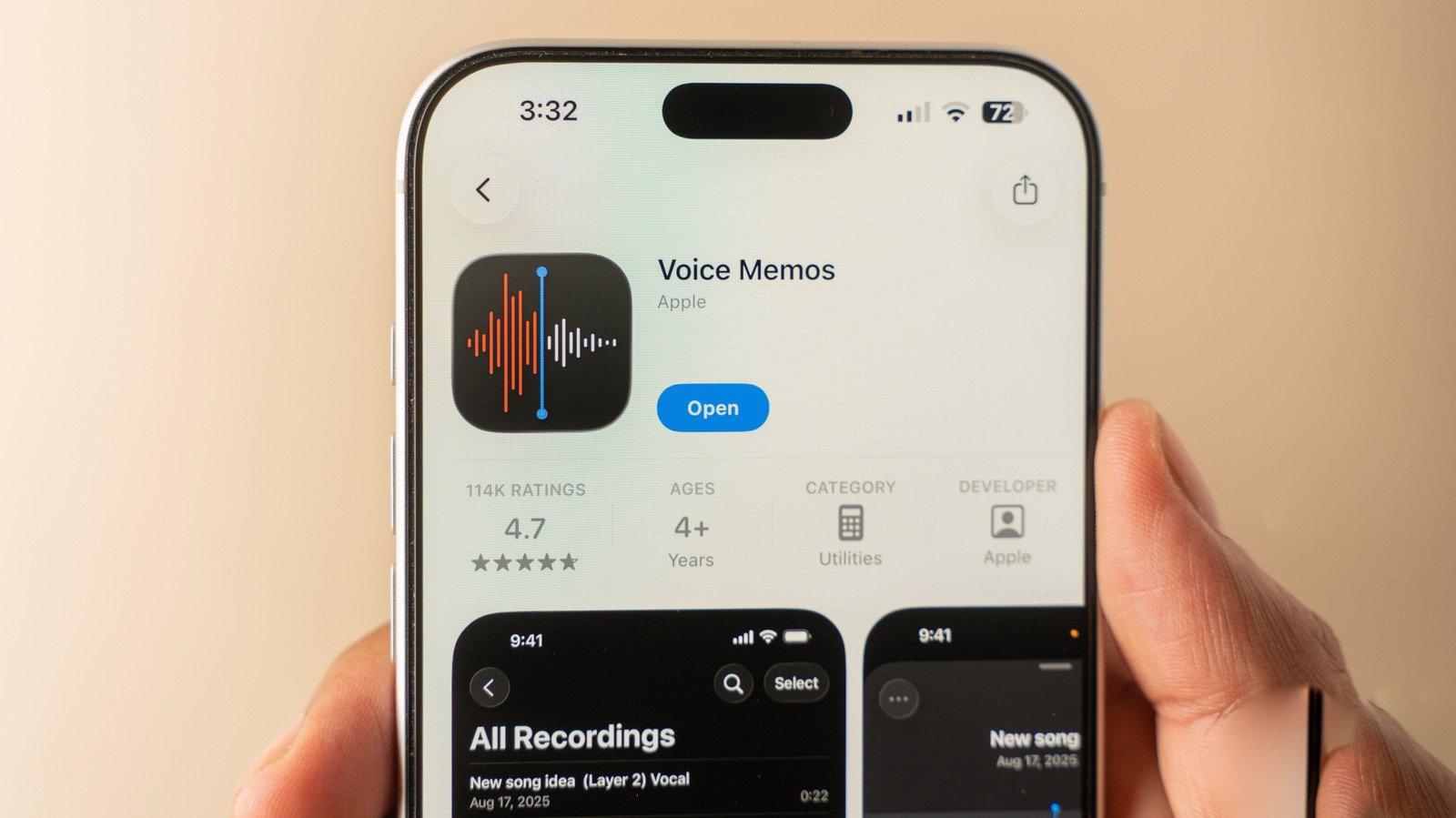
If you want to capture clear audio, your iPhone has a built-in solution. The Voice Memos app is ready to use without downloading anything extra. To start, find the app on your Home Screen. It’s a simple black icon with sound waves. If you don’t see it, just swipe down and use Search to locate it fast. Once open, recording begins with a single tap. Press the red button, speak into your phone, and tap again when you’re done. That’s all it takes for a basic recording.
But iPhone users may wonder: what if I want more control? Well, the Voice Memos app offers hidden features and options. For example, swipe up from the recording card. This reveals a full-screen interface with pause, rewind, and replace options. Rewinding lets you revise parts of your recording, which is perfect if you missed a word or want to remove background noise. For those with an iPhone 16 Pro or newer, multitrack recording is also possible, adding more flexibility to your audio projects.
Before making your recordings, check the Settings. Under Settings > Apps > Voice Memos, you can choose the recording quality. Options include mono, stereo, and spatial — which creates a 3D sound experience. For most users, stereo or spatial enhances sound depth. These tweaks improve your recordings’ overall quality and usability. When done, you can save your memo, name it after your location (if enabled), or edit the title to keep things organized.
Enhancing and Managing Your Voice Memos
Once you’ve recorded your audio, managing it becomes important. The Voice Memos app makes listening easy. Recorded clips appear in order, with latest ones on top. Tap any memo to hear it playback. The app also offers handy tools for editing. Tapping the three-dot menu opens options like sharing, renaming, or adding the memo to favorites. You can even copy the transcript of what was said, then paste it into notes or messages. This feature is very useful for quickly extracting information without re-listening.
Additionally, a full transcript can emerge in real-time as you listen. Tap any word to jump directly to that part of the audio. This makes reviewing recordings simple and efficient. If you want to tweak the playback, the sliders at the bottom right allow speed adjustments — faster or slower. Certain features like “Skip Silence” can help remove pauses or background noise during playback, making the audio clearer. For spatial recordings, Apple offers “Studio Sound,” which enhances voice clarity and creates a more professional feel.
Remember, you have plenty of options for editing. Use the trim tool to cut unwanted sections. Play with sound settings to enhance your audio quality. After adjusting, tap the blue button to save the changes. Your recordings are then stored on your phone and, if enabled, synced across all your Apple devices via iCloud. This seamless syncing keeps your memos accessible wherever you go.
Listening, Sharing, and Organizing Your Recordings
Listening to and managing your voice memos is straightforward. The app sorts your recordings by when you made them, with the newest at the top. Tap a memo to listen. You can also share it with friends or colleagues through email, messaging apps, or social media. Renaming your recordings helps keep track of different projects or conversations. For more organization, create folders and categorize memos, especially if you have many recordings.
Searching inside your memos saves time. The search feature can locate words within transcripts, helping you find specific parts quickly. This feature is especially useful for long recordings, such as meetings or interviews.
Since your voice memos sync across Apple devices using iCloud, it’s easy to access them from your iPad, Mac, or even iCloud.com. Just ensure the feature is enabled in your settings. This way, your important recordings stay safe and available, no matter which device you use.
iPhone’s Voice Memos app offers clear benefits. It’s simple enough for everyday use but powerful enough for more detailed recordings and edits. Whether you’re capturing a quick idea or conducting an interview, your iPhone provides the tools you need to record and manage your audio effectively. Plus, regular updates and new features continually enhance its value, making it an indispensable part of your mobile toolkit.
Discover More Technology Insights
Stay informed on the revolutionary breakthroughs in Quantum Computing research.
Explore past and present digital transformations on the Internet Archive.
CellphonesV1
