

Fast Facts
- Front USB ports offer easy access, but they can deliver less speed and power than rear ports.
- Longer internal cables, shared connections, and older USB standards can slow front-port performance.
- Keyboards, mice, and other low-demand devices work well in front; external SSDs, capture cards, and VR headsets benefit from rear ports.
- Port speeds vary by computer, so users should check their device’s specifications before connecting demanding accessories.
Your Desktop’s Front USB Ports May Be Slowing Down Every Device You Plug Into Them
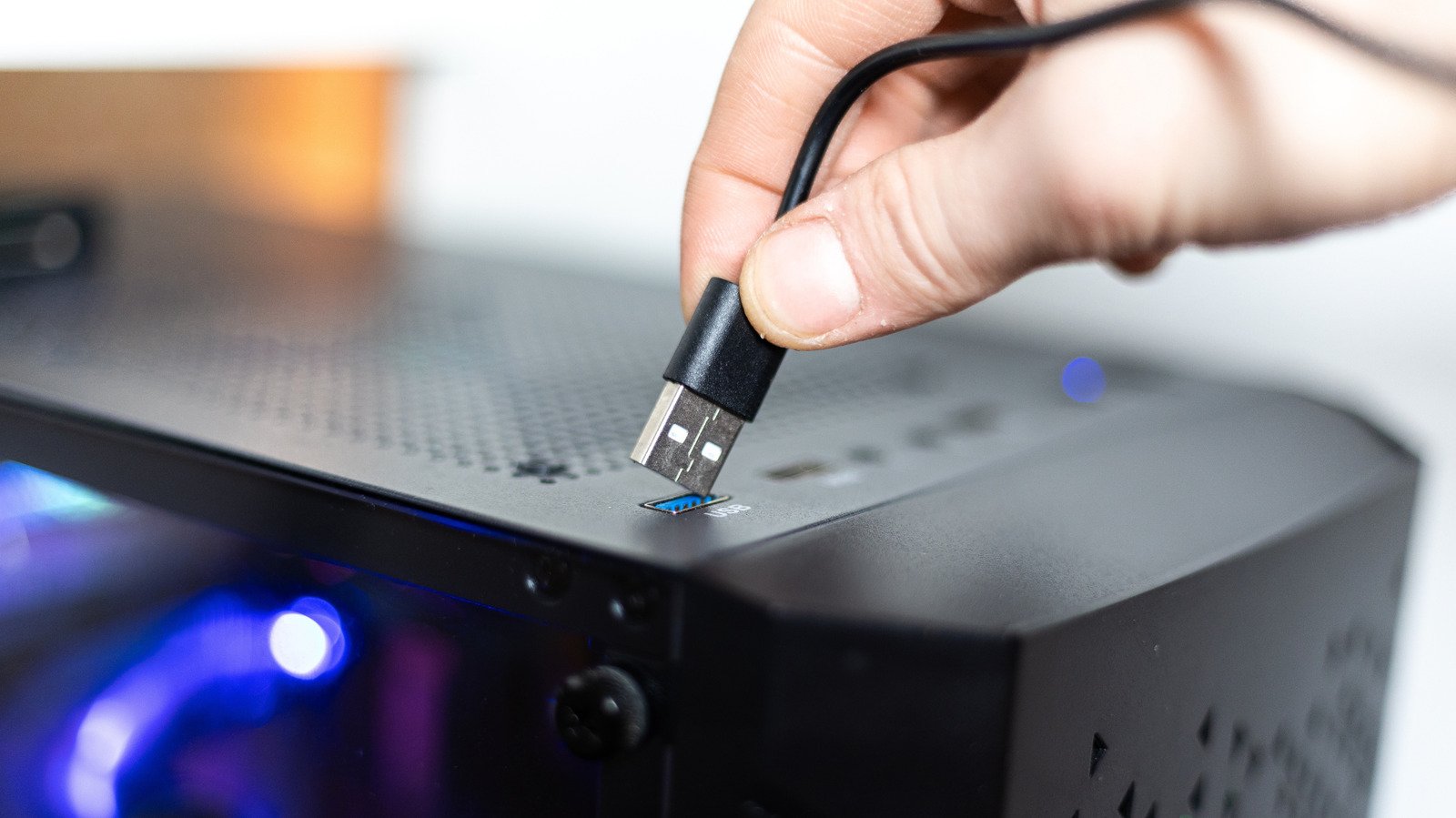
The front USB ports on a desktop can feel like a small luxury. You can plug in a phone, thumb drive or headset without reaching behind the tower. That convenience matters, especially when your computer sits under a desk.
But front ports do not always match the speed or charging power of rear ports. A phone may charge more slowly. A file transfer may crawl. In many cases, your device and computer work just fine. The difference comes down to how manufacturers build and connect each port.
Why front ports can deliver less speed and power
Rear USB ports usually connect directly to the computer’s motherboard. Front ports need a cable that runs from the case to a connector on the motherboard. That longer route can weaken the data signal slightly. More importantly, the motherboard may give front ports fewer or slower connections to share.
Port labels can add to the confusion. A desktop may offer several fast ports on its back, yet use slower standards for some ports up front. Even when front ports support high speeds, multiple ports may share one internal connection. So, two external drives plugged in at once might divide the same available bandwidth.
Think of it like a road with several lanes feeding into one narrow exit. One device may move data quickly on its own. Add another device to the same connection, and both may slow down. The exact result depends on the motherboard, the case and the devices you connect.
Charging also depends on more than the port’s location. The port’s power output, your cable and your phone’s charging limits all matter. A front port may provide enough power for a keyboard or headphones, yet charge a phone more slowly than a dedicated charger or a higher-power port.
Still, this does not mean every front port performs poorly. Some newer desktops include fast, high-power connections on the front. Manufacturers publish port specifications in the computer or motherboard manual. A quick check can tell you which ports support faster data transfers or charging.
Put everyday accessories up front, and demanding gear in back
For a mouse, keyboard or pair of headphones, a front port usually works well. These accessories need little power and move very little data. A basic flash drive should also work fine if you only move a few documents now and then.
However, choose a fast rear port for devices that move large files or need a steady connection. External solid-state drives, capture cards and virtual reality headsets can benefit from higher bandwidth. Some may perform poorly—or fail to work as expected—when you plug them into a slower port.
The difference can show up in everyday tasks. Copying a large video library to an external drive may take longer through a shared front connection. A capture card may need a faster port to handle a live video feed. Meanwhile, a keyboard plugged into that same front panel will not notice the difference.
Check the port specifications before you troubleshoot a slow device. A computer’s manual or manufacturer’s website should list each port’s speed and power support. Port colors and symbols can offer clues, but manufacturers do not follow one universal color system. When in doubt, trust the written specifications.
Convenience still counts—just choose the right connection
Front ports remain useful. They make frequent connections easy, and they keep small accessories within reach. For many people, that convenience outweighs a speed difference they may never notice.
The key is to match the port to the task. Keep low-demand accessories up front. Move large storage drives and other bandwidth-heavy devices to a faster rear port when performance matters. If your phone charges slowly, try another port and check whether your cable supports the charging speed you expect.
A desktop’s USB ports may look alike, but they can serve different roles. Once you know which ones offer the best speed and power, you can plug in with confidence—and save the fastest connections for the devices that need them most.
Continue Your Tech Journey
Stay informed on the revolutionary breakthroughs in Quantum Computing research.
Explore past and present digital transformations on the Internet Archive.
CellphonesV1
