

Top Highlights
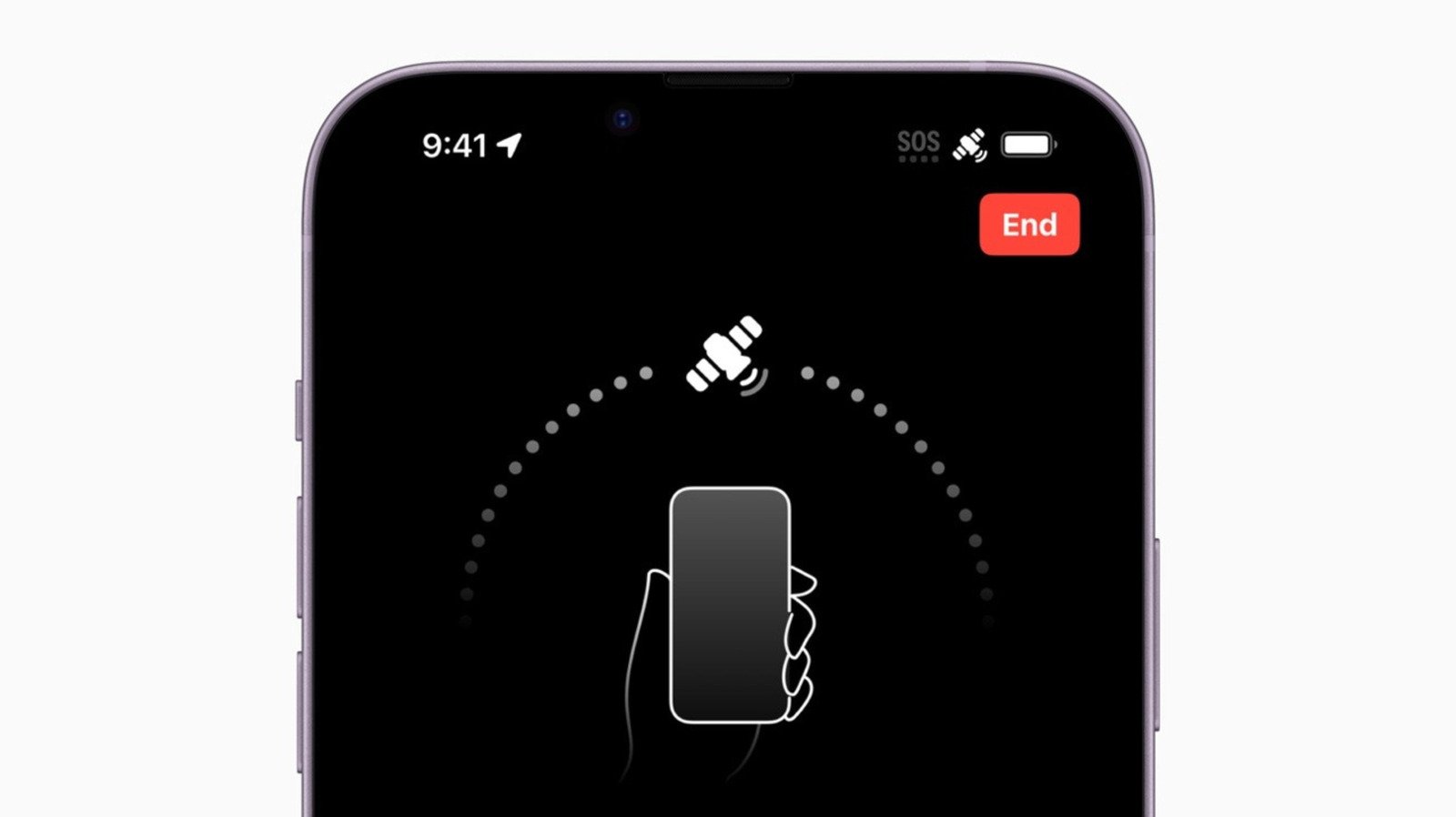
- The article explains that seeing the SOS symbol on an iPhone indicates limited cellular connectivity, but emergency services might still be reachable via available networks or Apple’s satellite network (for iPhone 14 and later).
- It provides troubleshooting steps such as toggling Airplane Mode, restarting the device, updating iOS, checking SIM cards, and verifying carrier settings to restore cellular service.
- For international travel, enabling Data Roaming and Data Switching can help maintain connectivity, but users should be aware of potential extra charges and check their provider’s international plans.
- Apple’s support tools, including diagnostic checks and guidance on using Satellite Emergency SOS, empower users to manage and optimize their device’s connectivity in various scenarios.
Understanding Your SOS Mode and Its Importance
Seeing the SOS or SOS only symbol on your iPhone can be alarming. It usually pops up when your device cannot connect to a cellular network. But don’t panic. This feature is designed for emergencies, allowing you to reach help even when it seems impossible. In particular, newer iPhone models, like the iPhone 14 and beyond, can connect to satellites. This means you can send texts or calls in areas without regular service, such as remote wilderness. These capabilities are a game-changer for travelers and outdoor enthusiasts. Apple has partnered with satellite providers in 18 countries, including the US, Canada, Australia, and several European nations. With these features, your iPhone can send your location, share medical information, or request roadside assistance during emergencies.
However, SOS mode isn’t always about safety. Sometimes, it appears because of technical issues or settings errors. If your iPhone is stuck in SOS mode, it could mean it’s not connecting to your carrier’s network properly. Recognizing these issues is the first step to fixing them. Also, understanding how these features work helps you maximize their potential. For instance, using Emergency SOS satellites requires preparation and sometimes testing your connection before traveling. By knowing both the safety benefits and troubleshooting steps, you empower yourself to stay connected and safe, no matter where you are.
Simple Fixes to Get Your iPhone Back in Service
When your phone shows SOS instead of regular signal, start with the simplest steps. First, try turning on Airplane Mode for about 15 seconds, then switch it off. This quick toggle often resets your connection to the cellular network. If that doesn’t work, the classic fix is to turn your phone off and on again. This refreshes your device’s system and can resolve minor glitches. If these quick fixes don’t solve the problem, check for software updates. Go to Settings, tap General, then Software Update. Installing the latest iOS can fix bugs that affect network connectivity.
Next, examine your SIM card. For phones with multiple SIMs, ensure the correct line is turned on. If you’re using a physical SIM, try removing and reinserting it. This can fix issues caused by loose or dirty contacts. Also, check your carrier settings. Visit Settings, then General, and tap Carrier. You can manually check for updates here. If everything appears current but you still have no service, contact your carrier. Sometimes, issues come from account problems or network outages. If you have Wi-Fi, try connecting your device to see if the problem is network-related. Running a diagnostic check through Apple Support’s app can also identify deeper issues. These straightforward steps often restore normal service quickly and efficiently.
Tips for Staying Connected While Abroad
Traveling internationally introduces additional challenges. One common issue is when your iPhone switches to SOS mode because data roaming isn’t enabled. This setting allows your device to access networks outside your home country. To activate data roaming, visit Settings > Cellular > Cellular Data Options. Turn on Data Roaming carefully, because it can lead to higher charges. Before traveling, verify your plan includes international data options to avoid surprise bills.
If you use an eSIM for global connectivity, double-check your settings. Disable unused carrier profiles and enable data switching if you need coverage from multiple plans. Turning on “Allow Cellular Data Switching” helps keep you connected, especially when traveling between networks. However, remember that international data roaming can be costly. Always confirm fees with your carrier and consider using Wi-Fi whenever possible. Planning ahead ensures that you stay connected when you need it most, whether for emergencies or just staying in touch with loved ones abroad. With the right settings, your iPhone can be a reliable safety tool no matter your destination.
Discover More Technology Insights
Learn how the Internet of Things (IoT) is transforming everyday life.
Access comprehensive resources on technology by visiting Wikipedia.
CellphonesV1
