

Essential Insights
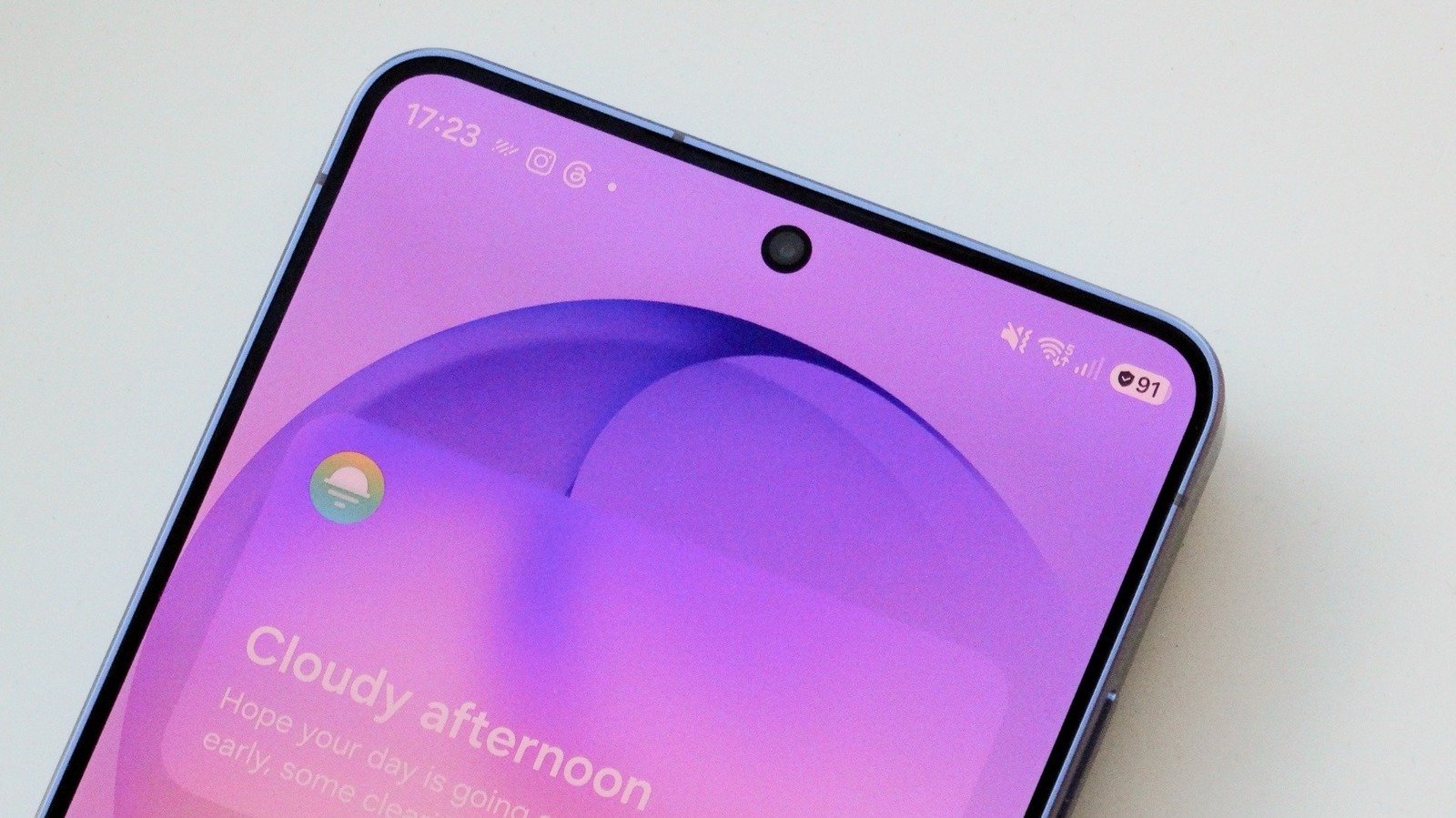
- The shield icon on Galaxy phones indicates Battery Protection, which aims to reduce battery aging by limiting charging levels, not security threats.
- When active, Battery Protection stops charging at 100% or a user-defined level, then resumes once the battery drops slightly, helping prolong battery lifespan.
- Users can toggle and customize Battery Protection settings via the Battery menu, choosing modes like Basic, Maximum, or Sleep Time Protection based on their charging habits.
- Enabling Battery Protection is recommended for routine charging, especially if devices are left plugged in long-term, to maintain battery health over years.
Understanding the Shield Icon on Your Samsung Galaxy
If you see a shield icon next to the battery symbol on your Samsung Galaxy phone, it might catch your eye. Many assume it signals a security feature, but that’s not the case here. Instead, this icon actually relates to your device’s battery health. It acts as an indicator that certain battery preservation features are active. This can seem confusing at first, especially if you’re used to security icons. However, understanding what this shield means can help you manage your phone’s longevity better. It’s here to remind you that your phone is working to protect the battery’s lifespan, not from cyber threats.
This feature is part of Samsung’s approach to extend the life of lithium-ion batteries. These batteries, like the ones in most smartphones, degrade over time. When they stay at full charge for too long or are constantly recharged, their capacity diminishes faster. The shield icon shows that your Galaxy phone is taking steps to prevent this kind of wear. Essentially, it’s a helpful visual cue that your device is actively caring for your battery.
Recognizing this symbol helps you make smarter decisions about charging habits. Instead of worrying about security, you know that your phone is working quietly behind the scenes to keep your battery healthy. Knowing what the shield icon means allows you to use your device more wisely, whether you’re on a quick charge break or planning long-term use of your phone.
How Samsung’s Battery Protection Works
Once you see the shield icon, it means Battery Protection is turned on. This feature limits how much your phone charges once it hits 100 percent. The goal is simple: prevent the battery from staying at a high charge level for too long. Lithium-ion batteries stress more when they stay fully charged, which causes faster aging. So, by stopping the charge at 80 or 95 percent, your Galaxy reduces this stress.
When Battery Protection is active, your device automatically stops charging once it hits your chosen limit. For instance, if you set it to 95 percent, the phone will pause charging at that level. As your battery drops down below that threshold, it resumes charging. This cycle helps keep the battery healthier over time. Different modes offer varying levels of protection. The basic mode stops charges at full capacity, while the maximum mode allows you to set a custom limit, such as 80 or 90 percent. There’s also a clever Sleep Time Protection, which learns your habits and stops charging overnight at 80 percent. It then resumes charging shortly before you wake up.
These features are especially useful if you often keep your phone plugged in. For example, leaving your phone on a desk charger all day or overnight can damage the battery. Using these protection modes means your device manages charging intelligently. This results in a longer-lasting battery that performs well for longer periods. Keep in mind, though, that protecting the battery may slightly reduce how long it lasts on a single charge. But the trade-off often pays off with extended battery lifespan in the long run.
Adjusting Settings and Making Use of Battery Protection
Changing your Battery Protection settings is straightforward. You just need to go to the Settings app on your Galaxy device, then tap on Battery. From there, find Battery Protection and toggle it on or off. Once enabled, you’ll see options to choose between Basic and Maximum modes. Basic is recommended for most users—it keeps the charge at 100 percent but stops it from overcharging. Maximum gives you more control, letting you set a charging cap from 80 up to 95 percent, depending on your preference.
Additionally, Samsung offers Sleep Time Protection. This mode learns your daily charging routine and stops charging at 80 percent overnight. It automatically resumes charging just before you wake up, ensuring you start your day with a full battery. This feature is especially useful if you tend to charge your phone overnight. It protects the battery without sacrificing everyday convenience.
Deciding whether to use Battery Protection depends on your habits. If you frequently keep your phone plugged in, enabling it makes good sense. It helps maintain your battery health over several years. On the other hand, if you rely on frequent recharging during busy days or trips, you might prefer to turn it off for maximum battery capacity when needed. The best part is, you can switch these settings around whenever you like. Adjusting your charging habits and settings can ultimately help preserve your device’s battery for years of reliable use.
Discover More Technology Insights
Learn how the Internet of Things (IoT) is transforming everyday life.
Access comprehensive resources on technology by visiting Wikipedia.
CellphonesV1
