

Top Highlights
-
Utilize Your Personal Hotspot: Your phone’s hotspot can provide internet access when home Wi-Fi is down or unavailable, by sharing your cellular data with other devices.
-
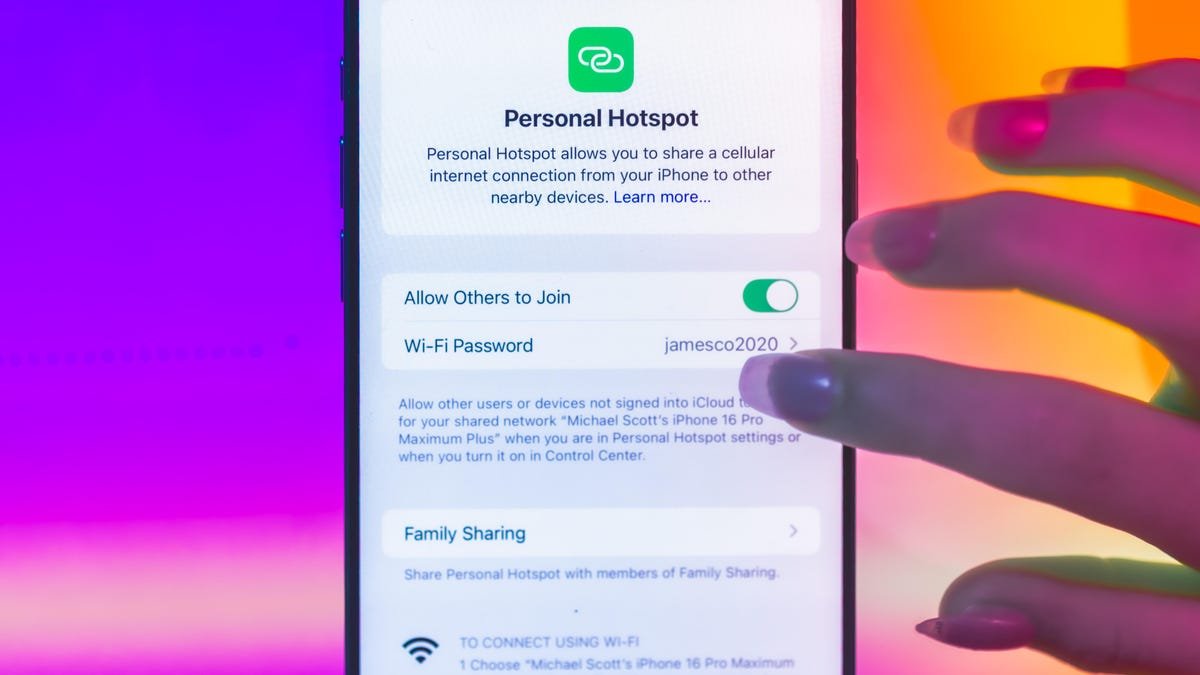
Troubleshooting Steps for iPhone: Ensure the hotspot is enabled in Settings, restart both devices, update iOS, reset network settings, and check the Wi-Fi password if connection issues occur.
-
Troubleshooting Steps for Android: Confirm hotspot settings are correct, restart the device, reset network settings if needed, and boot into safe mode to troubleshoot potential app conflicts.
- Carrier Support: If problems persist, contact your carrier to check for network issues, especially if considering using a personal hotspot as a primary internet source.
iPhone Hotspot Troubleshooting
Your iPhone’s personal hotspot can be a lifesaver during internet outages. If it stops working, start by checking if the hotspot is enabled. Go to Settings, then tap on Personal Hotspot. If you can’t find the option, contact your carrier to confirm that your plan includes this feature.
Next, restart both your iPhone and the device you want to connect. Updating to the latest version of iOS often resolves issues, too. Consider resetting your network settings. Navigate to Settings, tap General, and select Transfer or Reset iPhone. From there, tap Reset and choose Reset Network Settings. Be aware that this will erase all previously stored Wi-Fi networks and passwords. If you connect via Wi-Fi, ensure “Allow Others to Join” is enabled. For recent iPhones, toggle the “Maximize Compatibility” switch. This option enables a slower connection that broadens compatibility with other devices.
Android Hotspot Solutions
For Android users, begin by confirming that the hotspot is enabled. Go to Settings, then Network & Internet, and check the Hotspot & Tethering section. Toggle on Mobile Hotspot or Tethering. Ensure your security settings, password, and network name are correct.
Rebooting your device can solve many issues. If problems persist, reset your network settings by going to System, tapping Reset, and selecting Reset Wi-Fi, mobile & Bluetooth. Keep in mind that this will erase your Bluetooth and Wi-Fi settings.
Alternatively, booting your phone into safe mode can identify if a third-party app is causing the issue. If these steps do not work, check for data connectivity issues in your area. Contact your carrier for assistance if necessary. Using a personal hotspot can be convenient, but it may not fully replace home Wi-Fi for all needs.
Stay Ahead with the Latest Tech Trends
Dive deeper into the world of Space and its vast mysteries.
Learn more about cutting-edge innovations supported by the National Science Foundation (NSF).
IoTV1
