
Close Menu
    Facebook X (Twitter) Instagram
    Sunday, June 14
    Top Stories:
    • Huawei’s ‘Chip Queen’ Returns: Leading Innovation Amid Scaling Law
    • Playing an instrument in your 70s boosts memory and keeps minds sharp
    • Sleep Soundly: The Under-Pillow Solution!
    Facebook X (Twitter) Instagram Pinterest Vimeo
    IO Tribune
    • Home
    • AI
    • Tech
      • Gadgets
      • Fashion Tech
    • Crypto
    • Smart Cities
      • IOT
    • Science
      • Space
      • Quantum
    • OPED
    IO Tribune
    Home » Capture Perfect Photos with AirPods and iPhone
    Gadgets

    Capture Perfect Photos with AirPods and iPhone

    Lina Johnson MercilliBy Lina Johnson MercilliJune 13, 2026No Comments3 Mins Read
    Share Facebook Twitter Pinterest LinkedIn Tumblr Reddit Telegram Email
    Share
    Facebook Twitter LinkedIn Pinterest Email

    Top Highlights

    Key Points:

    1. Apple added Camera Remote to iOS 26, allowing AirPods to act as a wireless shutter for iPhone cameras.
    2. This feature requires compatible AirPods models—older versions like the original Pro do not support it.
    3. Users can enable Camera Remote through Settings, selecting either “Press Once” or “Press and Hold.”
    4. To control the camera, at least one AirPod must be in the ear; controls are disabled if AirPods are not worn.

    Highlights:

    1. AirPods (excluding older models) can now operate as a remote shutter for iPhone photos and videos.
    2. Enabling the feature involves simple settings adjustments, allowing quick, hands-free camera control.
    3. AirPods must be worn for the camera controls to function, emphasizing their role as a remote trigger.
    4. Activating Camera Remote disables some other AirPods features like Siri and media controls while in use.

    Getting Started: What You Need to Use AirPods as a Camera Control

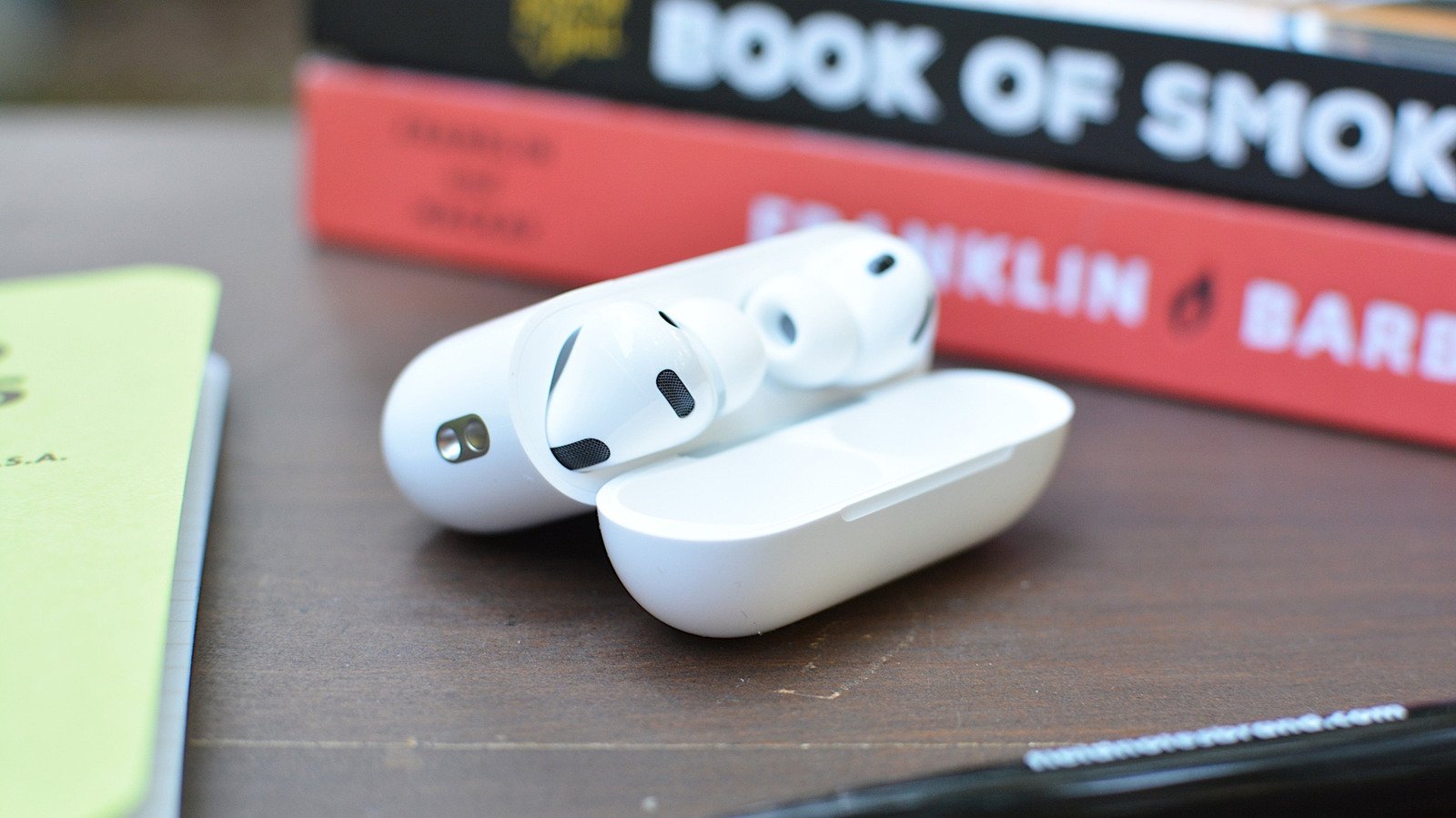
    Using your AirPods to control your iPhone camera is a handy feature introduced with iOS 26. However, not all AirPods support this. You need the latest models, such as AirPods Pro (second generation) or AirPods Max, to take advantage of Camera Remote. Older models, like the first AirPods or previous Pro releases, won’t work with this feature. First, ensure your iPhone is running the latest iOS version. Then, pair your AirPods with your device if you haven’t already. This simple step is crucial because the functionality only works when your AirPods are connected. Once paired, you’re ready to set up Camera Remote for easy, wireless photo capturing.

    How to Enable Camera Remote on Your iPhone

    Enabling Camera Remote is straightforward. Start by opening the Settings app on your iPhone. Tap the name of your AirPods to access their settings. If they don’t appear, open their case to ensure they’re connected. Next, scroll down to find the Camera Control section. Here, you’ll see the Camera Remote option. Tap on it and choose either “Press Once” or “Press and Hold,” depending on your preference. When enabled, this allows you to control the camera by simply pressing the stem of your AirPods or the Digital Crown on AirPods Max. Remember, at least one AirPod must be in your ear for these controls to work. Also, keep in mind, activating this feature restricts some functions, like waking Siri or switching listening modes, while the Camera app is open.

    Using Your AirPods to Take Photos and Record Videos

    With Camera Remote enabled, it’s time to start capturing moments. Open the Camera app on your iPhone before pressing on your AirPods. For example, if you want to take a selfie, position your phone, and then tap the stem or crown of your AirPods. A single press will take a photo, while holding down can start or stop recording a video. This feature is especially useful when your iPhone is on a surface, and you want to avoid reaching for the screen or setting a timer. Also, remember that your AirPods need to be in your ears to operate. Without this, you won’t be able to control the camera remotely. This method offers a convenient, hands-free way to capture shots, making it ideal for selfies, group photos, or filming yourself. Overall, this enhancement emphasizes Apple’s focus on seamless wireless control and ease of use for iPhone users.

    Expand Your Tech Knowledge

    Learn how the Internet of Things (IoT) is transforming everyday life.

    Explore past and present digital transformations on the Internet Archive.

    CellphonesV1

    android apple cell google iOS mobile VT1
    Share. Facebook Twitter Pinterest LinkedIn Tumblr Email
    Previous ArticleUnlocking Potential: Your Brain Can Thrive Into Your 90s!
    Next Article Sleep Soundly: The Under-Pillow Solution!
    Avatar photo
    Lina Johnson Mercilli
    • Website

    Lina Johnson Marcelli is the editor for IO Tribune, bringing over two decades of experience in journalism to her role. With a BA in Journalism, she is passionate about delivering impactful stories that resonate with readers. Known for her keen editorial vision and leadership, Lina is dedicated to fostering innovative storytelling across the publication. Outside of work, she enjoys exploring new media trends and mentoring aspiring journalists.

    Related Posts

    Gadgets

    Google TV’s Sports Page Becomes World Cup Hub

    June 14, 2026
    Science

    Unveiling the Largest Whale Necropolis Ever Discovered

    June 13, 2026
    AI

    Local PDF Parsing with Docling: Rich Tables, No Cloud

    June 13, 2026
    Add A Comment

    Comments are closed.

    Must Read

    Google TV’s Sports Page Becomes World Cup Hub

    June 14, 2026

    Unveiling the Largest Whale Necropolis Ever Discovered

    June 13, 2026

    Local PDF Parsing with Docling: Rich Tables, No Cloud

    June 13, 2026

    Huawei’s ‘Chip Queen’ Returns: Leading Innovation Amid Scaling Law

    June 13, 2026

    Playing an instrument in your 70s boosts memory and keeps minds sharp

    June 13, 2026
    Categories
    • AI
    • Crypto
    • Fashion Tech
    • Gadgets
    • IOT
    • OPED
    • Quantum
    • Science
    • Smart Cities
    • Space
    • Tech
    • Technology
    Most Popular

    Elevate Your Travels: Why the X-E5 is Worth the Investment

    July 27, 2025

    How This Hidden Chrome Feature Revolutionized My Web Experience

    April 6, 2025

    Waymo Launches Passenger Rides in Ojai’s New Robotaxi!

    May 28, 2026
    Our Picks

    Revolutionizing Energy: Massive Data Center Runs on Used EV Batteries

    June 27, 2025

    Ethereum Surges: Analysts See $3,400 Ahead!

    June 12, 2025

    Beyond the Stars: The Artemis II Crew’s Cutting-Edge Suits

    March 28, 2026
    Categories
    • AI
    • Crypto
    • Fashion Tech
    • Gadgets
    • IOT
    • OPED
    • Quantum
    • Science
    • Smart Cities
    • Space
    • Tech
    • Technology
    • Privacy Policy
    • Disclaimer
    • Terms and Conditions
    • About Us
    • Contact us
    Copyright © 2025 Iotribune.comAll Rights Reserved.

    Type above and press Enter to search. Press Esc to cancel.