

Essential Insights
- Google Play Protect, launched in 2017, actively detects and warns about malicious apps, blocking risky sideloading attempts and scanning for malware to protect user data.
- Disabling Play Protect removes these safeguards, increasing vulnerability to malware, malicious app installations, and potential data theft.
- Certain accounts, like workplace-managed or enrolled in Google’s Advanced Protection Program, restrict disabling this security feature.
- Turning off Play Protect involves simple steps via the Google Play Store, but users should weigh the security risks before disabling it.
Understanding the Purpose of Google Play Protect
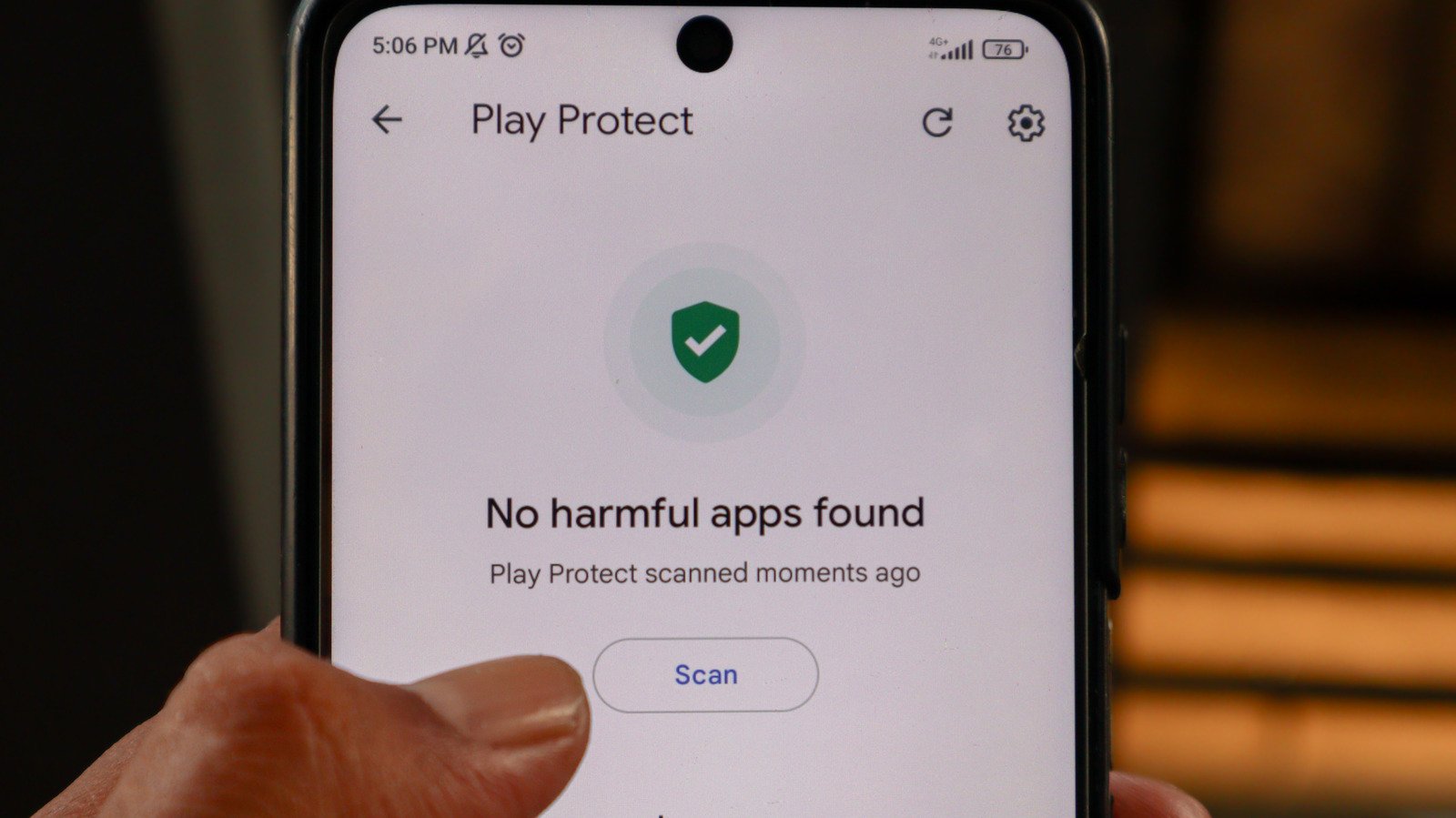
Google Play Protect has been a part of Android devices since 2017. Its main role is simple: protect your device from malicious apps. It works quietly behind the scenes, scanning apps from the Play Store and even those sideloaded from other sources. Every year, Play Protect detects millions of harmful apps — over 27 million in 2025 alone. It issues alerts, blocks risky apps, or even removes them if necessary. Its goal is to keep your personal information safe and prevent malware from harming your device.
This built-in security isn’t just about blocking known threats. Play Protect also warns you about apps asking for too many permissions or pretending to be something they’re not. For people who sideload apps—installing apps from outside the official store—Play Protect acts as a safeguard. It warns about dangerous files and prevents some installations, reducing the risk of malware infections. Overall, it makes Android devices more secure with little effort from users.
The Benefits and Drawbacks of Disabling Play Protect
Disabling Google Play Protect offers some immediate benefits. For example, it gives you full freedom to install any app you want, even if it’s not from the Play Store. For users who enjoy experimenting with new apps or custom software, this can feel liberating. It also removes warnings that might interrupt your workflow if you frequently sideload files.
However, the risks are significant. Without Play Protect, your device no longer has regular scans for malicious apps. This increases your chances of accidentally installing harmful software. Such malware can steal your personal details, drain your battery, or cause your device to malfunction. Additionally, Google may still remove risky sideloaded apps it deems dangerous, even if you’ve turned off Play Protect. Before disabling this feature, weigh how much you value control versus your device’s security.
How to Disable Play Protect Safely and What to Keep in Mind
If you decide that disabling Play Protect is right for you, the process is straightforward. First, open the Google Play Store. Tap your profile icon at the top right corner and select “Play Protect.” Click on the Settings gear icon and toggle off “Scan apps with Play Protect.” You’ll also have the option to disable the “Improve harmful app detection” feature, which sends outside app scans to Google.
Remember, certain accounts or programs restrict this ability. For example, if your device is managed by your school or workplace, they might prevent you from turning off security features. Enrolling in Google’s Advanced Protection Program also blocks this option completely to keep high-risk users safe. If you’re enrolled in either, you’ll need to unenroll first through your Google account settings.
Once you turn off Play Protect, stay vigilant. Consider installing a trusted third-party antivirus app. Keep your device’s software up to date. And always think carefully before sideloading or installing apps from unknown sources. Ultimately, balancing control and security depends on how comfortable you are with the risks involved.
Expand Your Tech Knowledge
Explore the future of technology with our detailed insights on Artificial Intelligence.
Access comprehensive resources on technology by visiting Wikipedia.
CellphonesV1
