

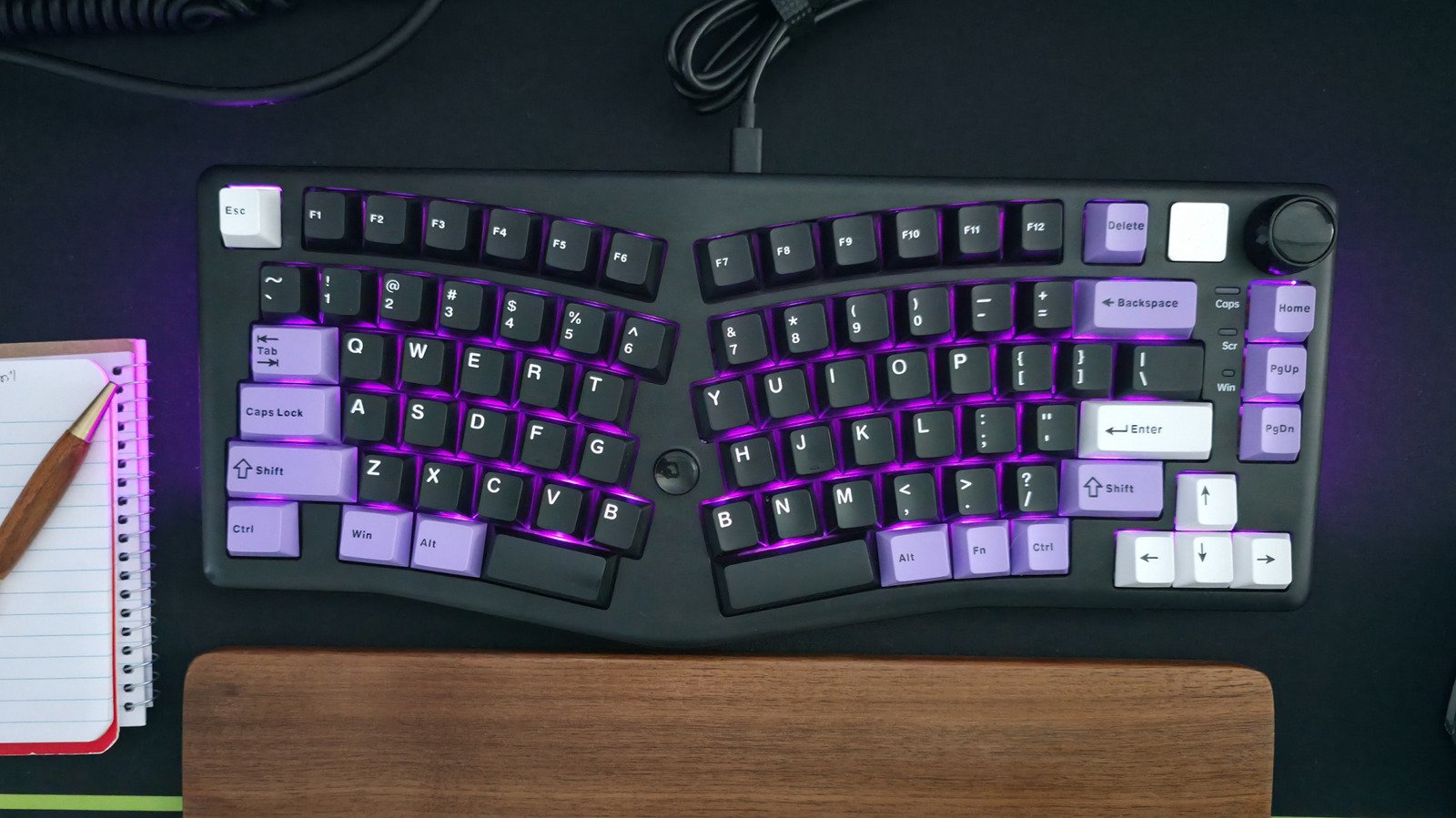
Top Highlights
- USB ports vary in power and data capabilities; choose wisely for devices.
- For mouse and keyboard, use USB 2.0 ports to conserve faster ports.
- Reserve high-speed USB ports for demanding devices like SSDs and monitors.
- If using a USB hub, plug peripherals into the hub’s slowest ports.
### Understanding USB Port Types
Setting up a computer often feels straightforward, but the choice of USB ports can complicate even basic tasks. When connecting your mouse and keyboard, it is crucial to understand USB standards. Many computers have multiple USB ports, but they vary in speed and power. The vast majority will feature a mix of USB 2.0, USB 3.x, and USB4 ports.
Most input devices, like a keyboard and mouse, don’t demand high bandwidth. You can easily connect them to a USB 2.0 port without affecting performance. Yet, if you plug them into a high-speed port, you might waste that valuable bandwidth. Reserve these high-powered ports for devices that truly need them, such as external SSDs, flash drives, and high-definition monitors.
### Making the Right Connections
While your keyboard and mouse can thrive on low-power ports, certain scenarios call for a different approach. If you use a USB-C hub that connects multiple devices, select a high-speed port for the hub. Always use the slowest ports in the hub for your mouse and keyboard.
If your computer has USB Type-C ports, they might deliver better speeds than Type-A. If your mouse or keyboard uses USB-C, consider connecting them via a USB-C to USB-A cable. In cases where a keyboard includes built-in USB ports, attach it to a faster port to support any peripherals. This strategy helps maintain optimal performance across all devices.
Choose wisely when plugging in your peripherals. A simple understanding of port types can enhance your overall computing experience.
Expand Your Tech Knowledge
Explore the future of technology with our detailed insights on Artificial Intelligence.
Stay inspired by the vast knowledge available on Wikipedia.
TechV1
