

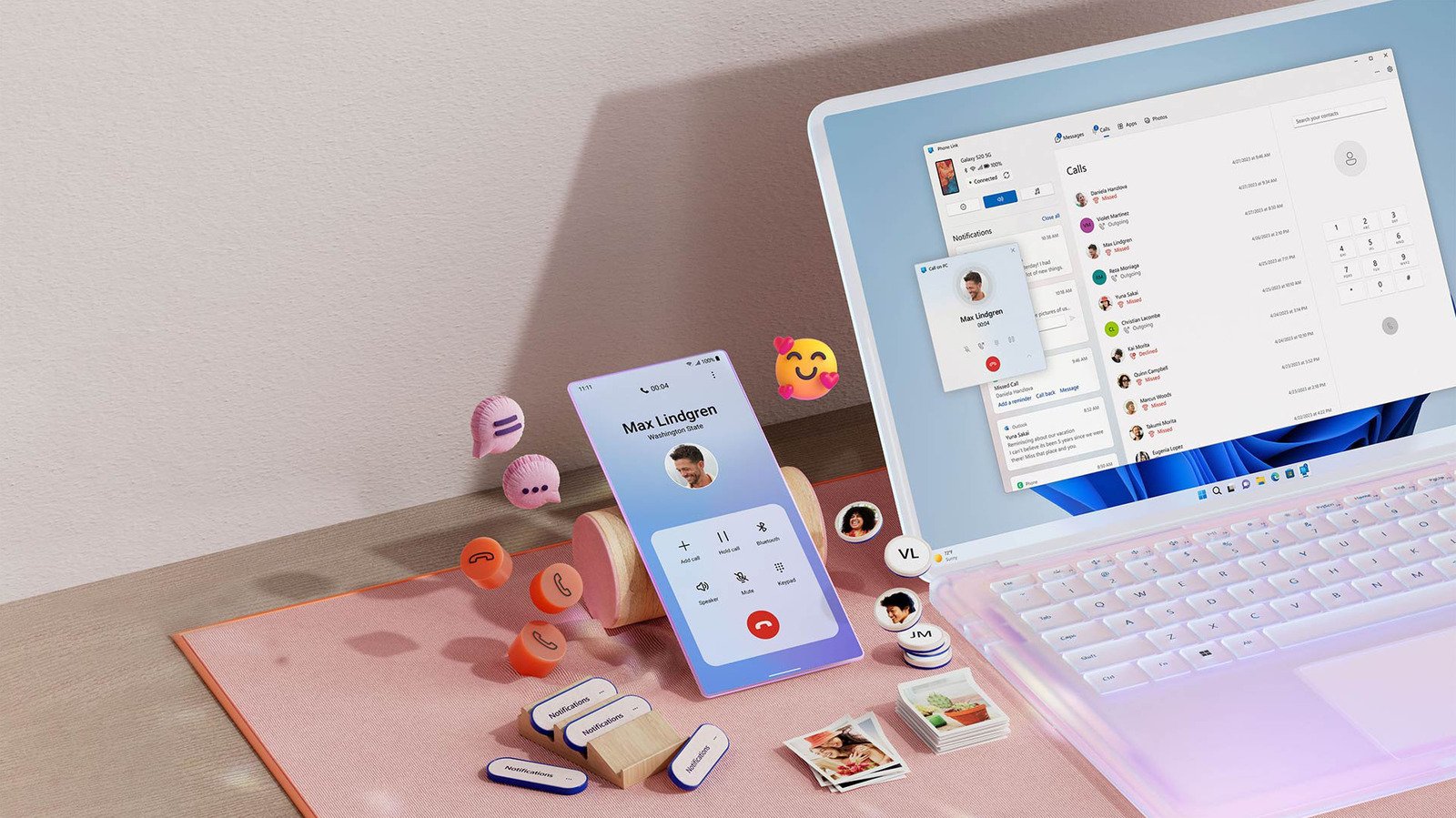
Quick Takeaways
- Phone Link lets Windows 11 users make and receive calls through their computer using their existing phone number.
- Setup requires pairing a phone with the PC; Bluetooth must be enabled for calls, and Android users may also connect over Wi-Fi or cellular.
- iPhone support covers calls, texts, and notifications, while Android adds features such as photo access, Do Not Disturb, and music controls.
- A headset can make computer calls more private and convenient; keeping the phone nearby helps maintain a reliable connection.
How to Use Your Windows PC to Make and Receive Phone Calls
A phone call can interrupt a focused workday. Yet reaching for your phone is not always the easiest option, especially when you already wear a headset and keep your hands on your keyboard. Windows 11 offers a practical alternative: Microsoft’s Phone Link app can connect your computer to your iPhone or Android phone, so you can handle calls from your desk.
The setup takes a few steps. And the experience differs depending on which phone you use. Still, if you want to call and answer people using your existing phone number, Phone Link can make your PC feel like a more useful part of your setup.
Connect your phone to Windows 11
First, check that Windows and Phone Link have the latest updates. Open the Microsoft Store, select Downloads and choose Check for updates. Update Phone Link if an update appears. If you have not updated Windows recently, check Settings > Windows Update as well.
Next, open Phone Link from the Start menu and choose your phone type. For an iPhone, the app displays a QR code. Scan it with your phone and follow the prompts. You may need to install Microsoft’s Link to Windows app on your iPhone and pair the devices through Bluetooth.
Keep Bluetooth enabled on both devices during setup. When Phone Link shows a pairing code on your PC, select Pair. Then, on your iPhone, open Settings > Bluetooth and tap the information icon beside your PC’s name. There, you can adjust options such as contact syncing.
Android setup follows a similar path. You can start in the Link to Windows app on your phone or in Phone Link on your PC. Android can connect to Windows through Wi-Fi or cellular service for some features, but Bluetooth still matters for calls. Grant the permissions you want Phone Link to use. Without them, some features may not work as expected.
Make and answer calls from your PC
Once your devices pair, open the Calls tab in Phone Link. Search your synced contacts to find someone, or use the dial pad to enter a number. Your PC then handles the call through its connected phone.
Incoming calls should appear on your computer without extra setup. Keep your phone nearby, though. A close connection can help the call run smoothly, and your phone remains central to the setup.
Audio matters, too. A headset with a microphone can make calls easier to manage and help keep conversations private in a shared room. It also means you do not have to scramble to find earbuds when a call comes in.
Phone Link can help with more than calls. It also brings texting and phone notifications to Windows. That can make it easier to stay on top of messages while you work. However, a computer notification can reveal private details to anyone looking at your screen. In Phone Link, open Settings > General to adjust how much information banners show and whether unread-item badges appear.
If you only want to make calls through an app, desktop versions of services such as WhatsApp offer another route. Google Voice can also place calls through a separate number. But for standard calls tied to your existing mobile number, Phone Link is the more direct fit.
Know what iPhone and Android users get
Phone Link gives iPhone users access to calls, texts and phone notifications. You can view or dismiss notifications from your PC. To change which features Phone Link uses, open its Settings and select Features.
Android users get several additional tools. Phone Link can show and copy up to 2,000 recent photos from the phone’s camera roll. That offers a quick way to move an image into a document without syncing an entire photo library to the computer. Android users can also turn on Do Not Disturb, mute the phone when it plays sound and control music with Now Playing controls.
Those differences matter. iPhone users still get the essentials for calling and basic phone access, but Android users receive a broader set of controls. Neither setup replaces every function on the phone. Instead, Phone Link brings selected tasks to the PC, where they may fit more naturally into a workday.
For a quick call, a synced contact or dial pad can save a few steps. For longer conversations, a headset can make the computer a comfortable place to talk. And when privacy matters, you can limit what appears in notifications. With a brief setup, your Windows PC can do more than display your work. It can help you stay connected without making you reach across the desk for your phone.
Stay Ahead with the Latest Tech Trends
Explore the future of technology with our detailed insights on Artificial Intelligence.
Stay inspired by the vast knowledge available on Wikipedia.
CellphonesV1
