

Fast Facts
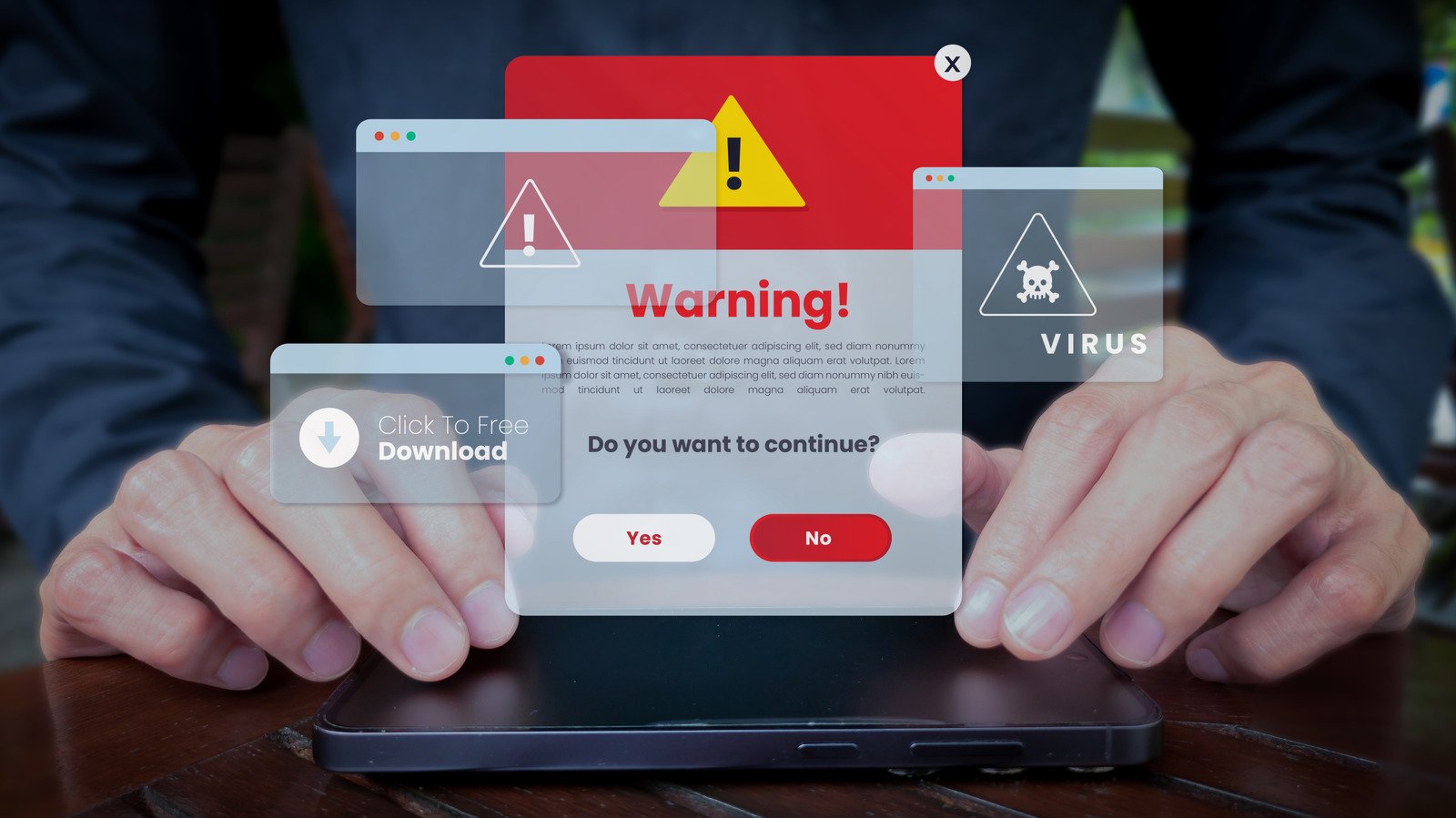
- Fake virus alerts are scareware: They create panic to push users toward malicious downloads, fake support calls, or payment scams.
- They can appear as browser pop-ups or Windows notifications, often after visiting unsafe sites or allowing suspicious websites to send alerts.
- To stop them, users should close the browser or offending tab without clicking the warning, then remove suspicious notification permissions, extensions, and apps.
- For ongoing protection, users should run regular scans with Microsoft Defender and consider a reputable on-demand scanner or browser protection tool.
How to Stop Fake Virus Pop-Ups on Your Windows PC
A loud alarm. A flashing warning. A message that claims Microsoft found a “critical threat.” It can feel like your PC has locked you out.
Take a breath. Most of these alerts come from a scam website or an unwanted browser notification—not from Windows. Scammers use fear to push people into calling fake support numbers, paying for bogus help or downloading malware. A Barracuda study says one browser-based scareware campaign, CypherLoc, reached more than 2.8 million people since the start of 2026.
The good news: You can usually shut down the pop-up without paying anyone or installing anything. Here’s how to spot the trick, regain control and reduce the chances of seeing it again.
Why a fake virus alert looks convincing
Scareware borrows the look and language of real security tools. A page may display the Microsoft, Windows Defender or McAfee name. It may show your IP address, flash bright colors or play an alarm. Some scams add a robotic voice that urges you to act now.
Those details do not prove your computer has a virus. A website can create a convincing warning and use full-screen mode to make the browser seem frozen. Some pages even hide your cursor or make it hard to close the tab.
Other alerts arrive as small notifications in the corner of your screen. A website can send them after you click Allow in your browser. Some sites disguise that request with a message such as “Click Allow to read more.” Once you grant permission, the site can send alerts through Windows’ notification center—even when you have closed the site.
A rogue ad can also redirect you to a fake warning, even on a familiar website. In other words, seeing a pop-up does not automatically mean you did something wrong. Still, do not click its links, call its phone number, pay for a cleanup or download a scanner it recommends. Those steps can turn a fake alert into a real security problem.
Close the scam and remove its access
If a full-screen warning appears, avoid clicking anywhere on the page. First, press F11 to leave full-screen mode. If the warning still blocks the browser, try its built-in task manager. In Chrome, Edge and Firefox, press Shift + Esc. Find the suspicious tab or process, then choose End task or click the X beside it.
If that shortcut does not help, close the browser through Windows Task Manager:
- Press Ctrl + Shift + Esc.
- Select Processes.
- Find your browser, right-click it and choose End task.
If Task Manager does not open, press Ctrl + Alt + Delete, then select Task Manager. When you reopen the browser, do not restore the previous session. That could reopen the scam page.
Next, clear recent browser data. In Chrome and Edge, press Ctrl + Shift + Delete and remove recent cookies and site data. This can sign you out of websites, so keep that trade-off in mind.
Then review which websites can send notifications. In Chrome, open the three-dot menu and go to Settings > Privacy and security > Site settings > Notifications. Remove or block any site you do not recognize. You can also choose Don’t allow sites to send notifications if you prefer fewer alerts. Other browsers offer similar notification controls in their settings.
Check your browser extensions, too. Select the puzzle-piece icon, then choose Manage extensions. Remove unfamiliar extensions and tools you no longer use. Restart the browser afterward.
Finally, check for unwanted apps in Windows. Press Win + I, then open Apps > Installed apps. Uninstall programs you do not recognize or did not mean to install. If you are unsure about an app, look it up before removing it.
Build safer habits without adding needless friction
Real malware often stays quiet. It may not flash a warning or demand an urgent phone call. Regular scans offer a more reliable way to check your PC than a pop-up does.
Windows includes Microsoft Defender, which provides built-in protection and works well for most people. Keep it enabled and run scans through Windows Security. If you want a second opinion, Malwarebytes offers a free on-demand scanner. Its Browser Guard extension can also block some malicious pop-ups, trackers and intrusive ads. Extra tools can add protection, but you do not need to install a program just because a web page tells you to.
Be selective when a site asks to send notifications. A page that says you must click Allow to view ordinary content deserves skepticism. Close the request instead. Also, avoid downloads and phone numbers that appear inside unexpected security warnings.
These habits keep the balance simple: Use the protection already built into Windows, add another reputable tool only if it meets your needs, and treat urgent browser alerts as untrusted until you verify them. A real security warning should not require panic, payment or a call to a number on a pop-up.
Stay Ahead with the Latest Tech Trends
Learn how the Internet of Things (IoT) is transforming everyday life.
Explore past and present digital transformations on the Internet Archive.
CellphonesV1
